



Event Overview
The InDesign Conference 2026 is the essential how-to event for creative professionals who want to get more out of Adobe InDesign. Join us online December 1–4 for four days of practical, expert-led training designed to help you work smarter, solve frustrating problems, and become more confident in the tool you rely on.
At The InDesign Conference, you’ll explore new approaches to layout, typography, and visual design while learning the features, workflows, and techniques that make your work easier and more efficient. You’ll come away with fresh ideas and practical skills to create better work, save time, reduce errors, and handle complex projects with greater ease.
You’ll learn from some of the world’s most knowledgeable InDesign experts, with sessions built around real-world challenges and practical solutions you can put to work right away.
Whatever you create in InDesign, this event will help you do it better.
Can’t join us live? Don’t worry, we’ve got you covered. . .
Registration includes on-demand access to session and Q&A recordings for a full year, so you can absorb the knowledge at your own pace.
What We’ll Cover
- Using styles efficiently for text, objects, and tables
- Layout systems, page structure, and flexible document design
- RGB, CMYK, color management and print production
- Preflight, troubleshooting, and file cleanup
- Perfecting your typography with pro-level formatting
- Getting Microsoft Word and InDesign to work together
- Automating InDesign with data merge, scripts, GREP, and more
- New and emerging InDesign features
- Interactive documents, forms, ePub, HTML, and Publish Online
- Design process, visual thinking, and creative problem-solving
- Cross-app workflows with Photoshop, Illustrator, Bridge, Word, and Acrobat
- Long documents, navigation, tables, and editorial workflows
- Accessibility and inclusive document setup
- Working faster with less effort using advanced tips and tricks
Get a Taste
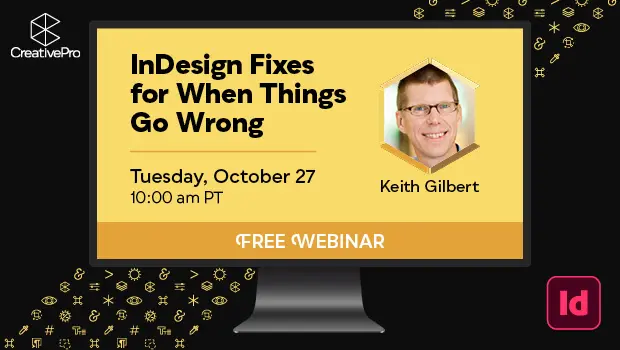
Free Webinar: InDesign Fixes for When Things Go Wrong
Learn practical troubleshooting techniques to diagnose InDesign problems, fix them faster, and get your project…
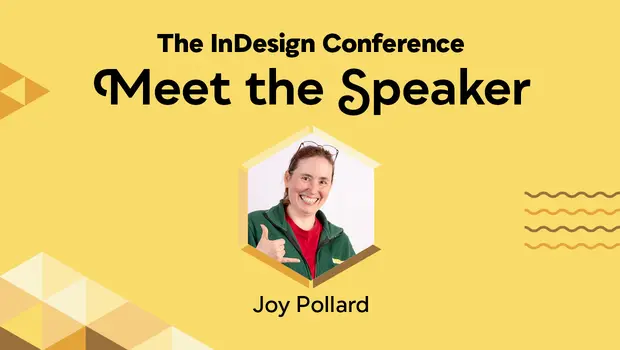
Interview with Joy Pollard, Designer and Adobe Certified Professional
Learn how roller derby, astronomy, and theater influenced one designer’s journey to becoming a speaker…
Create an Automatic List Inside a Paragraph
Create automatic numbered or lettered lists inside an InDesign paragraph with this clever technique.
A Script to Rotate Objects in InDesign with an Object Style
If you were to ask me how to use an object style to rotate objects…
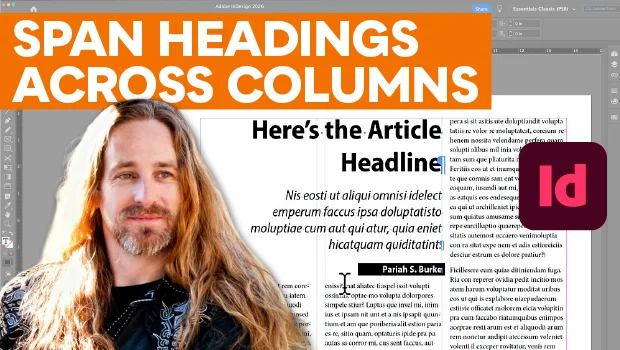
Make Headings Span Across Multiple Columns in InDesign
Master InDesign’s Span Columns feature with Pariah Burke.

Moving Your Cursor Into an InDesign Table with a Keyboard Shortcut
This normally isn’t possible. But we’re not normal InDesign users here.
A Script to Empty Selected Text Frames in InDesign
A simple fix for a missing feature in InDesign, with the help of AI
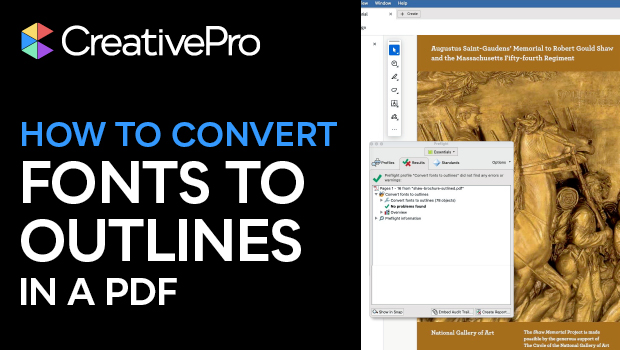
How to Convert Fonts to Outlines in a PDF
If you need to provide a PDF with fonts converted to outlines to your print…
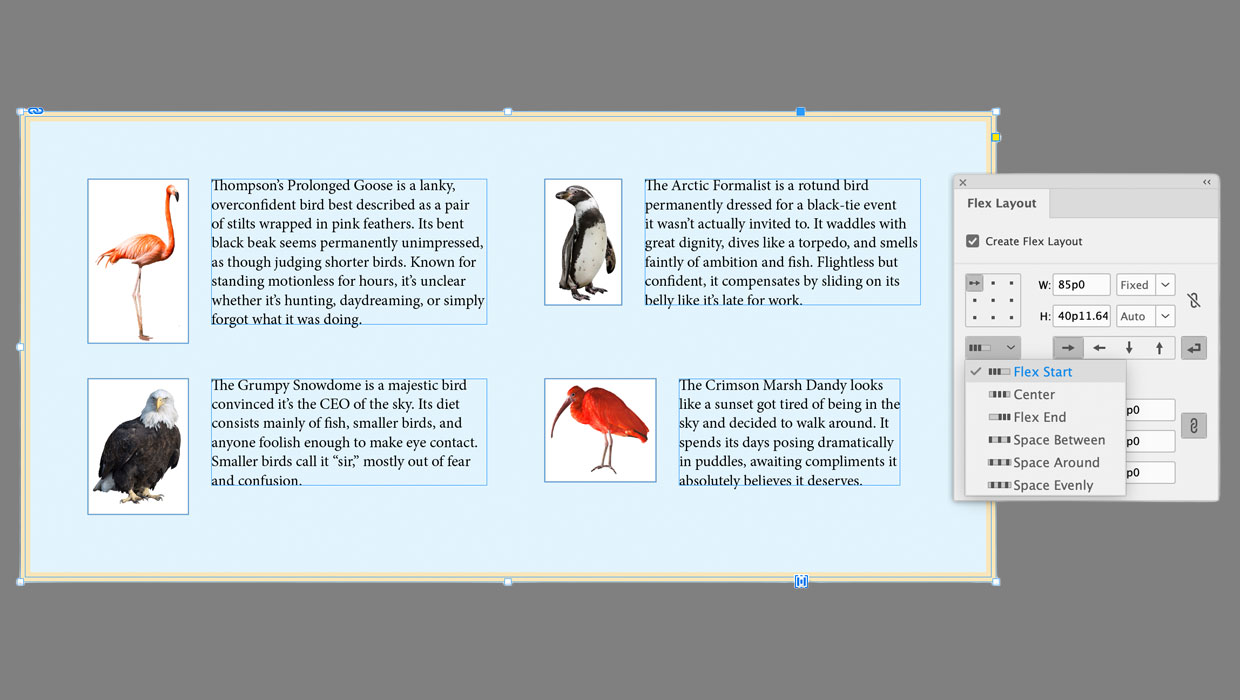
Getting Started with Flex Layout in InDesign
Start exploring a whole new way to create layouts that automatically adapt to the content…
Why Attend
See why The InDesign Conference needs to be in your 2026 plans now!
Level Up Your InDesign Game
From time-saving shortcuts to powerful automation workflows, you’ll gain practical techniques that help you work faster, smarter, and with greater confidence—no matter your experience level.
Learn from the World’s Best
Get insider tips and deep insights from the most trusted names in InDesign—including industry experts, power users, and even members of the Adobe InDesign team.
Connect with the InDesign Community
Join a global network of passionate designers, publishers, and production pros. Share experiences, ask questions live, and find inspiration in the way others use InDesign to solve creative and technical challenges.
Keep Growing Long After the Conference Ends
Every registration includes one year of on-demand access to session recordings, plus downloadable handouts, automation tools, and exclusive InDesign templates to support your workflow year-round.
Need to convince your boss?
Download our Convince Your Boss kit today—it contains our 2026 PDF brochure and an email letter template you can personalize.
Registration Details
One year of on-demand access
to all session and Q&A session recordings for the days your pass covers
Livestream access
to all session and Q&A session recordings for the days your pass covers
Speaker handouts
and resources from the world’s top experts
Alumni discount
on future CreativePro events
Certificate of Participation
Pricing
All prices are in USD. CreativePro Member discount cannot be combined.
| Pass Type | CreativePro Members | Non-Members |
|---|---|---|
| 4-Day Passes | $950 | $1,075 |
| 3-Day Passes | $750 | $875 |
| 2-Day Passes | $550 | $675 |
| 1-Day Passes | $325 | $450 |
Discounts and Group Registrations
- Students, faculty, non-profits, and government agencies can receive a $100 discount off any multi-day pass.
- CreativePro Members can receive a $125 discount off any multi-day pass.
- Alumni of CreativePro events can receive a $150 discount off any multi-day pass.
- Groups of three or more can receive a $50 discount for each attendee they register.
- Discounts cannot be combined (including CreativePro member discount). Discounts cannot be added after you have registered.
- Please contact us here for discount information prior to registering.
Substitutions
- You may transfer your registration to another person by writing Marci on our Contact Us page. Your request must include your name and e-mail address as well as that of the person who will now be attending in your place. Once we receive this information, a confirmation letter will be sent to the new attendee.
- If you need any other information after reviewing this page, please contact us here.
Speakers
Get real-world answers to your toughest design challenges from our industry-leading experts.






















All times are listed in Pacific timezone.
Click here to download the printable agenda PDFDay 1:
Tuesday, December 1, 2026
What’s New in InDesign 2027
When InDesign is part of your daily workflow, even the smallest updates can have a big impact on how smoothly things run. Join us for an honest, independent look at what’s new in InDesign and how these changes can streamline your design and production work.
We’ll explore the newest tools for collaboration and sharing, as well as why AI features can make or break your workflow. Along the way, we’ll also revisit a few recent updates you may have missed that deserve a second look.
Key takeaways:
- Work with expanded Flex Layout controls
- Learn how to export InDesign documents and images to Adobe Express (and why you may not want to)
- Understand which new AI features are safe and which to avoid
- Discover how cloud collaboration can boost productivity
Beyond the Basics: Mastering InDesign Styles
You use paragraph and character styles, so you already know InDesign styles. Or do you? There is a much bigger system waiting beyond the basics, where paragraph, character, object, table, and cell styles work together to help you control your entire document.
Move beyond basic formatting and discover how styles can help you build documents faster, revise them more easily, and ensure they’re more consistent. Explore nested styles, GREP styles, style inheritance, applying multiple styles at once, and how object styles can apply more than just frame attributes. Learn which styles to create first, how to avoid overrides, and how to organize and troubleshoot your style system.
Key takeaways:
- Build paragraph and character styles that work together to apply formatting lightning-fast
- Understand overrides: identify, remove, and make simplified revisions
- Learn the difference between the powerful nested and GREP styles, how to set up and when to use
- Use object styles to control frames, graphics, text formatting, and positioning
Uber-Flexible Layouts for Shifty Content
Content has a habit of misbehaving: headlines grow, images change, stories run long, and carefully arranged pages suddenly need more room. Learn how to create layouts that can roll with the chaos instead of demanding constant rescue.
Tony Harmer will show you how to build smarter, more adaptable documents that respond gracefully when content shifts. The result: pages that stretch, reflow, resize, and stay on speaking terms with the designer.
What you’ll learn:
- Create adaptable page structures with Parent Pages and Primary Text Frames
- Control text flow with threading, auto-sizing, and flexible frame options
- Build reusable layout components with object styles and Flex Layout
- Keep repeated text and graphics synchronized with linked content
- Manage alternate content with variables and conditional text
The Secret Life of Character Styles
Character styles do far more than make text bold or italic. They quietly power some of InDesign’s most useful formatting and automation features, including nested styles, GREP styles, text variables, lists, drop caps, and more. Learn how to use character styles more strategically to control text, automate repetitive formatting, and solve everyday production problems.
By the end of this session, you’ll stop thinking of character styles as "the small paragraph style" and start using them like the automation and consistency tool they actually are.
Key takeaways:
- Format bullets, numbers, drop caps, and selected text independently
- Build running headers from part of a heading with text variables
- Keep phone numbers, product codes, and other text from breaking across lines
- Prevent selected text from hyphenating or triggering spell-check warnings
- Create visible review markup that is easy to apply and remove
Overlooked Typography Essentials
Beautiful typography is built on details, and InDesign has more ways to refine those details than most designers ever discover. This session reveals essential typography features that are easy to miss, misunderstand, or leave at their defaults.
Explore practical ways to improve letter and word spacing, line breaks, alignment, and readability. You’ll learn how key settings work, when they matter, how they work together, and how a few thoughtful adjustments can make a noticeable difference.
Topics include:
- Improve line endings with Adobe Paragraph Composer and Balance Ragged Lines
- Fine-tune hyphenation and justification settings
- Compare optical and metric kerning
- Control awkward breaks, widows, and orphans
- Discover how OpenType font features can help make your type more professional
Creating a Design Experience: Case Study
In this behind-the-scenes case study, Izzy Poirier shares the making of Pivotal Moments. What began as a collection of interviews evolved into a beautiful, printed, story-driven editorial experience. Join us as Izzy reveals the decisions, rejected directions, production constraints, and unexpected discoveries that transformed the project. You’ll see the mood boards, layouts, InDesign files, and proofs, offering an insightful, behind-the-scenes look at the process. Finally, see how the publication extended beyond the page through exhibition launches in New York City and Ottawa, turning an editorial project into an immersive physical experience.
Key takeaways:
- Translate a creative concept into a cohesive editorial system
- Design engaging experiences for long-form reading
- Recognize when an idea needs to evolve
- Adapt layouts to print, budget, and production constraints
- Extend an editorial project beyond the printed page
Day 2:
Wednesday, December 2, 2026
Taming InDesign Tables
“Oh great… an InDesign document with loads of tables!” Said no graphic designer. Ever.
But frustrating though they may be, tables are a fact of life for InDesign users. Fortunately, with the right combination of styles, shortcuts, scripts, and hacks, it is possible to create tables that are polished and professional without losing sleep.
This session tackles the quirks, limitations, and frustrations of InDesign tables head-on, with practical workarounds and creative tips that make the process less painful. You’ll leave with useful strategies for creating better-looking tables with less trial and error.
Topics include:
- Coordinate paragraph, cell, and table styles for consistent formatting
- Control borders, row and column strokes, headers, footers, and multi-page tables
- Add graphics and icons inside table cells
- Troubleshoot common frustrations with workarounds, hacks, and useful scripts
Developing an Automation Mindset
Can you imagine an InDesign document that formats itself, responds to changing content, or completes complex production tasks with little or no intervention?
At first glance, automation can feel like magic. This session reveals the rules, patterns, and problem-solving that make it possible. You’ll see how the right mindset can turn familiar InDesign features into fully automated workflows. Learn to recognize automation opportunities in your own work and start thinking in terms of rules rather than repetition. No programming experience is required.
Key takeaways:
- Recognize repetitive decisions that can become automated rules
- See how simple tools can lead to powerful automated systems
- Distinguish working faster from removing repetitive work entirely
- Explore possibilities beyond built-in InDesign features
- Apply an automation mindset to everyday production challenges
GREP. Yes, You Can!
Do you find yourself repeatedly cleaning up formatting, hunting down double spaces, or applying character styles one by one? Stop the madness and let InDesign do the heavy lifting!
GREP doesn’t have to be intimidating. In this practical session, you’ll learn what GREP is, where to find it, and how to recognize the repetitive tasks it can solve. Follow real-world examples for fixing common typography problems, styling complex prices and dates, and automating formatting as you type. You’ll leave with useful patterns you can apply immediately and a clear understanding of how GREP can make everyday production work faster and more consistent.
What you’ll learn:
- Find GREP tools and use built-in presets
- Identify repetitive tasks GREP can automate
- Fix common typography and formatting problems
- Create GREP Styles that format text automatically
Taking the Fear Out of InDesign Scripts
A carefully curated collection of scripts is guaranteed to up your game in InDesign. In this session, you will discover how easy it is to find, install, and use an enormous variety of scripts for InDesign. Explore scripts that solve everyday production challenges, along with tips for choosing scripts you can trust. You’ll also learn how to make simple edits to customize a script for your own workflow. Once you see what scripts can do, you may never work the same way again.
Topics include:
- Finding free and low-cost scripts from reliable sources
- Essential scripts every InDesign user should know
- Understanding what scripts can and cannot do
- Installing, running, and organizing your script collection
- Editing scripts to fit your own workflow
Make Word and InDesign Play Nice Together
Tired of choosing between losing useful Word formatting and bringing a mess into InDesign? In this session, you’ll learn how to prepare Word files, choose the right import method, and use style mapping to bring text into InDesign seamlessly.
Learn to preserve essential formatting, remove what you do not need, and clean up imported content with styles, overrides, and Find/Change. Whether you work on short reports or long publications, you’ll leave with a practical process you can repeat and adapt.
You’ll learn how to:
- Prepare Word files for a cleaner, more reliable import
- Choose between copy/paste and placing text
- Preserve bold and italic text, lists, and other essential formatting
- Resolve unwanted styles, overrides, and formatting conflicts
- Create a repeatable workflow for short and long documents
Creative Cross-App Workflows [Project-Based]
Bring your best creative ideas to life by letting each Adobe app do what it does best. In this project-based session, you’ll see how Bridge, Photoshop, Illustrator, and InDesign work together as one connected creative process. Learn how to move between applications with greater confidence while keeping your files flexible, editable, and easy to update.
The result is a smoother workflow that supports both creative exploration and efficient production.
Note: You will be able to download the project files to practice on your own.
Topics include:
- Organize and evaluate visual assets in Bridge
- Prepare layered Photoshop and Illustrator files for InDesign
- Use native files, artboards, and layer comps to preserve flexibility
- Control placed artwork with Object Layer Options
- Update linked assets without rebuilding the layout
Day 3:
Thursday, December 3, 2026
From Print Layout to EPUB
Do your print layouts also need to work on a screen—and stay readable across multiple devices? EPUB may be your answer.
This session explores how to transform an InDesign document into an EPUB while preserving its content, hierarchy, and design intent. You’ll learn how reflowable and fixed-layout EPUB differ, when each format makes sense, and how EPUB compares with PDF and Publish Online. You’ll also discover how thoughtful document setup, styles, reading order, images, and export choices shape the final reading experience.
Learn how to:
- Choose between reflowable and fixed-layout EPUB based on a publication’s needs
- Map paragraph and character styles to appropriate HTML tags
- Control structural hierarchy with TOC styles
- Prepare images and anchored objects for EPUB output
- Use EPUB export settings and identify common problems that require refinement
TOC and Navigation Masterclass
Let’s take a journey through the most powerful (and sometimes obscure) ways to guide reader navigation through long documents. You’ll learn ways to organize content and guide readers smoothly through print, PDF, EPUB, and InDesign itself.
Key takeaways:
- Create and manage multiple tables of contents and specialized lists within one document
- Build distinct navigation structures for print, interactive PDF, and EPUB
- Create hyperlinks to pages, text anchors, sections, and other document locations
- Build and maintain indexes using InDesign’s native tools and third-party plug-ins
- Use bookmarks to navigate long documents more efficiently within InDesign
Accessible Documents Start in InDesign
Designing for accessibility starts at the beginning of your project—not at PDF export. In this session, you’ll learn how to set up InDesign templates with future accessibility needs in mind, even if you are not an accessibility expert.
Explore practical decisions that can support a smoother path to an accessible PDF, including color choices, paragraph styles with export tags, document metadata, reading order, alt text, artifacting, and parent pages. By building these considerations into your workflow from the start, you can create more consistent documents and reduce the amount of remediation required later.
Key takeaways:
- Choose colors that support accessible design
- Prepare paragraph styles with export tags
- Plan reading order using layers and the Articles panel
- Manage metadata, alt text, and artifacting
- Set up parent pages to support consistent document structure
RGB vs CMYK: Demystifying Color Management
Should you convert your images and color swatches to CMYK now, later, or not at all? The answer depends on the job. In this session, we’ll look at real-world scenarios and the choices you can make along the way: converting images before they enter the layout, managing the conversion when you export your PDF, or keeping RGB intact for a later stage of production.
We’ll break down what happens to your color at each stage and why your destination matters. You’ll see how ICC profiles, Adobe Color Settings, and InDesign PDF export choices work together, whether you’re creating for print, digital, or both. The goal is simple: understand your options so you can choose the right color workflow for the job instead of relying on a one-size-fits-all rule.
You’ll learn how to:
- Decide when RGB or CMYK makes the most sense
- Choose color profiles are suitable for your work
- Keep your color management settings consistent across Adobe applications
- Manage color when exporting PDFs from InDesign
Preflight with InDesign and Acrobat
Before you send a file to a printer, client, or digital platform, how confident are you that nothing bad slipped by? In this session, you’ll learn how to build a repeatable preflight process using both InDesign and Acrobat, and save yourself from embarrassing or expensive mistakes.
Explore what InDesign can identify while you work, what still needs to be checked after export, and how Acrobat adds an essential second layer of inspection. By the end, you will know how to create custom preflight profiles for your workflow, so you can automate quality control and ensure consistent output.
You’ll learn how to:
- Discover why a custom preflight profile is like having a new best friend
- Create InDesign preflight profiles for print, PDF, and digital workflows
- Identify and fix document errors
- Use Acrobat to catch problems that remain after export
- Build a repeatable preflight process for more reliable output
From AI Concept to Finished Layout
What happens when you ask AI to design a layout, but then let a human designer execute? The result becomes less about what AI creates and more about the choices the designer makes.
Sam Luo will share his personal workflow for combining AI tools with InDesign while keeping human judgment at the center of the design process. He will evaluate AI-generated results, identify what works and what does not, and explain which elements he chooses to keep, revise, or reject. Then, he will bring those selected ideas into InDesign and shape them through composition, hierarchy, typography, and storytelling to create a polished editorial layout.
You’ll learn how to:
- Evaluate AI-generated concepts through the lens of good design
- Combine selected AI inspiration with original design decisions
- Apply composition, hierarchy, typography, and storytelling in InDesign
- Maintain creative control throughout an AI-assisted workflow
Day 4:
Friday, December 4, 2026
Printed Brochure Design Workflow [Project-Based]
Ready to roll up your sleeves and design something you can hold in your hands? In this project-based session, you’ll follow the creation of a printed tri-fold brochure from the first idea through final production.
Explore how thoughtful choices in layout, typography, imagery, color, and panel flow shape the design. Then connect those creative decisions to the technical setup needed for a polished, print-ready result. You’ll leave inspired with fresh ideas, a stronger understanding of print design, and a workflow you can apply to your own projects.
Note: You will be able to download the project files to practice on your own.
What you’ll learn:
- Plan content, typography, imagery, color, and visual hierarchy across brochure panels
- Set up folds, margins, guides, and bleed
- Review Transparency Blend Space and Overprint Preview
- Preflight the document and export a print-ready PDF
Create Fillable Forms and eSignatures
Hidden inside InDesign is everything you need to turn a polished layout into a form that people can fill out, submit, approve, and sign.
Learn how to create beautiful, interactive PDF forms using InDesign’s built-in form fields, then extend their capabilities with Acrobat and Acrobat Sign. Add smarter functionality, prepare forms for eSignatures, and manage the process from distribution to completion.
You’ll learn how to:
- Create and configure text fields, checkboxes, radio buttons, menus, and signature fields
- Add formatting, validation, calculations, and conditional behavior
- Export fillable PDFs without flattening interactive fields
- Prepare and send documents through Acrobat Sign
Interactive Digital Publications Beyond PDF
Animation and interactivity may be one of InDesign’s best-kept secrets. Learning these features can set you apart and open up entirely new ways to share ideas and guide readers. Turn static pages into digital publications people can explore, watch, listen to, and interact with.
In this session, you’ll see how InDesign’s rich-media tools (such as buttons and video) can support real communication goals, from guiding readers through content to bringing stories, presentations, reports, and publications to life. You’ll learn how to preview your work and explore publishing options for your audience.
Topics include:
- Build intuitive navigation with buttons, hyperlinks, and interactive controls
- Use animation to guide attention and reveal content
- Add video and audio that deepen the reader experience
- Preview, test, and troubleshoot interactive elements
- Choosing an output method: HTML, Publish Online, FXL, and more
Take Control of Inherited InDesign Files
Do you know that feeling of dread when you open an inherited InDesign file? It can feel like walking into a room where someone turned off the lights, moved the furniture, and left no instructions. Before you start fixing, rebuilding, or quietly panicking, learn how to investigate the file, understand how it works, and uncover what is really going on.
In this session, you’ll develop a practical process for diagnosing unfamiliar documents, spotting trouble early, and turning messy files into work you can trust.
You will learn how to:
- Assess an unfamiliar file and understand how it was constructed
- Audit styles, parent pages, links, fonts, colors, and text flow
- Uncover hidden content, overrides, missing dependencies, and production risks
- Use Preflight, Find/Change, scripts, and document-analysis tools
- Clean up the file, document your decisions, and leave it maintainable and production-ready
Data Merge in Action [Project-Based]
InDesign’s Data Merge feature can feel like a hidden superpower once you see what it can create. In this hands-on, project-based session, you’ll explore how to turn spreadsheet data into polished, personalized InDesign layouts. Follow along with the provided files as you build your first merge, experiment with text and images, and discover new ways to automate repetitive design work. Along the way, you’ll learn how to structure your files, avoid common mistakes, and spot projects that are perfect for Data Merge.
Note: You will be able to download the project files to practice on your own.
You’ll learn how to:
- Prepare clean data and connect it to an InDesign template
- Merge text, images, and variable content into finished layouts
- Create personalized projects such as badges, cards, and promotional graphics
- Preview, troubleshoot, and refine your merge before generating documents
- Find free scripts that can take Data Merge even further
One Design, Multiple Layouts: Repurposing InDesign Content
Why start from scratch when you can adapt an existing design for multiple formats?
Whether you're resizing a print layout for a different page size, changing orientations, or repurposing content for digital projects, InDesign offers powerful tools to help you work more efficiently.
In this session, Angelo Montilla will explore techniques for transforming existing layouts into multiple formats while maintaining design consistency. Learn how to take advantage of InDesign's built-in layout features, automate adjustments, and create flexible designs that adapt to different dimensions and aspect ratios.
Topics include:
- Repurpose existing designs for different page sizes, orientations, and aspect ratios across print and digital projects
- Use Alternate Layouts, the Page Tool, and Liquid Page Rules to adapt layouts while preserving design consistency
- Explore Flex Layout to create responsive arrangements
- Use linked content to maintain consistency and simplify updates across multiple layout variations


Discounts and Group Registrations
- Students, faculty, non-profits, and government agencies can receive a $100 discount off any multi-day pass.
- CreativePro Members can receive a $125 discount off any multi-day pass.
- Alumni of CreativePro events can receive a $150 discount off any multi-day pass.
- Groups of three or more can receive a $50 discount for each attendee they register.
- Discounts cannot be combined (including CreativePro member discount). Discounts cannot be added after you have registered.
- Please contact us here for discount information prior to registering.
Substitutions
- You may transfer your registration to another person by writing Marci on our Contact Us page. Your request must include your name and e-mail address as well as that of the person who will now be attending in your place. Once we receive this information, a confirmation letter will be sent to the new attendee.
- If you need any other information after reviewing this page, please contact us here.