


Table Footnotes (CC2019–)
Footnotes can be added to tables from CC2019. Unfortunately, the footnotes appear together with the main text's footnotes, as in MS Word. But most of the time, typesetters need footnotes...
Oops, you’re not logged in!
Log in or sign up for a free account.


This script is part of the Notes collection. See the full collection here.
Table footnotes were introduced in InDesign CC2019. They work just like the footnotes that we’ve known for many years. Unfortunately, InDesign does them the way MS Word places table footnotes: they are part of the body text’s footnote stream. But this is in fact quite unusual: most publishers want table footnotes to be grouped under the table, to start renumbering at every table, and to use a different numbering style – Roman numbers, usually, as opposed to the Arabic numbers used in the main text.
In InDesign Magazine issue #95 I described a way to do table footnotes in earlier versions of InDesign. That method is still valid and works fine, but when your starting point is a CC2019 (or later) document with footnotes in tables (imported, for instance, from Word), then the script described here is more convenient.
The script has two modes. Inline tables are placed in an inline frame, which creates a new story with the footnotes immediately following the table. The numbers are then changed to letters. The second mode covers tables in floats – that is, tables that are already in their own frames. In this case the script only changes the numbers.
The script
Here’s an example of a table with footnotes the way InDesign deals with them by default:

There are two footnotes in the main text (footnotes 1 and 5), one before and one after the table. The table has three footnotes. As you can see, the footnotes are part of the document’s main footnote stream.
To place the footnotes immediately after the table, click somewhere in the table and run the script. The result is this:

The script created a text frame, moved the table into it, and placed the frame as an inline anchored frame. The notes are still real InDesign footnotes: place the cursor in one of the notes and go to Type > Go to footnote reference: the cursor moves to the reference.
Using symbols to number notes
To use symbols rather than letters for the note numbers and references, edit the script as follows. Open the script in a plain-text editor and go to line 28. This reads
//var symbols = '*†‡§¶';Remove the two forward slashes, then save the script file. The symbol set in the script (shown here) is InDesign’s symbol set. You could change that if you want to any symbol set of your choice.
Adding and removing notes
To add a note, simply create a new footnote in the usual way and run the script again. The same goes for removing a note: delete it and run the script again to update the numbering.
How it works
InDesign’s footnotes start renumbering at every story, which is good because it’s not possible to set a starting number per story. Unfortunately, however, InDesign’s footnote numbering style is a document-wide setting, so we if we want to use a different numbering style in table footnotes, we have to do the numbering ourselves. And that’s what the script does.
You can see how it works when, after the conversion, you open the Character Styles panel. The script added a few character styles (see below for details), one of which is hide. Edit the style: reset it to its base and add a colour so that it’s easy to see what it was applied to:

Exposing the hide style’s content shows that the footnote references and numbers are hidden by the hiding style, and that the script added the Roman numbers.
Styles created by the script
In order to get everything to work, the script creates a few styles:
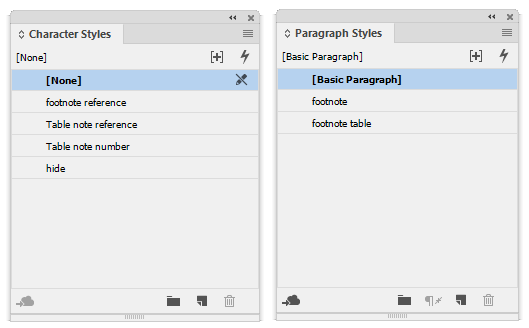
The paragraph style footnote and the character style footnote reference were present, they are used for styling the notes and their references.
footnote table The paragraph style used for the table notes. It’s based on the default footnote style (here, footnote). Make any changes to this style to change the appearance of footnotes in tables.
Table note number The character style used for the note numbers. In Roman-numbered table footnotes, the note references and numbers usually have the same appearance, but the script uses two styles because there may be differences. If, for example, you want to add some space between the note number and the note text, add some tracking to the note number.
Table note reference The character style used for the footnote references in the table (the Roman numbers). It’s based on the default footnote reference style, and adds italic. Edit the style as necessary.
hide The style that hides InDesign’s note references and numbers in the table.
Note that if you want to delete a footnote, you should remove both InDesign’s footnote marker (which is in the hidden style) and Roman number added by the script.
Version history
13 Dec. 2024: The script now also deals with tables in floats.
6 Jan. 2019: Added symbols as a numbering style. See ‘Using symbols to number notes’, above.
November 2018: First posted.
Peter Kahrel Script Repository
Hosted as a community service, and with deep appreciation, by CreativePro.com
Scripts by Topic | Script Index
Basic Script Installation and Use
How to Modify or Configure These Scripts
Resources for Scripting and Publishing Automation
About This Repository
Contact Peter Kahrel
Note to users: You run scripts at your own risk: CreativePro and the author accept no liability for anything that may be caused by any of these scripts. Always take the necessary precautions. We encourage you to save backups and test scripts on copies of your documents.
This article was last modified on September 30, 2026
This article was first published on January 25, 2026
Commenting is easier and faster when you're logged in!

Recommended for you
Index Fixes: Multiple Indexes in an InDesign Document
InDesign documents can contain only one index. But when you need more than one i...
Index Fixes: No Styling in Topic Names
Topic names cannot natively be styled in the Index panel. However, a simple solu...

Quick Wins: Handling Images in InDesign
Use these five resources to boost your image-handling skills in InDesign