



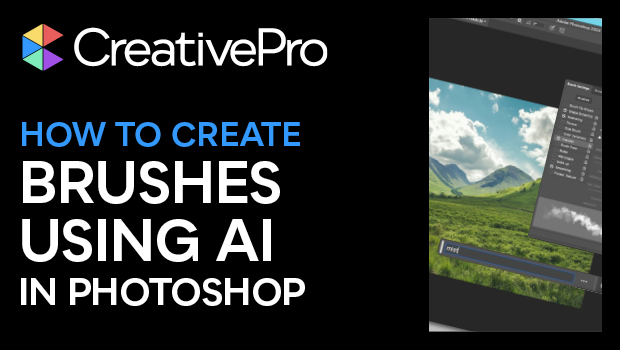
In this CreativePro Week sneak peek, Rob de Winter shows how to use Photoshop’s built-in generative fill feature to create a new brush. He starts by making a rough shape for the brush, applying a few settings in Quick Mask mode, then uses a text prompt to let this AI feature create the texture and look of the brush. Lastly, Rob tweaks the new brush’s settings and easily paints with it onto his photo.
This sneak peek video is a preview of Rob’s session at our upcoming CreativePro Week in Washington, D.C. and online July 8–12, 2024. See the agenda and register now!
Subscribe to the CreativePro YouTube channel for more helpful design tips!
This article was last modified on August 29, 2025
This article was first published on March 20, 2024
Commenting is easier and faster when you're logged in!

Recommended for you
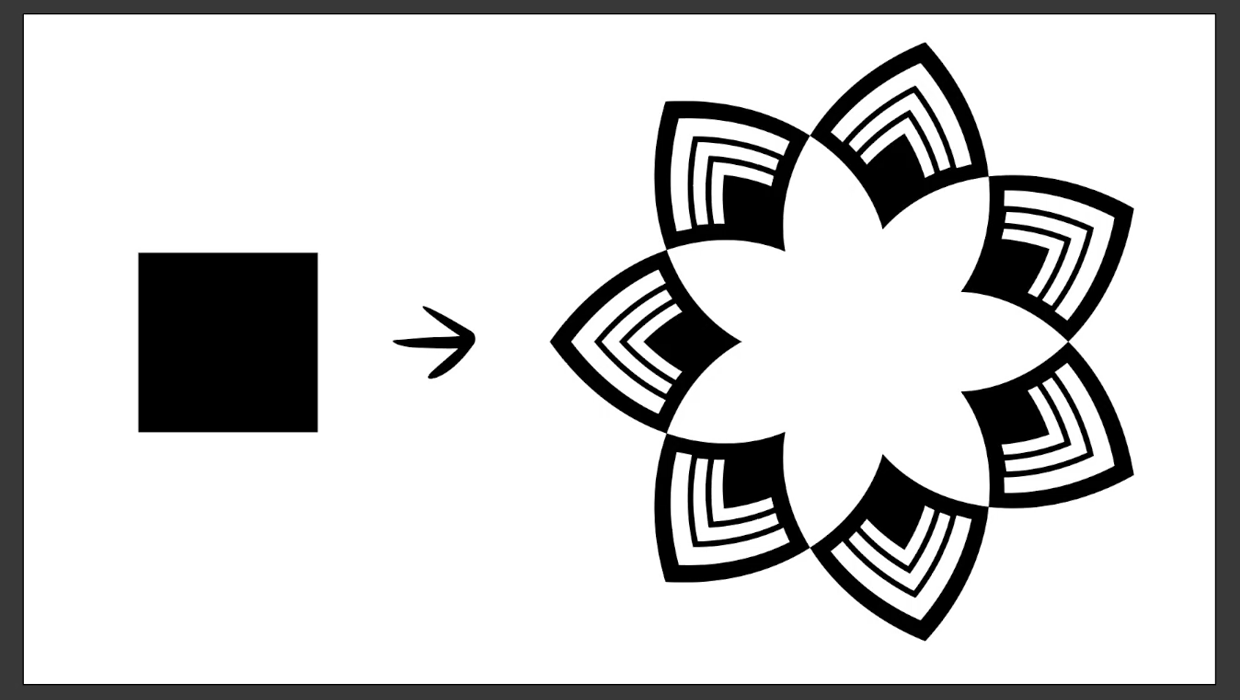
Create a Reusable Art Deco Pattern Brush in Adobe Illustrator
One of Illustrator’s greatest strengths is the ability to easily make reusable d...
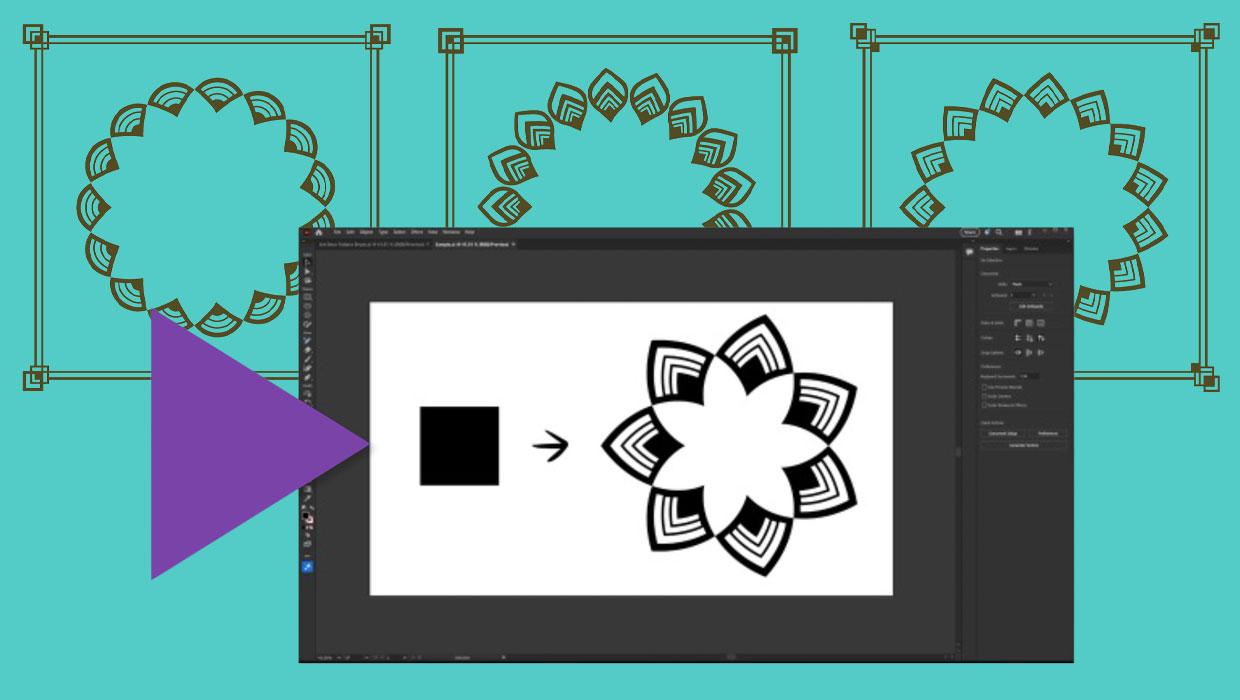
Members-Only Video: Creating Artwork with Pattern Brushes in Illustrator
Learn how to build custom pattern brushes in Illustrator so you can apply comple...
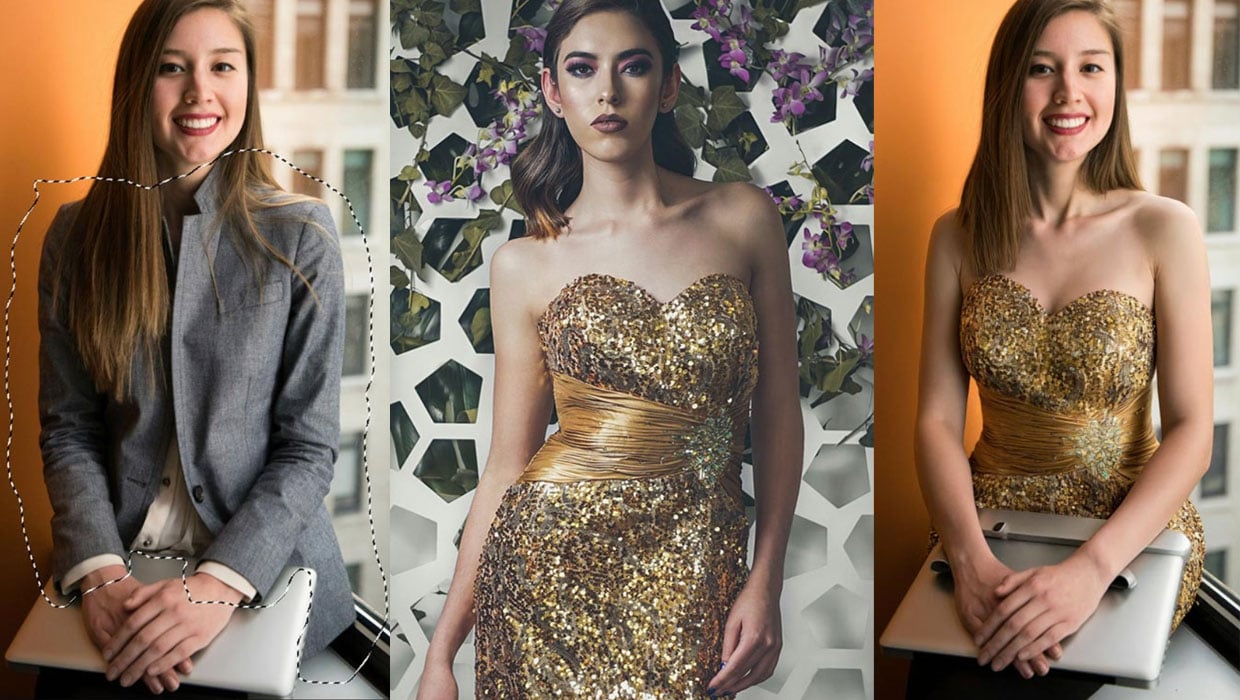
Generating Image Content with Reference Objects in Photoshop
Learn how to replace individual elements within an image using reference objects...