




Generative Upscaling
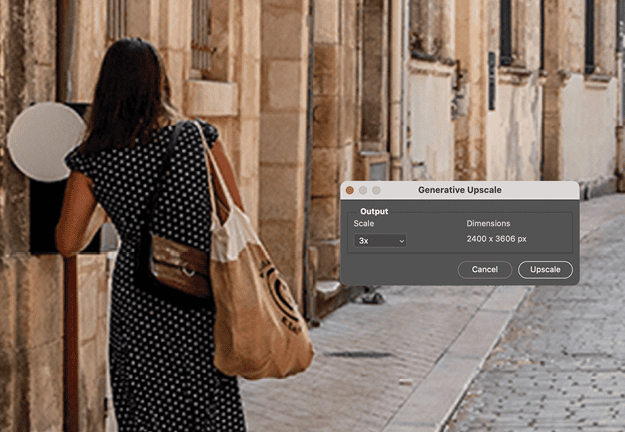
When you need to enlarge images beyond their original resolution, try the new Generative Upscale feature in Photoshop, which uses AI to intelligently reconstruct detail rather than simply interpolate pixels. The process is straightforward:
- Choose Image > Generative Upscale.
- In the resulting dialog box, choose your scale factor (up to 8 megapixels total, at the moment).
- Click Upscale.
I tested this with a heavily compressed 800-pixel-wide image (Figure 1). After 3x upscaling, the result (Figure 2) was notably better than traditional upscaling methods, although I did notice some softness in fine details. The current beta version has a 4096-pixel limit on any single dimension, but this will likely increase in future updates.

The feature is still evolving, but it already produces better results than traditional methods, especially for images with fine details and textures.
This article was last modified on September 30, 2025
This article was first published on October 1, 2025
Commenting is easier and faster when you're logged in!

Recommended for you

How to Use Pages as “Artboards” in InDesign
Learn how use InDesign's Page tool to get document pages to act more like artboa...

On the Move to InDesign: Selection Tools
Perhaps the biggest transition when moving to InDesign from XPress is the differ...

Working With Endnotes in InDesign
The Good, Bad, and Ugly of InDesign’s new Endnotes feature