


Select Body Parts and Clothing with One Click in Photoshop
Oops, you’re not logged in!
Login or sign up for a free account.
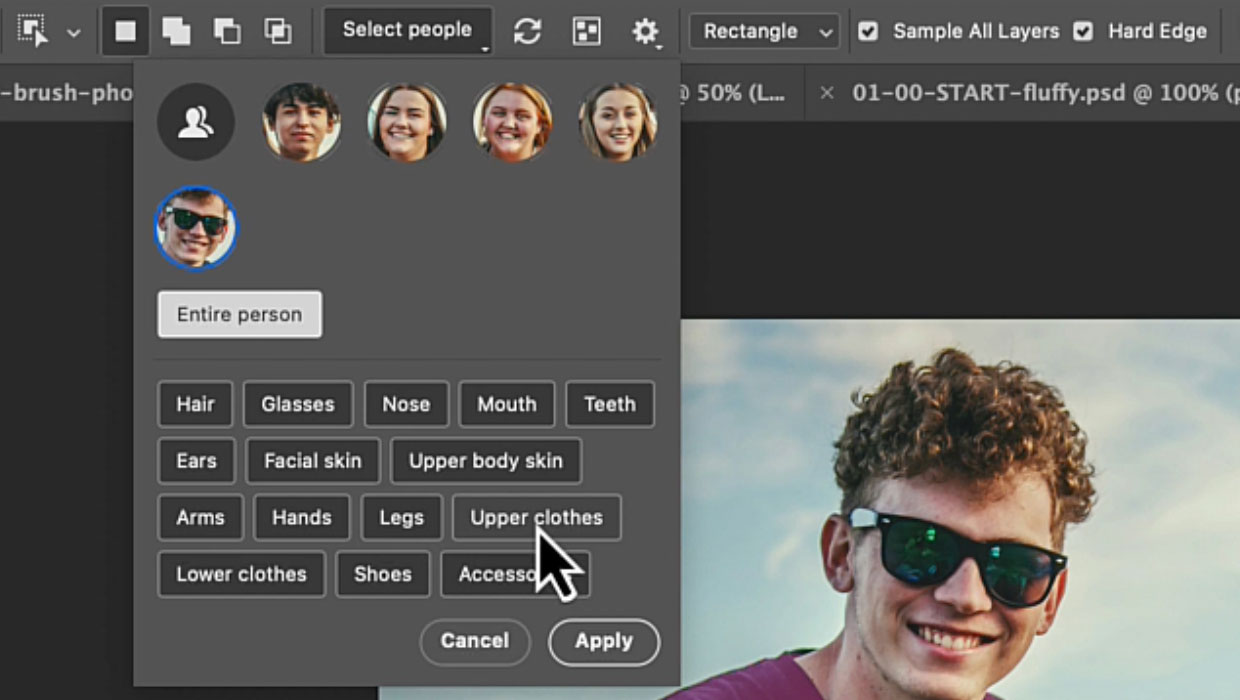
The Object Selection tool now includes a powerful Select People feature that is perfect for selecting people and all their details, such as clothing and body parts. Give it a try:
- Use the Object Selection tool on a photo with people.
- Click Select People in the Options bar.
- Choose Details to edit specific body parts or clothing items (Figure 1).

You can now do everything you would normally do with a selection. For instance, you can change the clothing with Generative Fill:
- Click a person in the Select People list, then select Upper Clothes.
- Click Apply, then extend the selection a bit in the Expand Selection dialog box (Select > Modify > Expand). You can start with 20px, but use a higher number when your image is larger.
- Use Generative Fill with a prompt like Green T-shirt to change colors instantly (Figure 2).

This workflow opens up endless possibilities for targeted adjustments without complex masking.
This article was last modified on November 3, 2025
This article was first published on October 1, 2025
Commenting is easier and faster when you're logged in!

Recommended for you

Find More Than One Paragraph with GREP
GREP is, by default, set up to find text inside a paragraph. That is, if you sea...

Easy 3D with Photoshop and Adobe Dimension: Part 2
In Part 1, we looked at how easy it is to create 3D text by making a minimal mod...

InDesign to Print & Screen: A Best-of-All-Worlds Workflow
When the output could be PDF, EPUB, or print—or all three—there’s no need to com...