




This InDesign tip was sent to Tip of the Week email subscribers on January 17, 2019.

Sign up now and every week you’ll get a new tip, keyboard shortcut, and roundups of new articles, plus exclusive deals sent right to your Inbox!
Just scroll down to the bottom of this page, enter your email address, and click Go! We’ll take care of the rest. Now, on with the tip!
If a document is acting strange and you can’t tell why, you might want to take a look at its history. Hold Command/Ctrl and choose About InDesign from the InDesign menu. In the dialog box, you can see if the document was converted from another application, if it was recovered from a crash, which versions of InDesign have been used to edit the document, which plug-ins were used with the document, and more.

This article was last modified on July 7, 2021
This article was first published on January 22, 2019
Commenting is easier and faster when you're logged in!

Recommended for you
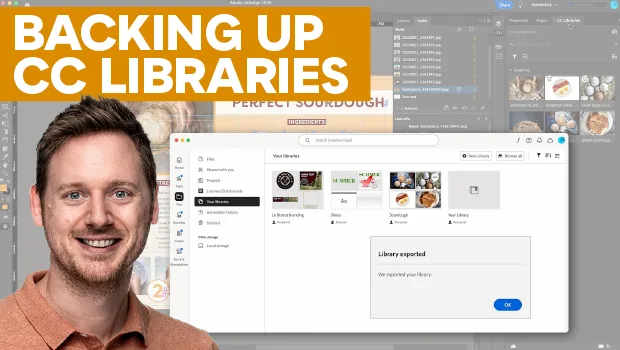
Backing Up Your CC Libraries
Back up your Creative Cloud Libraries to keep linked assets safe when archiving...
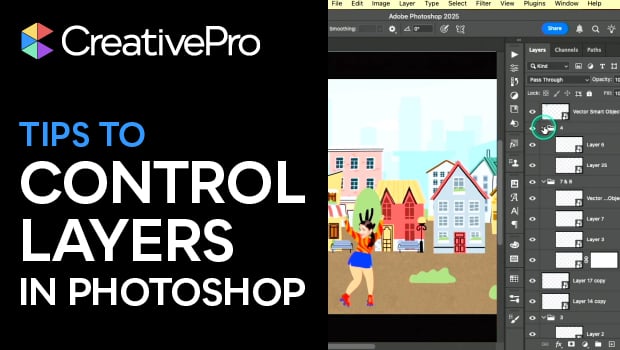
Tips to Control Photoshop Layers
Khara Plicanic shares smart Photoshop Layers panel tips to help you find and man...
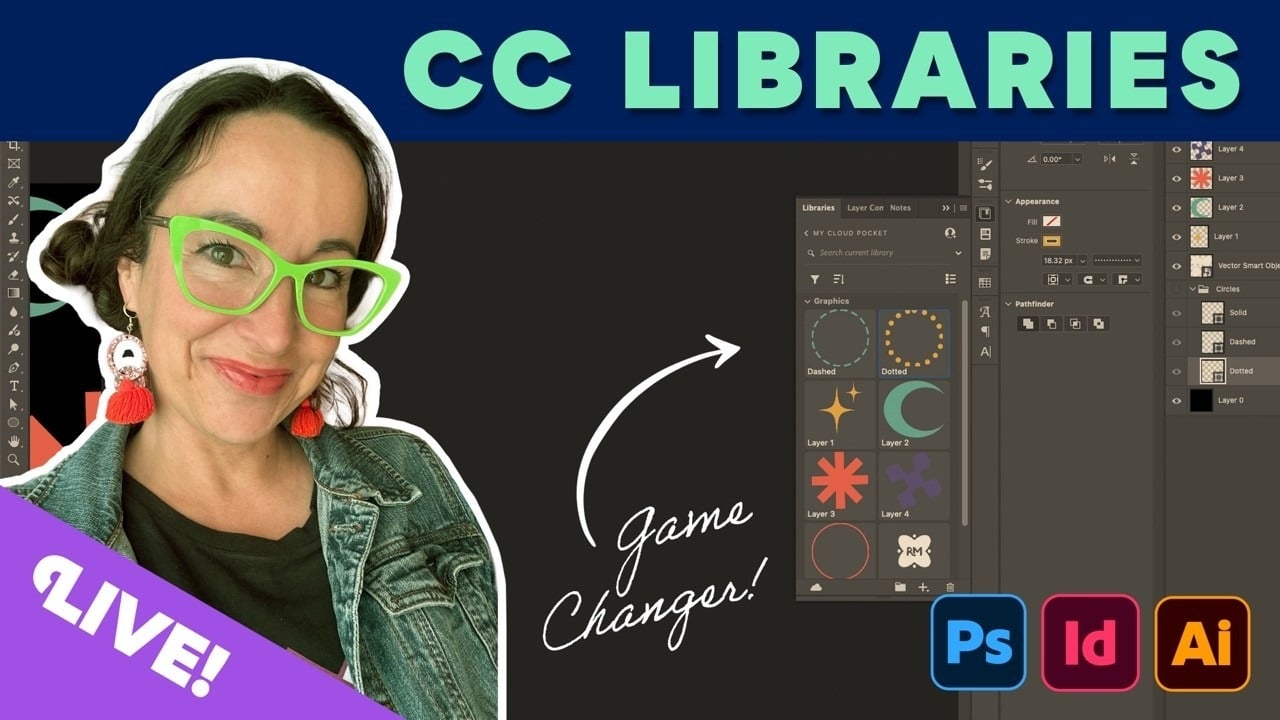
Livestream Video: CC Libraries: A Crash Course
Are you using CC Libraries? Tune in to find out why you should be!