




This tip was sent to Tip of the Week email subscribers on July 2, 2015.

Sign up now and every week you’ll get a new InDesign Tip of the Week and Keyboard Shortcut of the Week, along with roundups of new articles at InDesignSecrets and CreativePro, plus exclusive deals sent right to your Inbox!
Just scroll all the way down to the bottom of this page, enter your email address, and click Go! We’ll take care of the rest. Now, on with the tip!
Need to move one or more objects a specific distance on the page? Select the object(s) and then open the Move dialog box with any of the following methods:
Press Command+Shift+M (Mac) or Ctrl+Shift+M (Windows)
Double-click either the Selection or Direct Selection tools in the Tools panel
Option/Alt-click the X or Y icons in the Control panel.
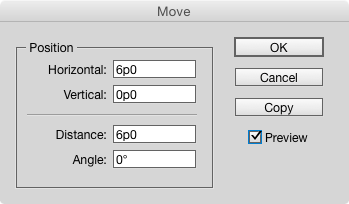
In the dialog box, enter in the values for horizontal/vertical movement or distance/angle and click OK.
If you want to make a copy of the selected object(s) at the new location, click Copy.
The dialog box also remembers the last used value (until you quit and restart InDesign), so if you have to move a bunch of items on different spreads or in different documents, you don’t have to keep typing in the same numbers.
This article was last modified on July 25, 2019
This article was first published on July 7, 2015
Commenting is easier and faster when you're logged in!

Recommended for you
Don’t Sweat the Math—Let Photoshop Do It!
Let Photoshop—and other Adobe apps—do the math for you when entering numerical v...
Smarter Thumbnails in Photoshop
Make Photoshop layer thumbnails clearer with one quick setting change.

Navigating and Customizing the Premiere Interface
Are you a Premiere beginner? Get started and customize your workspace with Myra...