


Inside the Adobe Admin Console
Knowing how your IT department controls Creative Cloud apps and services can help you access the creative tools you need.


This article appears in Issue 60 of CreativePro Magazine.
Adobe describes its Admin Console as “your organization’s centralized hub for managing Adobe entitlements, from licenses and user accounts to deployment packages and security settings.” What does that mean for you?
If you’re among the many readers who work for large businesses, educational institutions, nonprofits, governments, and other entities with access to the cloud-based Admin Console, you can grant workers and contractors access to Creative Cloud apps and online services (Express, Fonts, Firefly), as well as manage libraries, storage, and more. Knowing what the console controls (and how it does so) can improve your creative life. This article will give you an overview of the types of accounts that use the Admin Console, which products the console controls, and how a user with administrative privileges can manage users.
Most importantly, even if you are not the end user who needs to know the step-by-step of how to use the Admin Console, you’ll learn how to communicate more effectively with your IT department to resolve access issues so you can use the Adobe services you need when you need them. Let’s get started.
Licenses, IDs, and Accounts
Adobe accounts fall into four main categories:
- Free
- Individual
- Educational
- Business
The Admin Console can manage business and educational licenses with either Enterprise or Federated IDs. A Federated ID is managed through an identity provider like Microsoft or Okta.
Business accounts can be consolidated into Teams (for up to 10 licenses) and Enterprise (for more than 10 seats).
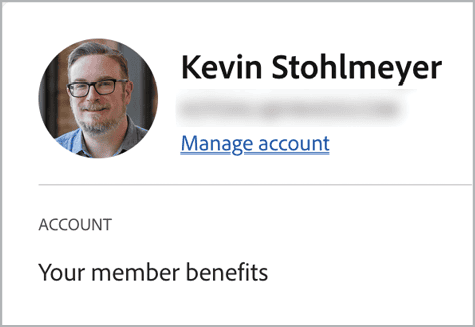
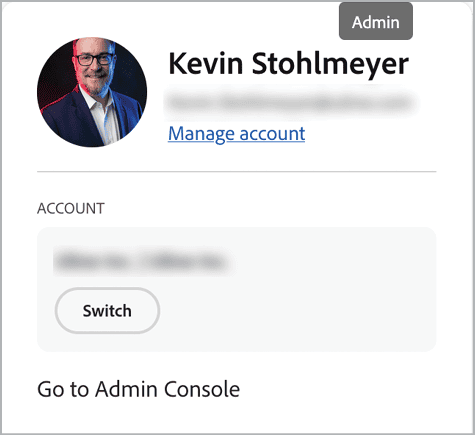
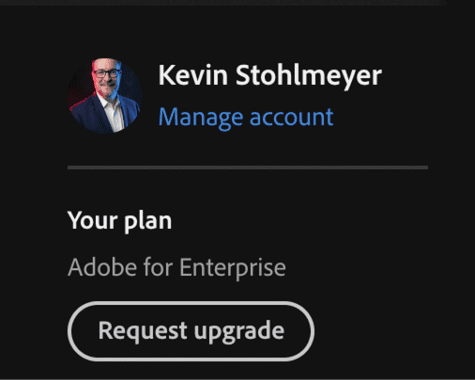
If you are unsure of what kind of Adobe ID you are using, you can check by clicking your avatar in the top-right of the Creative Cloud Desktop app or visit adobe.com while logged in (Figures 1–3).
Educational licenses add another level of complexity. They could be individual accounts with no centralized management, be managed by an Admin Console, or be part of a Shared Device License (SDL).
SDLs are typically used in a computer lab situation, where multiple users can log into a shared device. Users log into the SDL via their Adobe ID.
However, an SDL account cannot access Creative Cloud online services, such as Firefly, Express, Libraries, or Fonts. These services require accounts with individual user IDs for access and management.
Global Admin Console: One Console to Rule Them All
Adobe Admin Console integration can vary depending on the size and nature of your organization and its Creative Cloud plan.
With smaller (Teams) companies, you may have only one instance of the Admin Console controlling your environment. In larger companies with multiple locations, however, you may have a Global Admin Console (parent) that that manages several local Admin Consoles (children) (Figure 4).
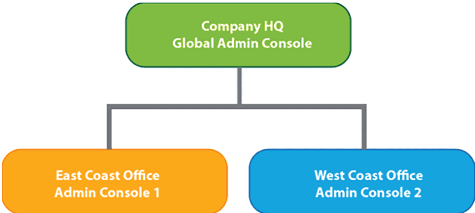
However your Admin Console is structured, it’s designed to give managers the management tools they need to give end users access to the apps and services to do their jobs, within the framework of your company’s organizational structure.
No matter what the size of your company or how its Adobe accounts are structured, there are users to manage, apps to deploy, and permissions to control. To do this, the Admin Console uses five main pages:
- Overview
- Products
- Users
- Storage
- Support
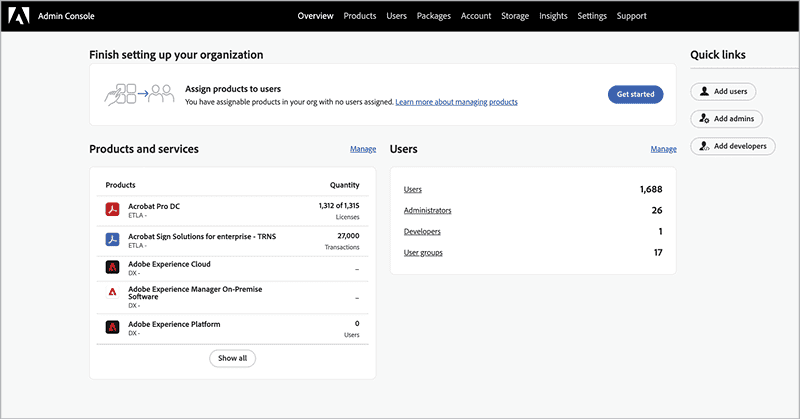
In the Admin Console, the Overview page (Figure 5) provides a list of available products and services, user counts by type, and quick links to add accounts for users and admins (or also developers, who need access to special tools for creating add-ons or plug-ins).
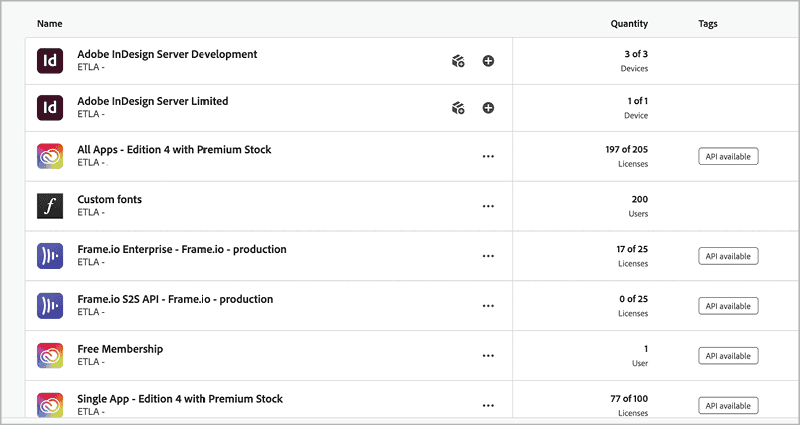
The Products page (Figure 6) shows your company’s available seats for Adobe Creative Cloud products and services, including Frame.io, Single App, and Creative Cloud All App packages.
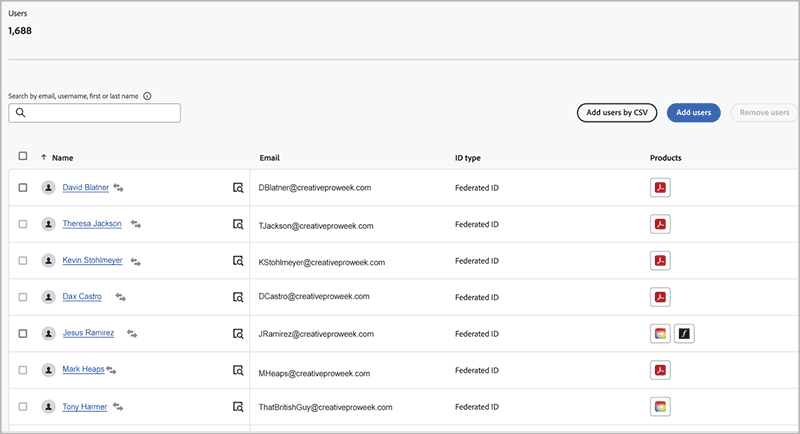
The Users page (Figure 7) lists all users in the system that are managed by the Admin Console. To the right of each user’s email and ID type, icons indicate which products are assigned to that user. Admins can either manually add users, batch import them, or use an authentication connection like Microsoft Azure to automatically add users via directory groups.
The Storage page (Figure 8) displays the overall Creative Cloud storage for the entire company, as well as the total storage and top five individual users.
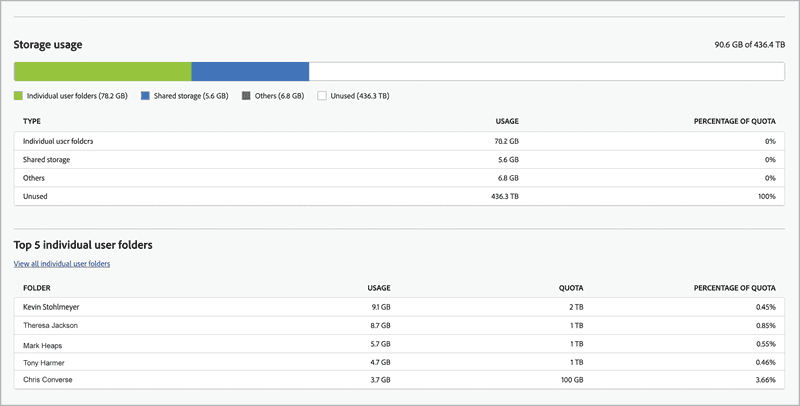
storage capacity for documents and assets in the cloud.
Need help? The Support page (Figure 9) gives Admin Console accounts direct access to Adobe Support. Simply click to open a support ticket, view an existing one, contact Adobe directly via a toll-free number, access Adobe support articles or the Community Forum, and request Expert Sessions (one-on-one dedicated training sessions).
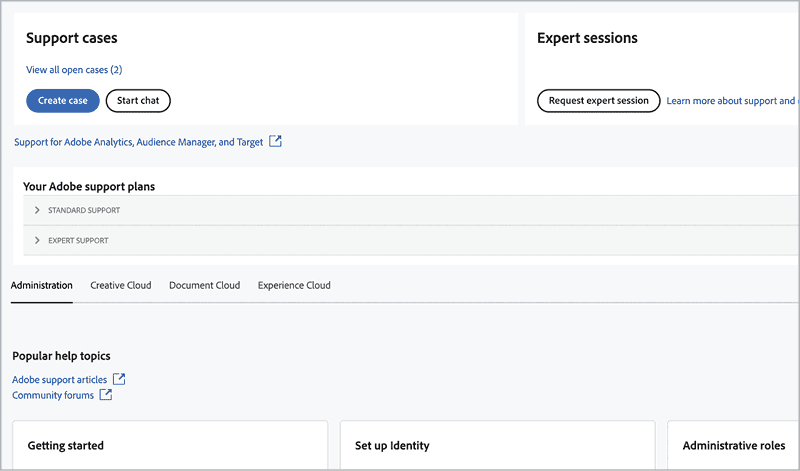
You can also contact your Adobe Customer Success Manager to schedule Admin Console training.
Use the Admin Console to Control User Permissions
The Product and Users pages house permission controls that directly affect a user’s ability to access Adobe services, such as Firefly and Express. Knowing where these permissions lie and how your IT department or admin can adjust them (perhaps with your prompting and help) can greatly improve your creative workflow.
Product page: Application permissions
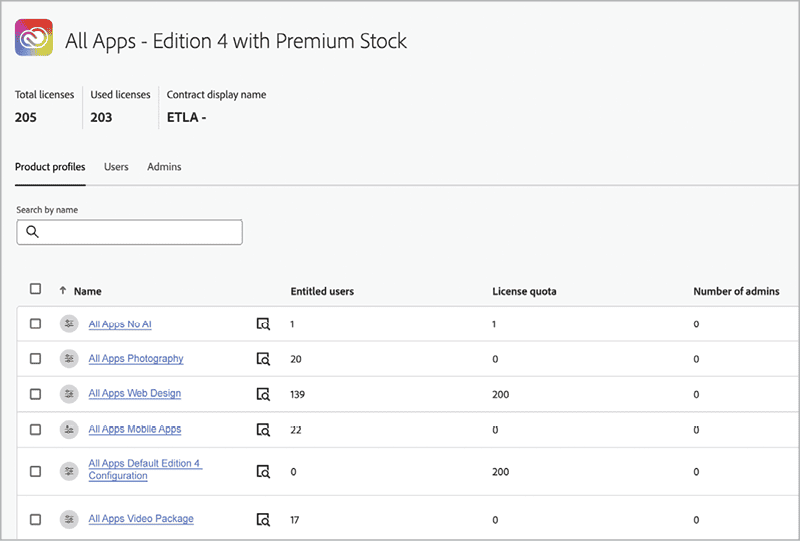
Clicking a product name in the Products page list opens its Product Profile, which lists the available user groups assigned within that product (Figure 10). The Details button (upper right) exposes the apps and services within the product or, if the administrator has control over which components and options within that plan to permit, it opens the Edit Product Profile dialog box (Figure 11).
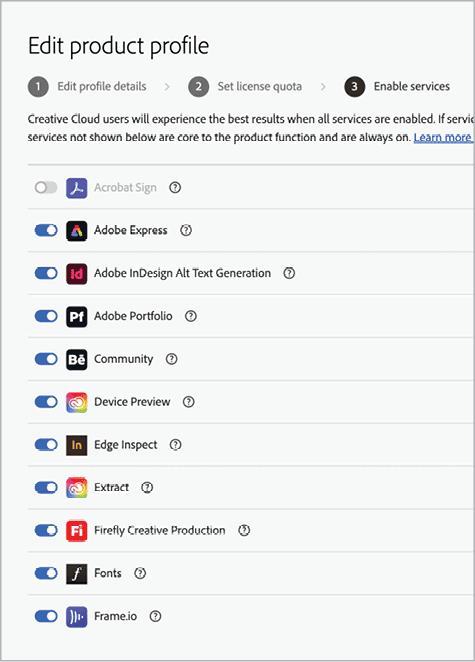
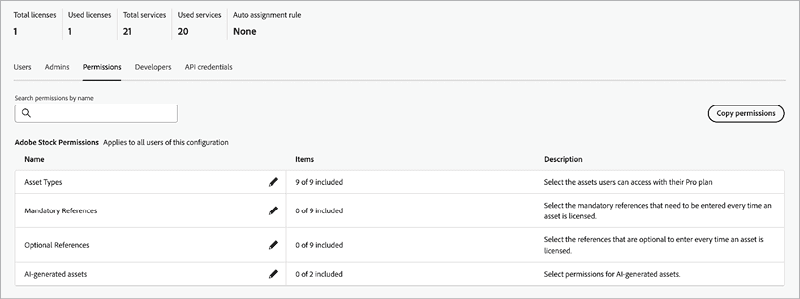
Here, the admin can use the toggle switches to control access to Adobe Express, Frame.io, Firefly features, and more services. The admin can also set specific access to Adobe Stock Permissions (Figure 12), including whether users can access AI-generated stock assets.
Users page: Roles
To find the second area that controls permission access, go to the Users page and click Roles (Figure 13). User-based roles—for Enterprise users only—give even more granular controls beyond product permissions, enabling an admin to deploy software with mixed access within a company or group.
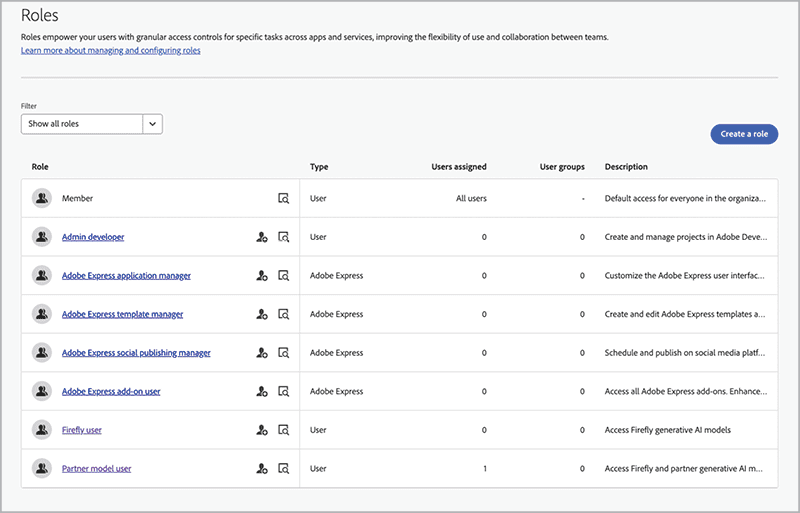
Admin Console offers preset roles such as Firefly User, which gives access to only Firefly models, and Partner Models, which adds access to all third-party partner models.
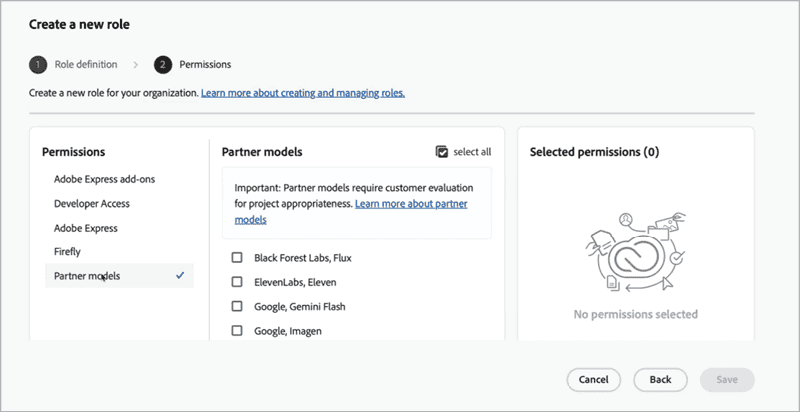
An admin can also create additional custom roles and designate specific access to individual models instead of the entire third-party offering (Figure 14). This is a great feature when working with IT security concerns or governance restrictions.
Collaborating with Your IT Department
Most IT departments consider themselves service providers who are there to help. Having a good, collaborative relationship with your IT department can make managing your Creative Cloud environment a pleasant experience. Here are some tips to help you when working with IT professionals:
- IT can be a detail-orientated department. Be specific when asking for changes.
- Become a subject matter expert (SME) on Creative Cloud structure. IT may know how to deploy software yet not understand use cases.
- Convene a meeting to walk through the Adobe Admin Console screens, settings, and roles together.
- Appease your IT security: Provide documentation and/or links from Adobe.com regarding Firefly AI ethics and indemnification.
Get Back to Work Faster
You can’t be creative when you can’t access the tools you need, and time lost to hunting down permissions problems can play havoc with deadlines. With some basic knowledge of the Adobe Admin Console, you can better communicate and collaborate with your IT administrator to resolve issues more quickly.
Commenting is easier and faster when you're logged in!

Recommended for you

Filtered File > Open Dialog Box
Here's a way to filter file types in your Open File dialog box.

Closed Captioning in Premiere
Add captions to your Premiere video to ensure everyone benefits from its audio t...

Better first proofs. Fewer review rounds. Introducing PreProof™
Most designers are already familiar with Preflight — checking a document for tec...