



It’s time to reveal the solution—and the winner—for this month’s InDesignSecrets contest!
Here’s the scenario:
You open an InDesign file and notice that an Illustrator image of a spiderweb has been placed into the layout twice (on different pages).
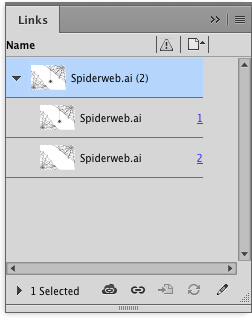
You also notice the appearance of the Illustrator image is inconsistent. On the first page, there is a spider dangling from the web.

On the second page, the spider is gone.

This is the only image in the layout, there’s nothing else on either page, and the link is updated.
Why is the spider missing on the second page?
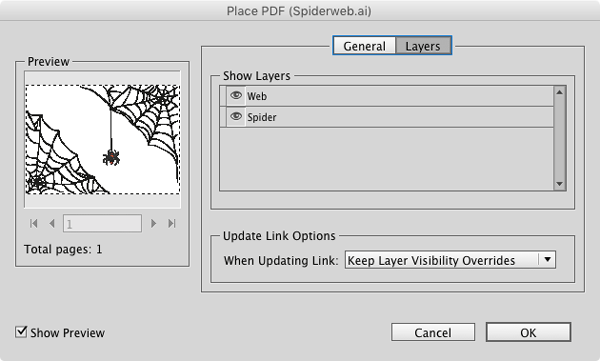
The answer is that the Illustrator file contains multiple layers, and the layer containing the spider was turned off on the second page of the InDesign document using Object > Object Layer Options.

You can also access Object Layer Options when placing an image by selecting Show Import Options in the Place dialog box (or Shift-clicking the Open button).
And the winner of this contest is…
Brandy Bingham
Brandy wins full access for 3 months to the video archives for PePCon 2016 or the CreativePro Conference (up to $495 value!).
Thanks to everyone who entered, and be on the lookout for another contest with a new great prize next month!
This article was last modified on July 25, 2019
This article was first published on September 21, 2016
Commenting is easier and faster when you're logged in!

Recommended for you

The Riddle of the Inverted Arrows: Contest Answer and Winner!
It’s time to reveal the solution—and the winner—for this month’s InD...
Classic Concert Posters Reimagined
With the tools in your design toolbox, and some inspiration from iconic artists,...

Finding, Filtering, and Organizing Fonts in Illustrator
The Illustrator 2026 font browser includes libraries and new options for browsin...