


Review: Astute Manager Pro
This new service makes it easy to back up, restore, and sync your Illustrator settings and assets.


This article appears in Issue 56 of CreativePro Magazine.
Resetting preferences is one of the easiest ways to keep Illustrator running smoothly. A quick reset can clear corrupted settings, fix buggy behavior, and often prevent crashes altogether.
So why do so many designers avoid resetting preferences? Custom settings revert to the defaults, your workspace suddenly becomes unrecognizable, and who wants to rebuild everything when you’re on a deadline?
Astute Manager Pro takes the fear out of clicking the Reset Preferences button. It gives you a reliable way to save your settings before anything goes wrong, so you can restore them instantly when you need them.
This cloud-based service, which is accessed through the company’s Astute Manager application, stores backups of your settings and assets. You won’t have to dig through hidden or obscure folders or remember where the files live on your system. One click saves your Illustrator work environment. One click restores it.
Instead of treating your Illustrator setup like a delicate, breakable antique, you can reset the program and get right back to work.
More Than Just Preferences
Your Illustrator setup is more than a single preferences file. You also depend on assets that you use every day, including custom workspaces, swatches, brushes, graphic styles, keyboard shortcuts, and, for teams, shared assets. Astute Manager Pro backs up everything (Figure 1).
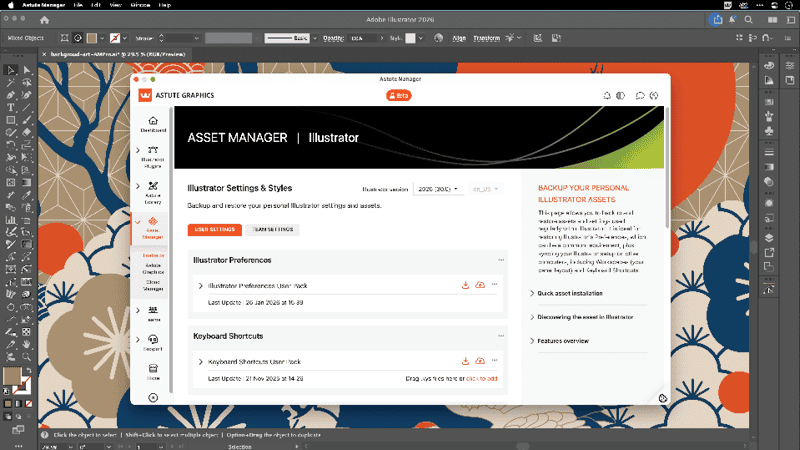
Designers who move between a laptop and a desktop can also keep their settings in sync. Astute Manager Pro makes it easy to capture a snapshot of one setup and deploy it on the other, so workspaces, settings, and assets match across machines.
If you already subscribe to the Astute Graphics plug-ins, Astute Manager Pro is available directly inside your Astute Manager window. Otherwise, you can create an account at Astute Graphics, choose a plan, and install Astute Manager Pro.
The Free plan includes 300 MB of cloud storage for preferences, settings, and assets for up to three team members. For designers who want more storage or need to support larger teams, Premium and Enterprise plans are available.
Backing Up Your Settings
After you install Astute Manager Pro, setup is straightforward. Simply back up your preferences whenever you make meaningful changes to your setup. That way, your saved version always reflects how you actually work now, not how you worked months ago.
Before backing anything up, however, quit Illustrator. Preferences can’t be saved while the app is running, and it’s best to create a backup when Illustrator is behaving normally, not immediately after a crash.
In Astute Manager Pro, go to the Asset Manager, and choose Illustrator (Figure 2). This section becomes the home for your Illustrator settings and assets. In the User Settings tab, find the Illustrator Preferences tile, and click the cloud icon to upload your current settings. That’s it. Your preferences are now safely stored, ready whenever you need them.
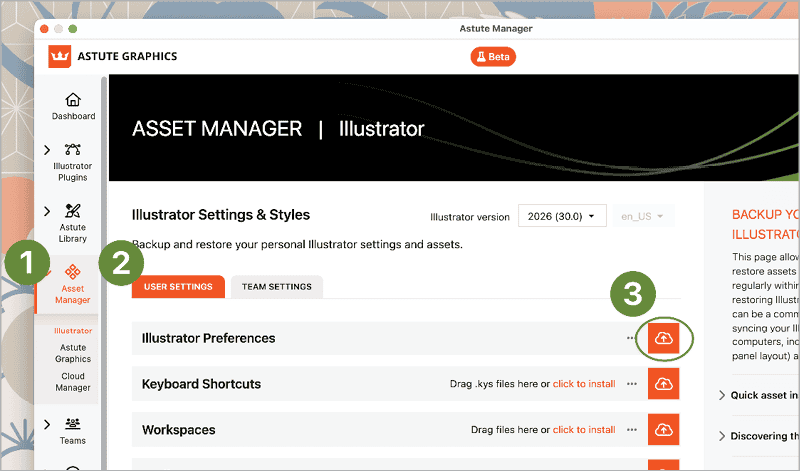
Before reopening Illustrator, back up your keyboard shortcuts, workspaces, and toolbars as well. Each has its own tile in the Asset Manager and uses the same process as for Illustrator preferences.
How to Reset Illustrator Preferences
To reset preferences in Illustrator, choose Illustrator > Settings (macOS) or Edit > Preferences (Windows) to open the General panel. At the bottom of the panel, you’ll see the Reset Preferences button (Figure 3). Clicking it and closing the Preferences panel will immediately bring up a dialog box prompting you to relaunch the program.
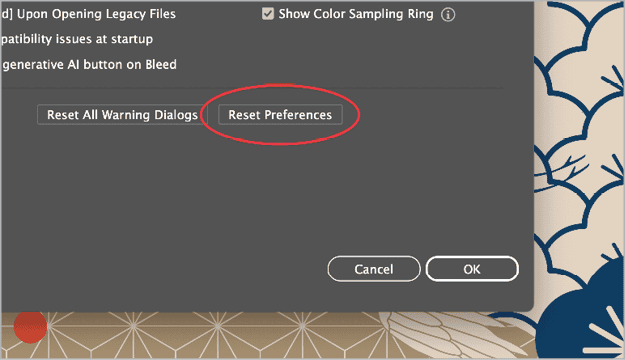
You could click Cancel to resume working. Otherwise, clicking Restart Now will close Illustrator and reset the app to its default settings. The next time you launch Illustrator, it starts fresh and ready to go, but you may not recognize your usual setup. That’s where Astute Manager Pro comes in.
Get Back to Work in Seconds
To restore your settings, quit Illustrator, return to Astute Manager Pro, and navigate to the User Settings tab of the Asset Manager. Expand the Illustrator Preferences tile, and click the Download And Install arrow button. Astute Manager Pro will then reinstall your saved preferences automatically in the correct system folder (Figure 4).
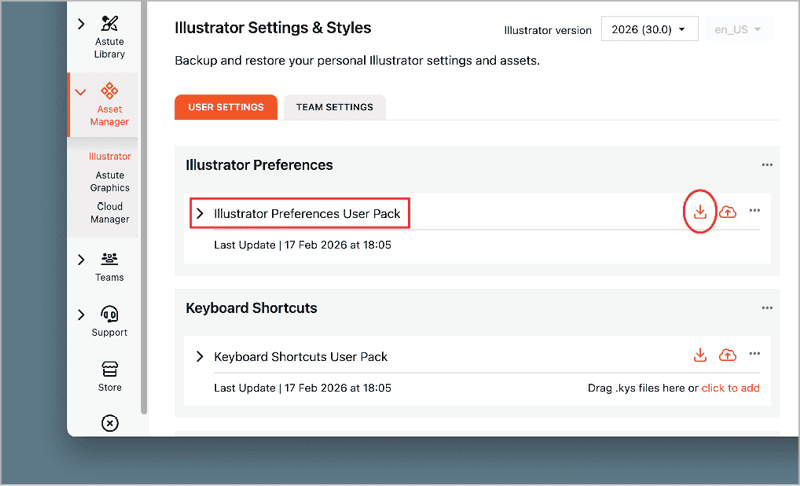
Click the same button in the Keyboard Shortcuts, Workspaces, and Toolbars tiles to install these elements. Each uses the same tile and button format, so the process for everything is quick and familiar.
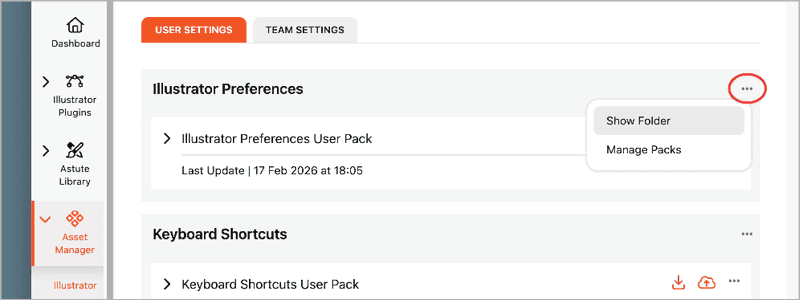
If you ever want a peek at those folders on your system, you won’t have to go hunting for them. Each tile includes a Show Folder option in the More menu, which opens the exact folder instantly (Figure 5). It’s a nerdy detail that I’ve grown to love. I’d much rather click a button and watch the Finder jump to the right place than pause to search for instructions.
Keep Track of Creative Assets
Astute Manager Pro doesn’t stop at preferences. It also lets you back up and organize the creative assets you use every day, including swatch libraries, brushes, graphic styles, symbol libraries, scripts, action sets, and template files. Everything lives in one place, and the process is familiar because it works the same way as backing up your settings (Figure 6).
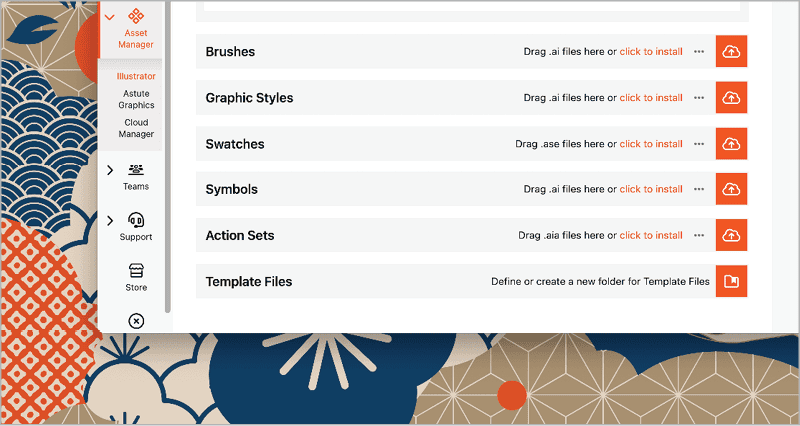
The big difference is that you don’t have to quit Illustrator to manage these assets. You can access and back them up while Illustrator is running. If you build the perfect swatch library for a project, you can back it up immediately in Astute Manager Pro without breaking your flow or worrying about where it’s stored.
Team Workflows
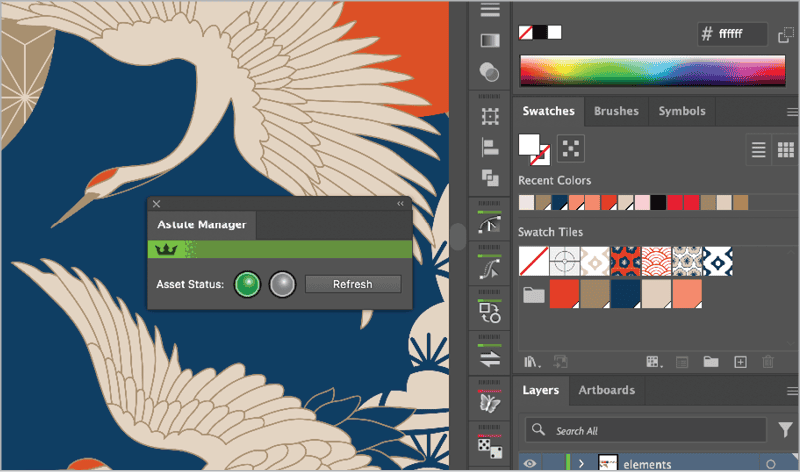
Those same assets can also be shared with your team. A built-in panel inside Illustrator uses a traffic-light indicator to show when an asset has been updated (Figure 7). When a team lead uploads a revised swatch library, symbol set, or other shared asset, team members can quickly see whether what they’re using is up to date, so everyone stays in sync without any extra back-and-forth.
Simplify Your Routine
With Astute Manager Pro in place, your routine for resetting preferences and managing assets is simpler than ever. Your setup stays backed up, your assets stay organized, and you can focus on working in Illustrator instead of maintaining it.
Astute Manager Pro in Action
To see the full backup and restore process from start to finish, check out the Astute Manager Pro playlist on YouTube. You’ll find step-by-step walkthroughs of common tasks that I created in collaboration with the Astute Graphics team.
This article was last modified on June 9, 2026
This article was first published on June 1, 2026
Commenting is easier and faster when you're logged in!

Recommended for you

CreativePro Week 2026 Preview: 5 Indispensable InDesign Sessions
Five sessions InDesign users can't afford to miss

CreativePro Week 2026 Preview: 5 Pixel-Perfect Photoshop and Illustrator Sessions
Our Editor in Chief lists his must-see Photoshop and Illustrator sessions at Cre...
New Font Browser Features in Illustrator
Explore the new features added to the Font Browser in Illustrator 2026.