




I use InDesign’s CC Libraries feature all the time to keep assets for specific project assets organized and shareable. Today I had a CC library populated with a bunch of swatches and objects and I decided that it would be helpful to duplicate this library and use it as the starting point for a second library.
But a quick look at the CC Libraries panel menu revealed that there isn’t an option to duplicate a library. But there is a roundabout way to do this. To begin, choose View on Website from the CC Libraries panel menu.
 Your browser will open, and a Web view of all the items in your selected library will be displayed. Click on the “Back” arrow to the left of the name of your library.

This will display a web view of each of your libraries. Locate the library you want to duplicate, and click on the drop down menu for that library.

Choose Copy from the drop down menu.

Click Confirm when you are prompted.
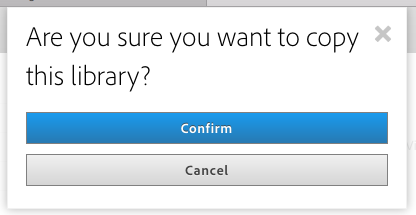
Return to InDesign, and you will see that you now have two libraries with the same name in your Libraries panel. Select one of them, and choose Rename from the CC Libraries panel menu.
 Once you’ve duplicated a library, the two libraries are completely independent of each other. You can add, delete, or rename objects in one library without affecting the other. Remember, library items count towards your storage quota that you are allowed as part of your Creative Cloud subscription.
This article was last modified on July 25, 2019
This article was first published on September 1, 2016
Commenting is easier and faster when you're logged in!

Recommended for you
Livestream Video: CC Libraries: A Crash Course
Are you using CC Libraries? Tune in to find out why you should be!
Create Flawless Fractions with OpenType
Choose your font carefully if you need flawless fractions!
Backing Up Your CC Libraries
Back up your Creative Cloud Libraries to keep linked assets safe when archiving...