




I recently had a chapter in a book crash during work. When I reopened it, I got an alert that the file might be damaged. When I was able to open it, I immediately made an IDML file of the chapter and then reopened it. That is my usual procedure to fix any problems in the file.
Unfortunately, I got an error message every time I went to make a PDF that there was an unresolved cross-reference in the file.
Now I knew there weren’t any cross-references in the Hyperlinks panel. And the Preflight panel couldn’t find any x-refs. But since I was going to hand the file off to my publisher, I didn’t want them to get any alerts that would cause alarm. (I know that cross-references would be stripped out of the file during export to PDF, but their production department is very jittery when it comes to output.)
So I needed to find what the problem was in the file. Since I had already done the IDML fix, someone suggested the oldie-but-goodie technique of dividing the file in half, exporting, and if that part was OK, dividing the other part in half, and so on until I had found the errant page.
I started by working on a backup of the file. (Always work on a backup of the file!)
Splitting up the pages
Since the story flowed from page to page, I needed a way to keep all the elements on each page as I divided the document in half. Otherwise the elements would have just flowed along as I deleted pages. Fortunately, the SplitStory script that comes with InDesign was all I needed.
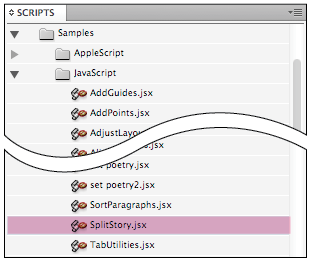
The SplitStory script in the Javascripts folder of the Scripts panel
This broke the text so that each page had an unlinked text frame. (This script is also useful for working on children’s books where the text should not flow from page to page.
Next, I went to the Pages panel, and selected half the pages. ( I started with the last half, but it wouldn’t have mattered which side I did.) I then dragged them into the trash.

I then exported the remaining pages. I still got the alert message that there was an unresolved x-ref. So I knew the half of the document I had deleted was OK. (Of course this assumed that I only had one x-ref causing the problem. But more about that later.)
I then selected the half of the remaining half (also known as a quarter) and deleted it. And I exported the remaining quarter. I didn’t get the alert. So I knew that the problem was on a page that I had just deleted. This is where life today is so much better than it was years ago.
The Power of Undo
Years ago (in the 1990’s using QuarkXPress), I would have had to save a new version of the file for each step of the process. We didn’t have “undos” back then. It would have littered my desktop with files. With InDesign, all I had to do was undo the previous step and then delete the pages I had just tested. (In all fairness, today’s Quark does have an undo feature.)
Then test half the pages that were left. The undo command made all this go really quickly.
Fixing the problem
Fortunately I found the problem. There was an x-ref on the page but it was jumbled up with other text in the middle of it. So it didn’t show up in any of the panels. I fixed the text on that page and exported?no alert!
I then found that page on the original file and fixed the x-ref there. I then exported again?no alert. If I had gotten an alert, it would have meant that another x-ref was in the bottom half of the document, and I would have had to redo the procedure for that half of the document.
Refining the search further
Sometimes the problem isn’t obvious to see. This is especially true for a single page document with several images that cause a crash on export or printing.
In that case, you need to do a similar procedure by selecting and deleting half the objects on a page till you find the one that is causing the problem.
Crash upon opening
Of course this procedure doesn’t help for those instances where the file crashes when opening. For a technique in fixing that situation, see David Blatner’s post https://creativepro.com/indesign-document-repair-extreme.php.
This article was last modified on December 21, 2021
This article was first published on August 17, 2012
Commenting is easier and faster when you're logged in!

Recommended for you

“Corrupt InDesign File” Horror Stories
Follow these steps to ensure that your file doesn't become the next InDesign hor...

The Digital Art Studio: Quick Fixes #1 (Square Art)
This is the first in a series of articles on quick fixes you can apply to photos...

Before&After: Picture Your Presentation
Better than charts and bullet points, photographs will give your audience an emo...