




This tip was sent to Tip of the Week email subscribers on October 29, 2015.

Sign up now and every week you’ll get a new InDesign Tip of the Week and Keyboard Shortcut of the Week, along with roundups of new articles at InDesignSecrets and CreativePro, plus exclusive deals sent right to your Inbox!
Just scroll all the way down to the bottom of this page, enter your email address, and click Go! We’ll take care of the rest. Now, on with the tip!
When you’re working with type converted to outlines or other complex vector shapes, you might want to tweak the appearance by editing just a subpath. To do this, start with the object deselected. Then take the Direct Selection tool and press Option/Alt while you click on one of the anchor points of the subpath (don’t click on a segment inbetween anchor points).

Now you can manipulate the subpath independently from the rest of the object.
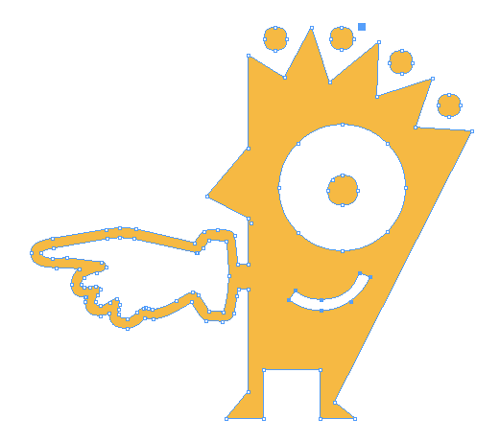
You can move it,

rotate it,

scale it,

shear it,
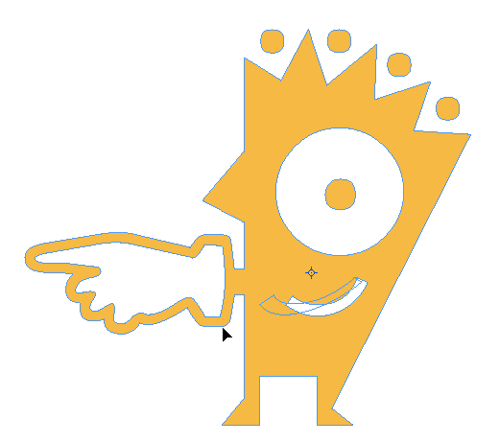
or delete it.
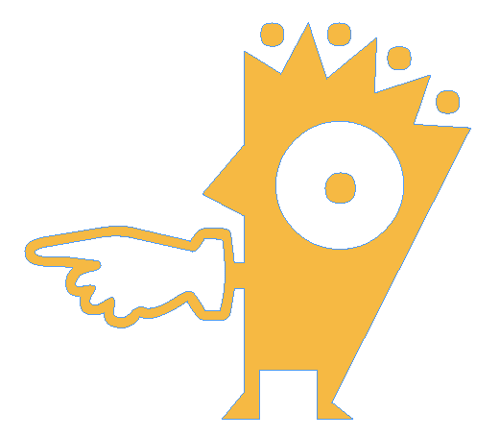
Want to manipulate multiple subpaths at the same time? Hold Option/Alt+Shift while you click to select them.

This article was last modified on July 25, 2019
This article was first published on November 3, 2015
Commenting is easier and faster when you're logged in!

Recommended for you
Tips to Control Photoshop Layers
Khara Plicanic shares smart Photoshop Layers panel tips to help you find and man...

Add Menu for InDesign’s Drawing Tools
InDesign's drawing tools are several mouse clicks away. A start-up script places...
Navigating and Customizing the Premiere Interface
Are you a Premiere beginner? Get started and customize your workspace with Myra...