



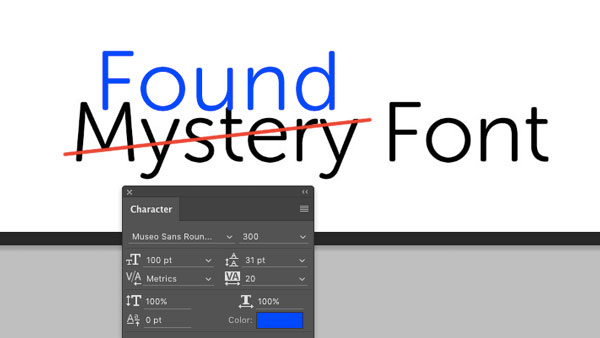
This CreativePro Tip of the Week on identifying fonts in Photoshop was sent to CreativeProse email subscribers on January 25, 2017.
Sign up now and every week you’ll get a new tip, plus roundups of new articles, and exclusive deals sent right to your Inbox!
Just scroll down to the bottom of this page, enter your email address, and click Submit! We’ll take care of the rest. Now, on with the tip!
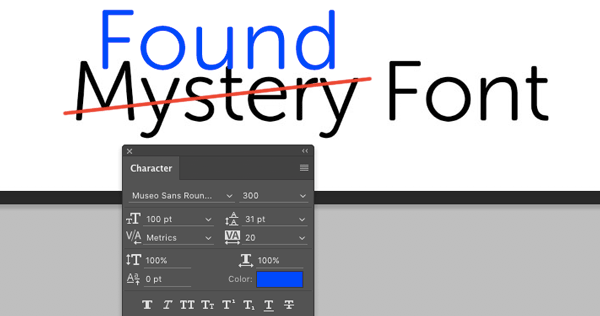
Ever need help identifying a font in a Photoshop file? In the past, you’d have to use some of the resources we listed in our Ultimate Guide to Identifying Fonts. Now, in addition to those tools, Photoshop itself can help you. If you’re using Photoshop CC 2017, all you have to do is open the image:

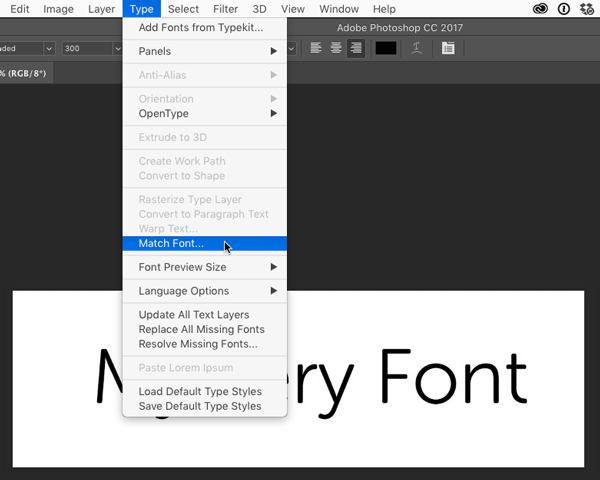
and choose Type > Match Font.
A dialog box will appear with instructions on how to tell Photoshop exactly which line of type contains the font you want to identify.
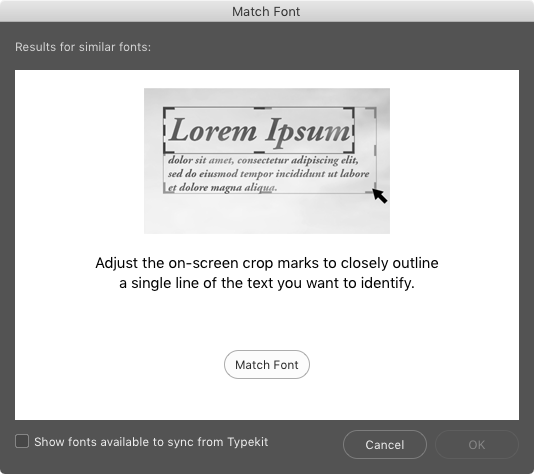
Then just click Match Font.
A list of likely suspects is created from the fonts on your machine, as well as ones available from Typekit (if you choose that option).
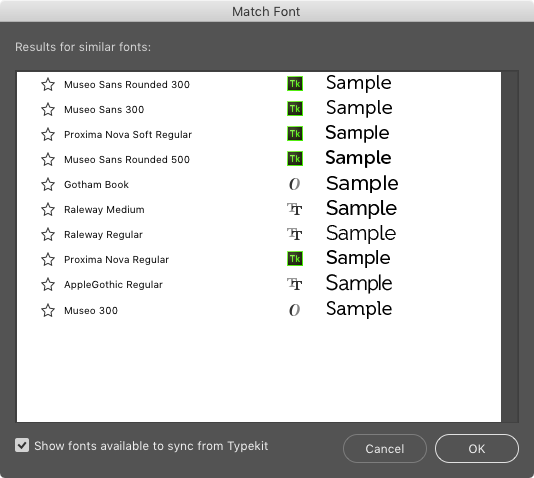
If the font is on your machine, clicking it in the list makes it the active font in Photoshop, so you can start using it right away.
This article was last modified on February 3, 2017
This article was first published on February 3, 2017
Commenting is easier and faster when you're logged in!

Recommended for you

Using Math Symbols in InDesign
Use the InDesign Glyphs panel to populate your work with the correct math symbol...

Tip of the Week: Right-click to Reveal
This tip was sent to Tip of the Week email subscribers on June 26, 2015. Sign up...

Adobe Introduces the Photoshop Photography Program
In a move that acknowledged the need for a cheaper, focused alternative to its e...