



Typography is the cornerstone of a lot of modern designs, especially now that flat design is so popular. Many of us have no trouble identifying everyday fonts like Verdana, Tahoma, and Times New Roman at a glance, and maybe a typography course or two beat a couple others into your brain.
Some designers pride themselves in their font memorization abilities; if you want to become one of these people, I wish you luck. Whether you learn your fonts from using them in your work, curating fonts for others, or by completing memorization exercises, it is undeniably a useful skill. But with thousands of fonts available there are limits to what even the most dedicated font fans can memorize—which is where tools come into play.
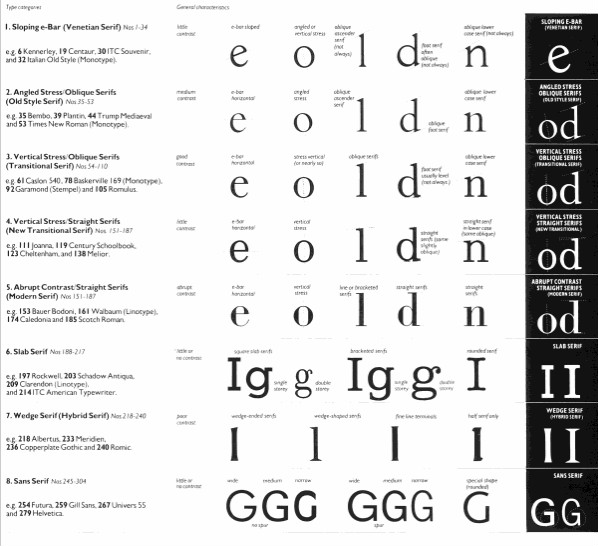
In the dark ages (and by that, I mean pre-internet days), designers identified fonts using massive print collections, such as Rookledge’s International Typefinder. In these books, you search by the font’s unique characteristics: perhaps it features wedge serifs, or a sloping bar on the letter e.

A chart of font characteristics from the most recent edition of the International Typefinder.
Some people became extremely adept at pinning down the unique things about a font that made it easy to identify with these books, but there were a few problems. First of all, it just isn’t very efficient to use a book. And the number of digital type foundries exploded with the rise of the internet, meaning that the available number of fonts quickly went beyond the scope of what a single book could attempt to categorize.
Fortunately, today we have technology on our side. It has revolutionized the way we find and distinguish fonts.
Identifying Fonts on the Web
Most of the fonts used on the internet are pretty generic—they’re the basic fonts everybody knows and which you probably already have memorized. However, as browsers become more and more sophisticated (or, as the case may actually be, more standardized), it is getting easier than ever for web designers to embed interesting, unique fonts. These are called “web fonts,” and if you see one you’d like to use on your own site, you’re probably in luck, because they’re often free.
What You Need
All you need to get started is the website featuring the web font.
You can usually figure out what font a website is using by digging in the source code or the stylesheet. But why would you want to do that when you could instead just download a handy tool to do it for you?
Identifying the Font
There are two great tools for this that I would recommend; pick whichever you prefer and use it.
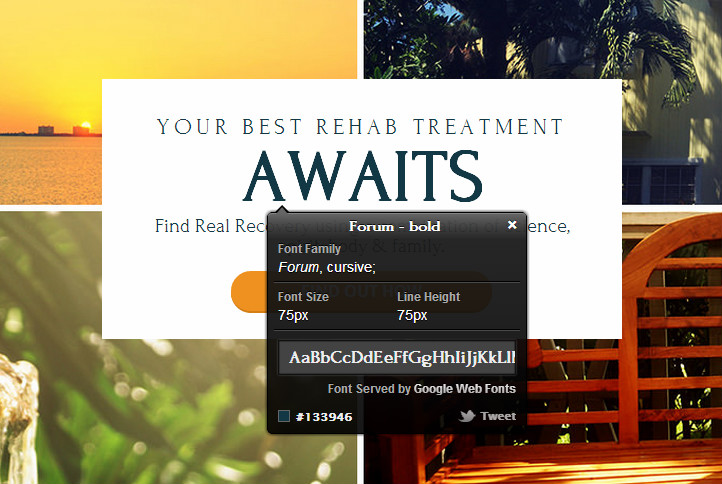
WhatFont is available as a Chrome or Safari extension, or as a bookmarklet if you use another browser. After installing, click on WhatFont in your extensions or bookmarks to turn it on, then hover over a font you’re wondering about to see its name. If you click on the font, it will pop down a panel with more information about the font – including the font family, size, line height, who’s serving the font, and the color.
Here’s what WhatFont looks like in use, on the homepage of 12 Keys Rehab:
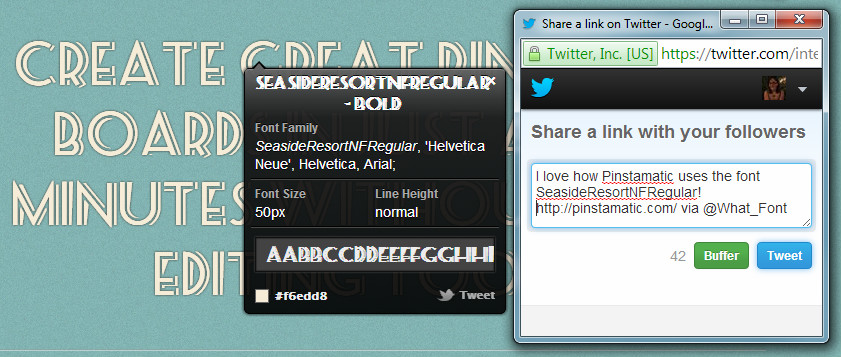
You can even tweet the discovery out to your typography-loving pals, if it’s that good, like this display font I found on Pinstamatic’s homepage.
If that’s too many bells and whistles for you, you can get the job done more simply with a bookmarklet called Fount. Fount is as minimalist as it is beautiful. Here is the information panel it brings up for 12 Keys:

Fount displays the name of the font (in that font), size, weight, and style. If that sounds like all the information you could ever want, all you need to do is drag the bookmarklet to your bookmarks browser and you’re ready to go.
Identifying Fonts in an Image
Maybe the font you’re looking for isn’t conveniently packaged on a website, but is actually used in an image. Identifying a font this way can be immensely frustrating. Fortunately, we have tools that will churn through an image, making comparisons to thousands of different fonts – and although they don’t always come up with the right answer at the top of the list, they can take out a lot of the guesswork.
What You Need
First, you will need an image of the text you are looking to identify – two or three words should do it, but try to get the font at as large a size as possible. Your job will be far easier if the background is plain instead of busy. And you need to have dark text on a light background – if you have white text on black or something similar, just invert the colors in Photoshop.
Sometimes it will take a little more fiddling. If you were enamored with VF Outlet’s logo:

You’d have to separate the letters from the bac
kground (and each other) so that the tools can pick them up as separate characters.

Along the same lines, if characters in your font have disconnected pieces (like that web font used by Pinstamatic in a screenshot above), no amount of Photoshopping will help these tools realize that those pieces are all part of one character. You’ll need to skip ahead.
Identifying the Font
There are several sites that will do this kind of font identification. The one that has always worked best for me is WhatFontIs. If you’re looking for one with a catchier name, try WhatTheFont. They both function pretty much the same way, but if you’re not satisfied with the results one brought up, you can try the other.
Here’s another text-only logo that I like, which is for Prebiotin:

Kind of cute, right? Obviously it’s been edited a little bit, to add the leaves above the second “i,” but I think there are enough letters there that I can grab some to identify. I took a screenshot of the first six letters of the logo, which should be enough to get a match.
And this is where I had to do a ton of fiddling. First I inverted it, which made it blue and pink letters on a Barbie pink background. WhatFontIs didn’t even register the last three letters, however, so I increased the contrast and darkened the “bio” part with the burn tool, until finally I had this:

WhatFontIs picked up all these letters just fine. On the next screen, you will fill in what each letter is, using the same case as it is in the image. Note that you shouldn’t fill in the “i” because it didn’t grab the whole thing.
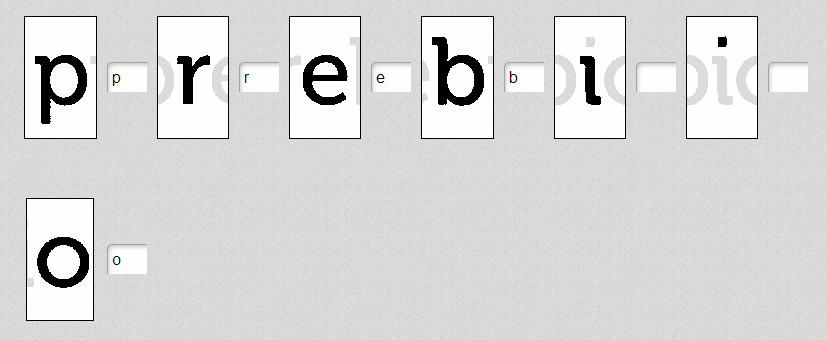
On the next screen, you’ll be presented with fonts that it thinks are a potential match—and lo and behold, it looks like the first result is the one!

If your search isn’t successful, try using some different letters (if available) or increasing the contrast so that it is easier for the tool to pull out the letterforms. And if that doesn’t work, move on to the next section.
Identifying Fonts in Print
Trying to figure out a font that is printed on a page can feel a bit like going back to the stone age. You probably don’t have access to the font finder book I mentioned earlier (they’re really expensive). You can try photographing or scanning the font and running WhatFontIs on it, but it’s almost impossible to get a scan as crisp and un-skewed as the original digital image. What now?
What You Need
You’re going to need a selection of text that you want to identify—in an ideal world, that would be a full set of 26 uppercase and 26 lowercase letters, and maybe even some punctuation for good measure. In practice just know that the more letters you have (especially uppercase), the easier it will be to determine the font they’re in.
If your sample is somewhere out in the real world, try to snap the clearest photo you can to refer to later.
Identifying the Font
As far as tools go, there are a few good options here: Linotype’s Font Identifier and Identifont, and a Serif Font Identification Guide that only searches serif fonts.
The first two are set up in a quiz format and ask almost identical questions. Ever since I discovered Linotype’s version I’ve preferred it because it looks a little nicer and it’s more user friendly, but you could use either.
You will answer a series of questions until the tool comes up with a match. If you don’t have a particular letter in your sample, there is always a choice for that.
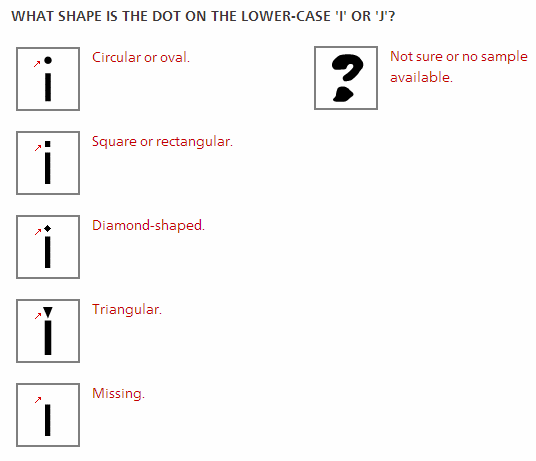
After a dozen or so questions, the tool will come up with a list of fonts with the characteristics you entered.
If you have a serif font, Bowfin’s tool is worth a try. Look through the characteristics of each letterform and select options that match your sample. If you’re not sure about something, skip it to ensure that you don’t accidentally kick the right font out of your results.
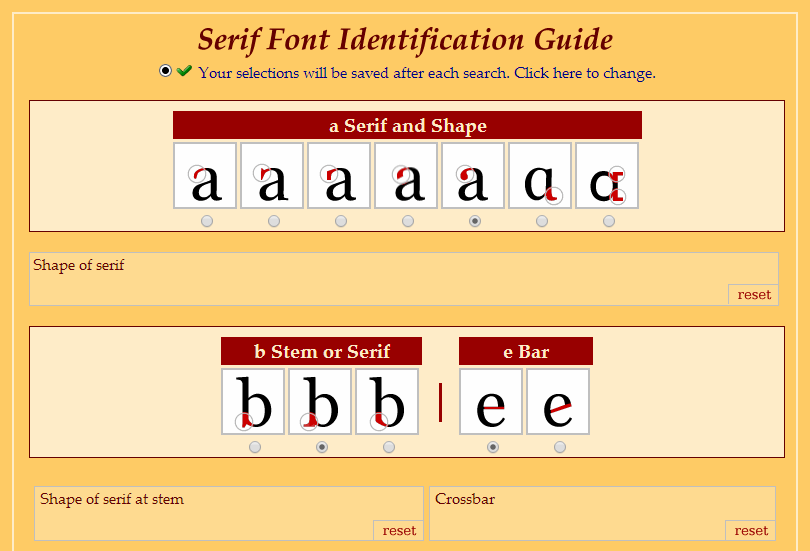
Hopefully your font will be among the results! If not…
Last Resort: Relying on Collective Font Intelligence
If you’ve got a font conundrum that is making you pull your hair out, you’re not alone. Many of us have had this problem at one time or another… and collectively, we can help each other more than you might realize!
There are a number of font identification boards out there, which all function essentially the same way: post an image of the font you can’t figure out, and typophiles will take stabs at it until they solve it. Since they are typically part of a larger community, the members will probably be more likely to help out if you’re active elsewhere in the comm
unity or can help plug into the collective “font brain,” but if you’re polite it’s still worth a try. Please just try posting to one forum at a time, instead of spamming them all with your desperate request.
Here are a few of my favorites to try:
• Typophile Font Identification Board
• WhatTheFont Forum
• r/identifythisfont
Good luck with your font identification adventures! Do you have any tricks up your sleeve that I managed to miss? Please share them in the comments below so we can all benefit!
This article was last modified on January 8, 2023
This article was first published on May 11, 2014
Commenting is easier and faster when you're logged in!

Recommended for you

Apply Hyphenation Corrections
This one runs in conjunction with the previous one to apply to the document or t...
Adjust Kerning
InDesign doesn't let you modify kerning tables, but with a script you can do jus...

CreativePro Week 2026 Preview: 5 Indispensable InDesign Sessions
Five sessions InDesign users can't afford to miss