




Normally when you’re setting your paragraph styles you must specify a font size. If you want to shrink your entire layout by 20%, you have to go to each style and manually alter it. I don’t know about you, but that seems like way more work that it needs to be.
Setting your percentage based styles
1. Create a base style (ex- 10pt Helvetica – named 100%).
2. Create a new paragraph style based on the 100% style, but under “Advanced Character Formats” change both the horizontal and vertical scale. This makes the style a specific percentage larger or smaller than the base.

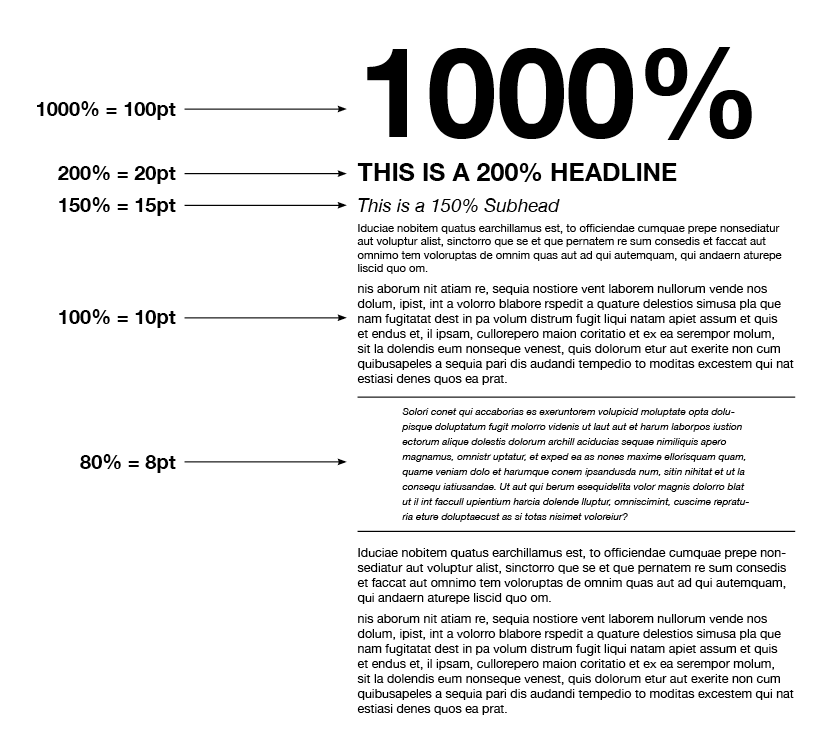
3. Create styles that are 150%, 200%, 1000% and 80% of the base size.
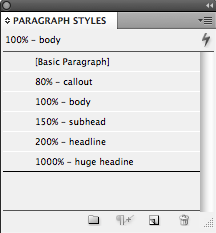
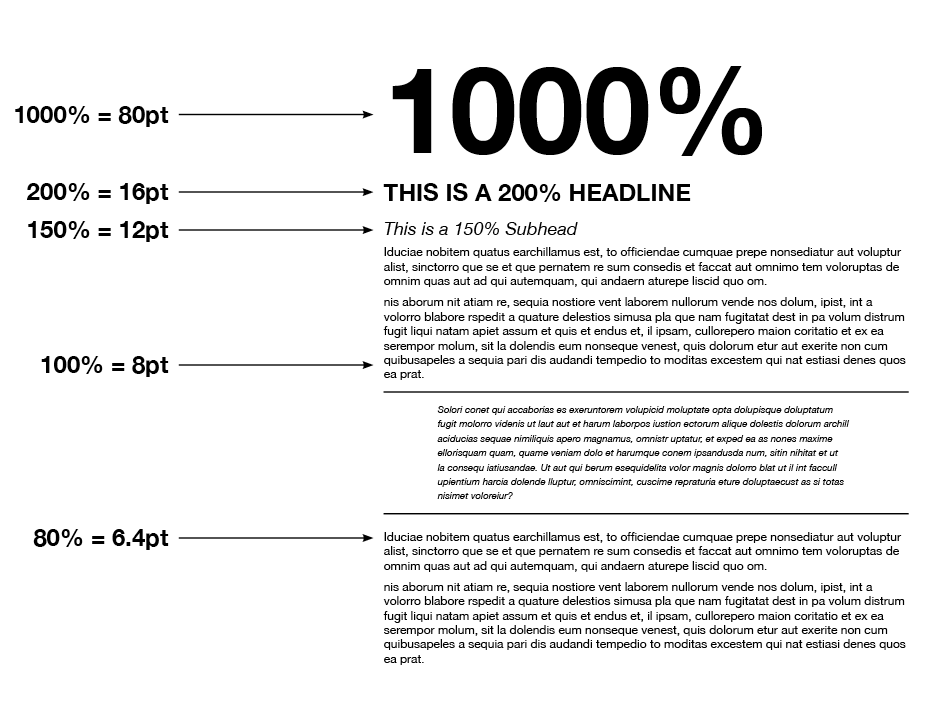
4. Now that all of my styles are complete you can easily scale the entire layout by changing the base paragraph style by a point or two and redefining the style.
Before changing the base style (100% = 10pt)
After changing the base style (now 100% = 8pt)
There are a few issues that will crop up with this process.
1. Leading can not be scaled. This is probably the biggest issue with this technique, but if your headlines are all 1 line, it will not be a problem.
2. If you have large headline at the top of a text frame, it will extend out.
This can be resolved by going to text frame options > baseline options and increasing the minimum 1st baseline accent.


While this technique may be beneficial to some, I hope that Adobe will allow percentage based styles in more areas such as leading, space before/after, paragraph rules and more. I have my fingers crossed for CS17.
This article was last modified on July 11, 2023
This article was first published on August 27, 2009
Commenting is easier and faster when you're logged in!

Recommended for you
Adding and Styling Text in Premiere
Myra Ferguson covers text formatting and safe margins in Premiere.

How to Fix InDesign Text Issues Highlighted in Blue
Why is your InDesign text blue? Myra Ferguson explains what's going on — and wha...

10 Terrific Time Savers for InDesign
Life is busy. Work is hard. Use these tips to get more done faster.