



The FindChangeByList script is a marvel, and I’ve used it many times to clean up documents. For example, double-clicking this script in the Scripts panel will convert all your double-dashes to em dashes, remove multiple spaces in a row and spaces at the beginning of a paragraph, and more.
I’ve recorded a movie about it at lynda.com; Anne-Marie did one, too. And we’ve had a number of blog posts about it. But never, until today, have I realized that the default set of replacements (the FindChangeList.txt file) has a big, Big, BIG bug in it!
The Problem
If you have a paragraph that ends with a space character, and the following paragraph has a different paragraph style applied to it, then running FindChangeByList will mess up the following paragraph! It applies the first paragraph style to the second, too. For example, this:
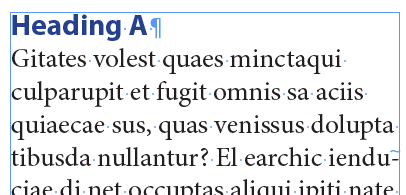
turns to this:
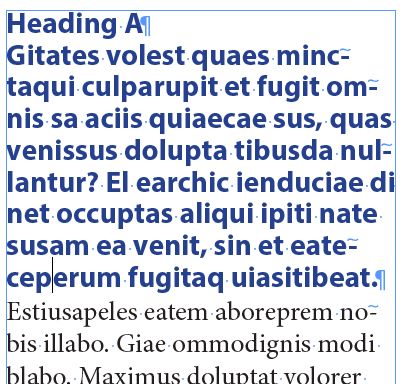
Oooops!
The reason is that the GREP find/change in the FindChangeList.txt is wrong! Here it is:
grep {findWhat:" \r"} {changeTo:"\r"} {includeFootnotes:true, includeMasterPages:true, includeHiddenLayers:true, wholeWord:false} Find all returns followed by a space and replace with single returns.
This is wrong in two places: the findWhat is wrong because it actually removes the carriage return (which messes up the styling); and the description at the end of the line is wrong because… well, it’s a duplicate of the previous line (someone copy and pasted by accident).
The Solution
Here’s how that line should read:
grep {findWhat:" (?=\r)"} {changeTo:""} {includeFootnotes:true, includeMasterPages:true, includeHiddenLayers:true, wholeWord:false} Find all returns preceded by a space and remove the space.
The findWhat code here looks for a space followed by a carriage return and just deletes it. And of course I’ve edited the description at the end of the line.
If you want to fix it on your system:
- Open the Scripts panel (Window > Utilities > Scripts)
- Open the Application/Samples/JavaScript/FindChangeSupport folders in the panel.
- Right-click on FindChangeList.txt in the panel and choose Reveal in Finder (or Reveal in Windows Explorer).
- Use a text editor (like TextWrangler… something that cannot accidentally add any formatting) to edit that file. It’s line 32.
You can save that txt file and the script should work properly now.
Sometimes those little things can make a big difference!
This article was last modified on July 8, 2021
This article was first published on September 18, 2014
Commenting is easier and faster when you're logged in!

Recommended for you

GREP of the Month: Horizontal and Vertical Spaces
Erica Gamet offers some easy to remember codes you can use to quickly select any...
URLs: Breaking (Badly)
With the help of GREP styles, you can solve the problem of bad breaks in long UR...

InDesign GREP You Already Have
There are a few things in InDesign that send the most seasoned of designers scre...