




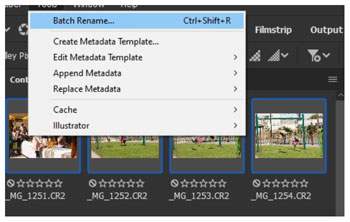
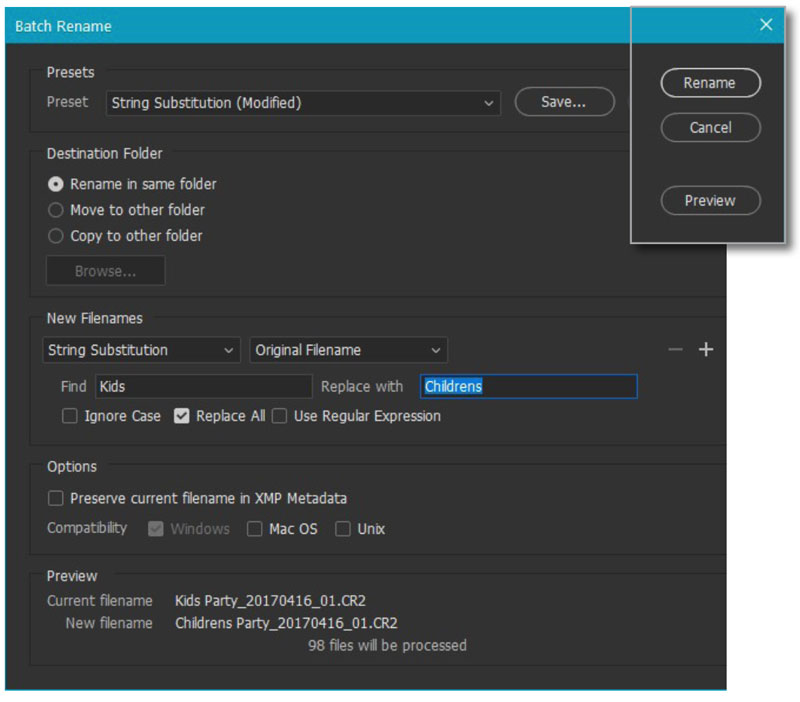
The next time you need to rename a set of files, don’t do the job manually—use Adobe Bridge instead. Bridge has a built-in feature called Batch Rename, activated from the Tools menu or Ctrl/Command+Shift+R. Select all (Ctrl/Command+A), and choose Tools > Batch Rename (Figure 1). Take a look at the dialog box (Figure 2), because there’s a lot to unpack here.

Rename in Same Folder will rename the image files. You could also choose to move or copy them to a different working folder.
In our example, the New Filenames section replaces the file name with the phrase Kids Party_ plus the date, followed by an underscore, and a two-digit—because there are only 98 total images—sequence number. At the bottom of the dialog box you can see a preview of how the renaming will come out to be sure it’s what you want.
The important thing here is that, although we haven’t touched the order of the files on disk, Bridge will use its current sort order when it renames the files (Figure 3). Click Rename, and watch the magic happen!

If you realize that you got the naming wrong, you can use the String Substitution feature to change it, say changing the word Kids to Children in this case. Figure 4 shows that dialog box.
Commenting is easier and faster when you're logged in!

Recommended for you

Bridge CC Update Adds New Features for Working with Graphics and CC Libraries
The details on a Adobe Bridge CC 2018 update that adds new features for working...

A Shortcut to View Pages Horizontally
This post was inspired by InDesign Secrets editor Mike Rankin’s comments a...
Saving Thumbnails of InDesign Pages
Keith does a "deep dive" into saving thumbnails for Bridge in InDesign.