



Here’s a quick tip for those times when you’re experimenting with different combinations of text formatting to find the right look for a piece of type. Use the Eyedropper tool. It can make quick work of the job because it allows you to sample and apply just about any combination of text formatting options.
To choose what the Eyedropper samples, double-click it in the Tools panel.

In the Eyedropper Options dialog box, you can choose to sample and apply font, size, color, leading, kerning/tracking, scaling/skewing, baseline shift, and more.

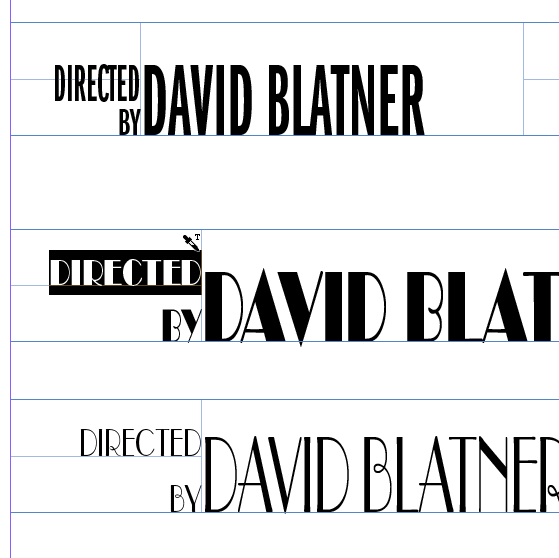
With the right options selected, click OK to close the dialog box. Then click to sample attributes from one piece of text, and click again to apply those attributes to other text. You can also click and drag to apply attributes to a specific range of text.
I used this method when I was writing my recent post on movie poster type. I sampled scaling and baseline shift. (Yes, I know scaling type this much is considered a type crime, but it’s common practice in movie posters.)
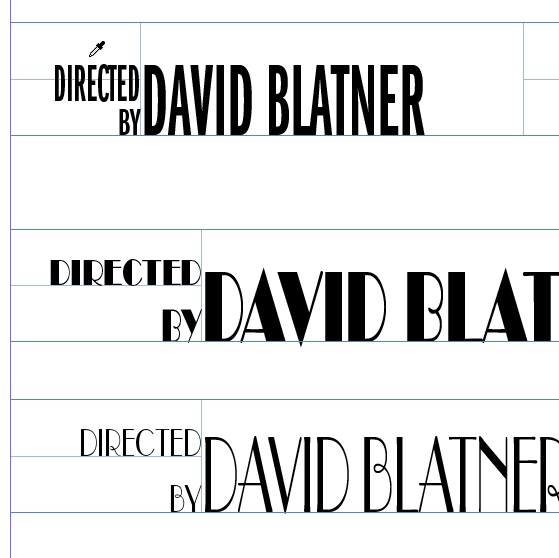
and applied it to a few tables where I’d used different fonts and cell options.

This article was last modified on July 25, 2019
This article was first published on February 16, 2017
Commenting is easier and faster when you're logged in!

Recommended for you

Rotating Text with a Character Style
Learn the trick for applying character rotation with a style, something that's u...

Tip of the Week: Creating Automatic Run-in Headings with Numbered Paragraph Styles
This InDesign tip on creating run-in headings with numbered paragraph styles was...

InDesign How-to Video: Make a Custom Line That Moves Along With Text
In this week’s InDesignSecrets video, Erica Gamet shows how to create a custom l...