



This InDesign tip on creating run-in headings with numbered paragraph styles was sent to Tip of the Week email subscribers on February 2, 2017.

Sign up now and every week you’ll get a new tip, keyboard shortcut, and roundups of new articles, plus exclusive deals sent right to your Inbox!
Just scroll down to the bottom of this page, enter your email address, and click Go! We’ll take care of the rest. Now, on with the tip!
Do you have content that includes run-in headings in some paragraphs (things like “Tip:”, “Note:”, etc)?
You don’t have to manually add these headings. Instead, use a paragraph style that includes numbering and set it to insert the heading instead of a number. Here’s how.
Create a new paragraph style, and in the Bullets and Numbering pane, choose List Type: Numbers. Then in the Numbering Style options type the text you want to appear as your run-in heading.
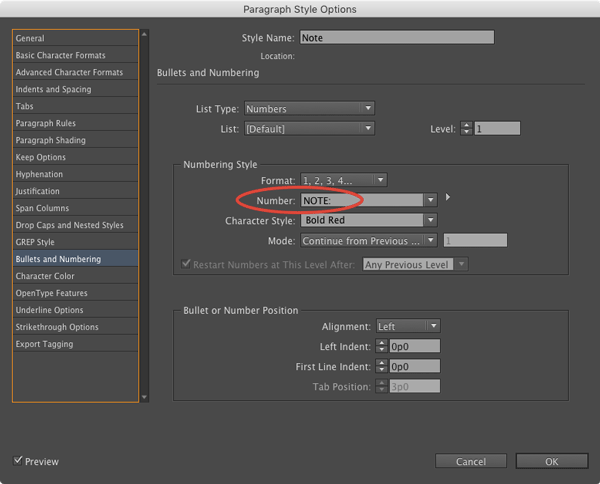
Apply or create a new character style to format the run-in, and click OK.
When you apply this style, the paragraph will begin with the run-in.
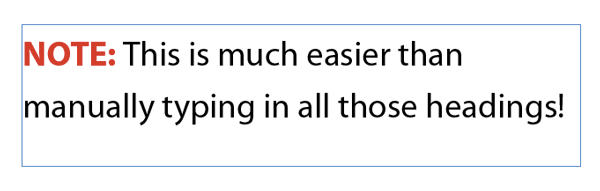
You’re not limited to single words, but be aware that the run-in is treated as a single character so it will not break when it reaches the end.

Another huge bonus of this technique: you can change the formatting or content of all your run-in headings instantly, just by editing the style!
This article was last modified on July 25, 2019
This article was first published on February 7, 2017
Commenting is easier and faster when you're logged in!

Recommended for you

The Inconsistent Indent Contest Answer and Winner
Solve this InDesign mystery for a chance at winning a great prize.

InDesign How-to: Restart Numbering in a List
Make your layouts smarter with list numbering that automatically restarts after...

The Case of the Absent Adornment Contest Answer and Winner
Solve this InDesign mystery for a chance at winning a great prize.