



This article appears in Issue 59 of CreativePro Magazine.
Most designers don’t create a single deliverable anymore. They create campaigns.
A social post becomes a story. The story becomes a banner ad. The banner becomes a landing page graphic. Then someone asks for a GIF. Then an MP4. Then a version for digital signage. The creative work is long finished, and the resizing and revising work never seems to end.
That’s what makes the CoDesigner plug-in from Fuga interesting. Rather than treating InDesign as a destination for static layouts, the AI-powered add-on transforms it into a content-production platform capable of generating multiple formats, adapting layouts, and even creating motion graphics.
For designers, production artists, and marketing teams tasked with creating content for an ever-growing list of channels, that’s a compelling proposition. Let’s take a closer look.
Start with a Single Design
Every project generally begins with a primary layout. Traditionally, once that design is approved, the designer’s real work starts. They become a production machine, cranking out endless variations for different destinations: duplicating pages, resizing documents, repositioning content, adjusting typography, cropping images.
CoDesigner lets you approach the process differently. Instead of rebuilding layouts manually, you provide the plug-in with a single source design, and then it adapts your layout to alternate versions (Figure 1).
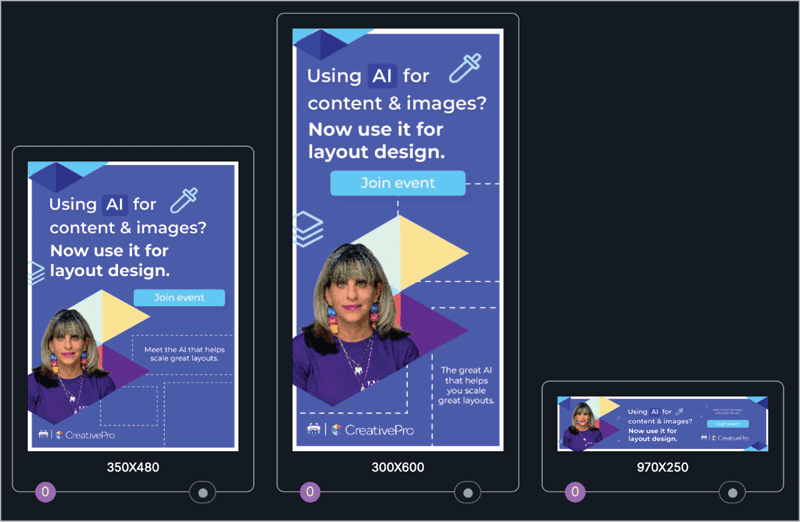
Its goal is to preserve the visual hierarchy and design intent while adapting content to different dimensions. Rather than simply scaling objects, in other words, CoDesigner evaluates the composition and generates new versions customized for their intended formats.
Create Dozens of Deliverables
One of the most impressive aspects of the workflow is how quickly you can generate alternate sizes. The Create Versions panel (Figure 2) includes common destinations for digital marketing, social media, video platforms, and print.
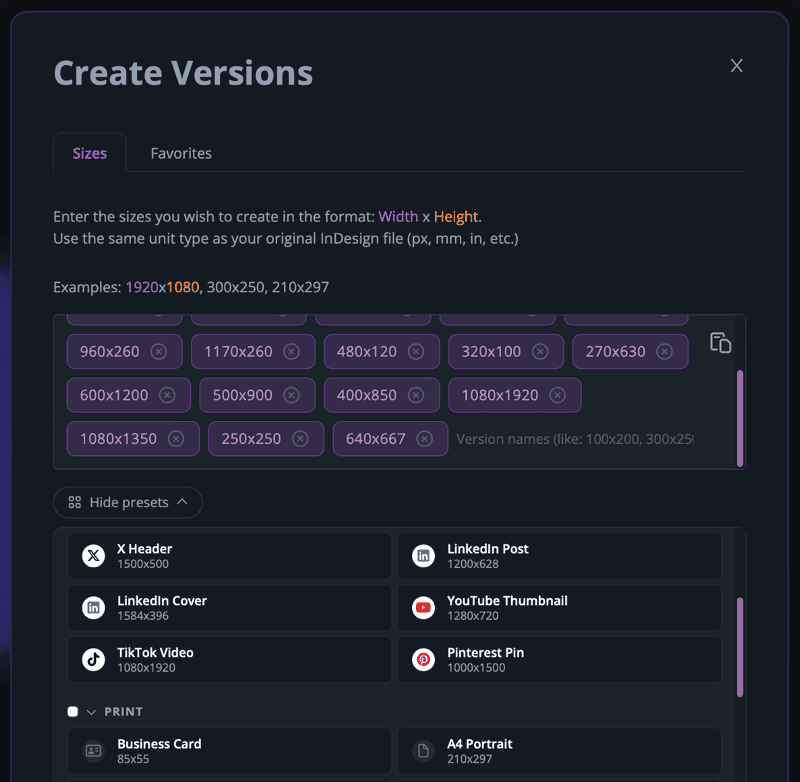
Among the available presets:
- LinkedIn posts
- LinkedIn covers
- YouTube thumbnails
- Pinterest pins
- TikTok videos
- Business cards
- A4 documents
- Custom dimensions
Even better, you can generate multiple layouts simultaneously. For anyone who has spent hours creating social media variations by hand, this feature alone can significantly reduce production time.
More Than a Resize Tool
Most resizing tools focus on scaling, but CoDesigner focuses on adaptation. That’s an important distinction, because a horizontal banner doesn’t necessarily work as a square social post. Likewise, a vertical story doesn’t behave the same way as a website header. Elements that feel balanced in one format often require repositioning in another. CoDesigner addresses this challenge by presenting multiple layout possibilities that you can review and refine.
In my tests, what impressed me most wasn’t that the software resized the design. It was that the generated versions often felt intentional rather than mechanical. The layouts retained hierarchy, spacing, and visual balance in ways that suggested a deeper understanding of the composition.
If, despite this, an auto-generated result doesn’t fit your vision, CoDesigner lets you refine generated layouts by adjusting individual elements, spacing, and positioning (Figure 3).
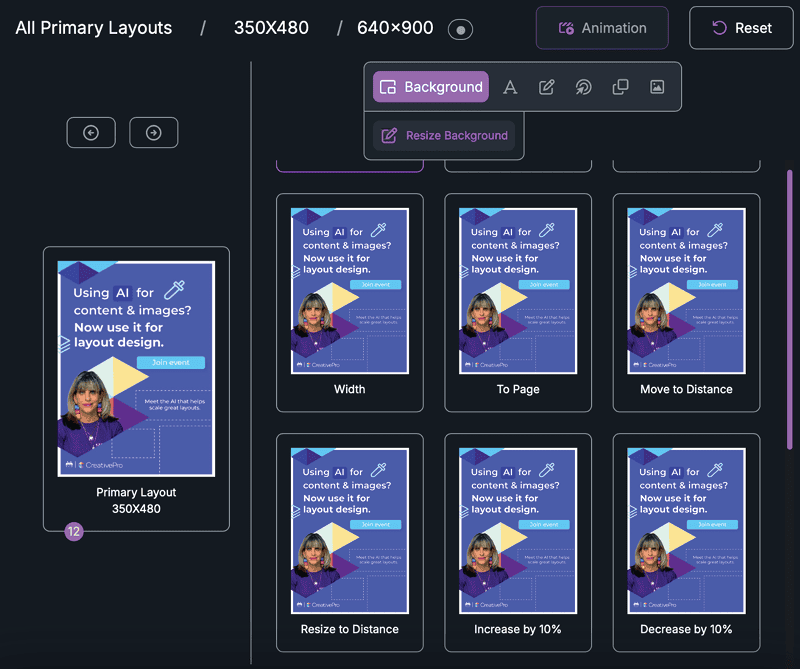
This balance between automation and creative control is what makes the workflow particularly effective. CoDesigner handles much of the repetitive production work, while you remain responsible for the final creative decisions.
Manage Large Campaigns
As more versions are generated, organization becomes increasingly important. Fortunately, CoDesigner keeps everything within the InDesign environment. Generated layouts appear directly inside the document, allowing you to maintain a familiar workflow (Figure 4).
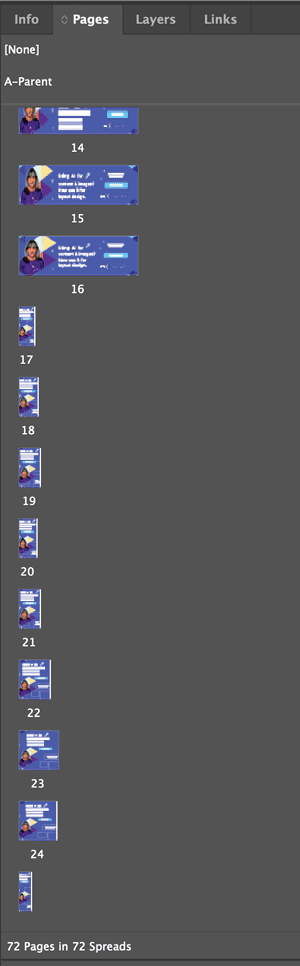
In one test, a single layout expanded into dozens of variations, and the resulting InDesign document contained more than 70 generated pages. For production artists managing large campaigns, the single-document approach creates a centralized workflow that eliminates much of the file management complexity typically associated with multichannel content creation.
Add Motion Directly
While the layout generation tools are impressive, the feature that surprised me most was animation.
Traditionally, motion workflows require moving assets into another application, rebuilding timelines, and maintaining multiple project files.
CoDesigner introduces a more natural approach: You can add motion directly to your layouts without leaving InDesign. Simply open the Animation Co-Designer panel to analyze a layout and automatically generate multiple animation options (Figure 5).
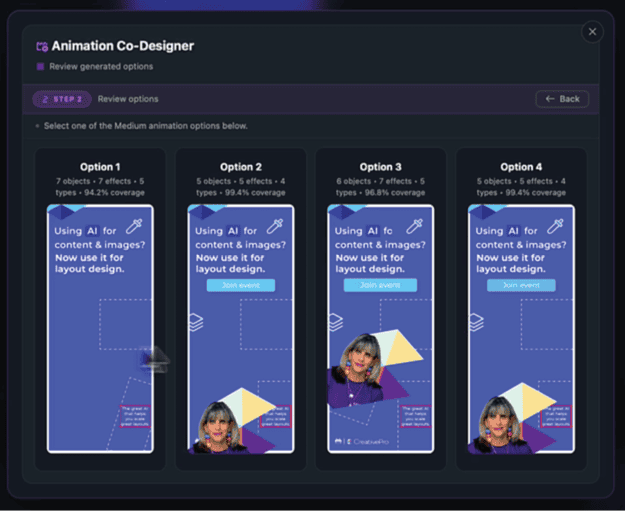
Rather than beginning with an empty timeline, you start with suggested motion treatments that you can review and refine. This dramatically lowers the barrier to entry for designers who may be comfortable creating static layouts but have limited experience with motion graphics.
Motion inside InDesign
Once you select an animation concept, CoDesigner provides a timeline interface and a panel of motion effects directly within InDesign (Figure 6). The Animation Agent allows you to build animation effects with an assist from AI.
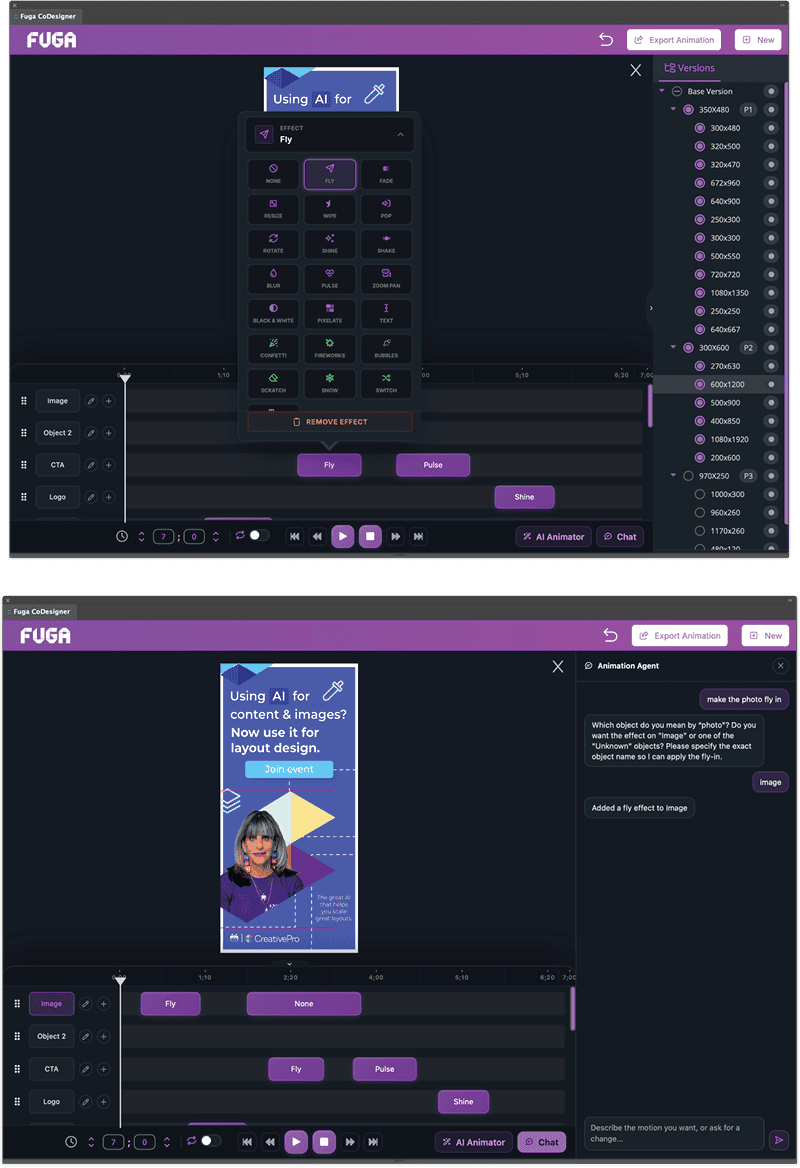
The available effects include:
- Fly
- Grow
- Fade In
- Fade Out
- Rotate
- Shine
- Type effects
- Scaling effects
You can control their timing, duration, easing, and direction without leaving your familiar InDesign layout environment (Figure 7).
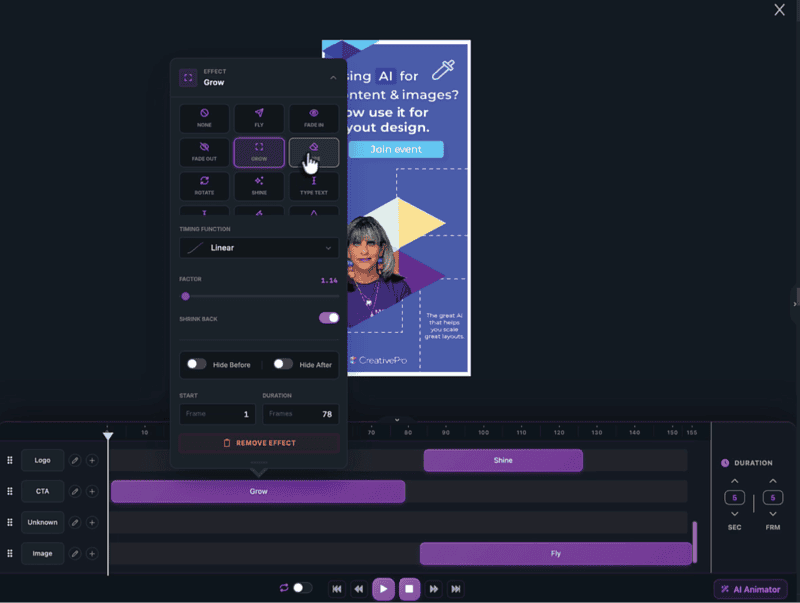
Instead of treating motion as a separate discipline, CoDesigner makes it an extension of the design process itself. The ability to export multiple formats directly from InDesign opens new possibilities for designers creating content across:
- Social media
- Digital advertising
- Web content
- Presentations
- Marketing campaigns
- Digital signage
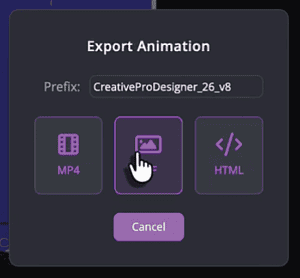
Once the animation is complete, CoDesigner offers export options designed for modern content distribution (Figure 8).
Why This Matters
The creative industry isn’t producing fewer assets; it’s producing more: more formats, more channels, more motion, more deliverables. The sheer volume of production required to support modern content strategies is one of the biggest challenges to designers today.
Fuga CoDesigner offers help where you need it most, by reducing repetitive production work so you can focus on solving problems, telling stories, and creating compelling experiences.
After spending time exploring both its layout generation and animation capabilities, I found myself most impressed with how much of the workflow remains focused on helping you maintain creative control.
Check out the Fuga YouTube channel for videos on getting started, how to use CoDesigner to generate animation, and more.
The future of content creation isn’t simply about creating more. It’s about creating smarter.
Commenting is easier and faster when you're logged in!

Recommended for you

Human vs. AI Slide Design
Blend AI's speed with human insight in your presentations with Jody Wissing.
CreativePro Week 2026 Preview: 6 Auspicious AI Sessions
Six sessions to help you put artificial intelligence to genuinely intelligent us...
Using AI Tools in a Design Workflow
Amybeth Menendez demonstrates how ChatGPT and OMATA MATE can work together to au...