




I was just working on some artwork for The InDesign Conference and I exported a PDF and some of my text disappeared:

Where did the “The” and “Conference” go?! I exported the PDF several more times with different settings. I confirmed that the text (which had been converted to outlines so I could make some tweaks) really was set to Paper. I looked at the Effects panel. Nothing made sense. Why were those disappearing?
And then it hit me: I flipped on View > Overprint Preview and… they disappeared on screen. So I selected Window > Output > Attributes, and this is what I saw:
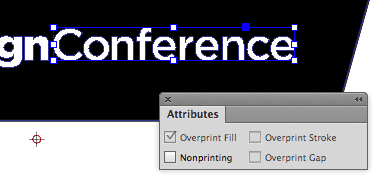
Yup, Overprint Fill was selected… but also grayed out, so I couldn’t deselect it!
I’d like to say that the solution to this came to me in a flash, but it actually took several sips of inspiration juice (a.k.a. coffee) and a handful of mixed nuts. It was only then that I realized how to turn off that checkbox: Change the color of the object to anything else (I chose cyan). That let me turn off the checkbox, and then I set the fill color back to Paper white.
Why was that object set to overprint white? How could it have been?! (Normally, InDesign stops Paper objects from overprinting automatically.) I don’t know. But now I know how to fix it, and I wanted to pass that little nugget on to you, just in case you run into it.
This article was last modified on July 8, 2021
This article was first published on September 24, 2014
Commenting is easier and faster when you're logged in!

Recommended for you

Gathering Video Assets for Premiere Projects
Import, acquire, animate, and use AI to generate video content for Premiere

Don’t Ask Your AI to Identify a Font
When it comes to identifying typefaces in images, artificial intelligence isn't...

Inside the Adobe Admin Console
Knowing how your IT department controls Creative Cloud apps and services can hel...