



The April 2026 update to Photoshop brings a number of new features, affecting type, layers, object removal – and the extraordinary Rotate Object tool, which we previously looked at when it was in Beta.
Removing Unwanted Objects
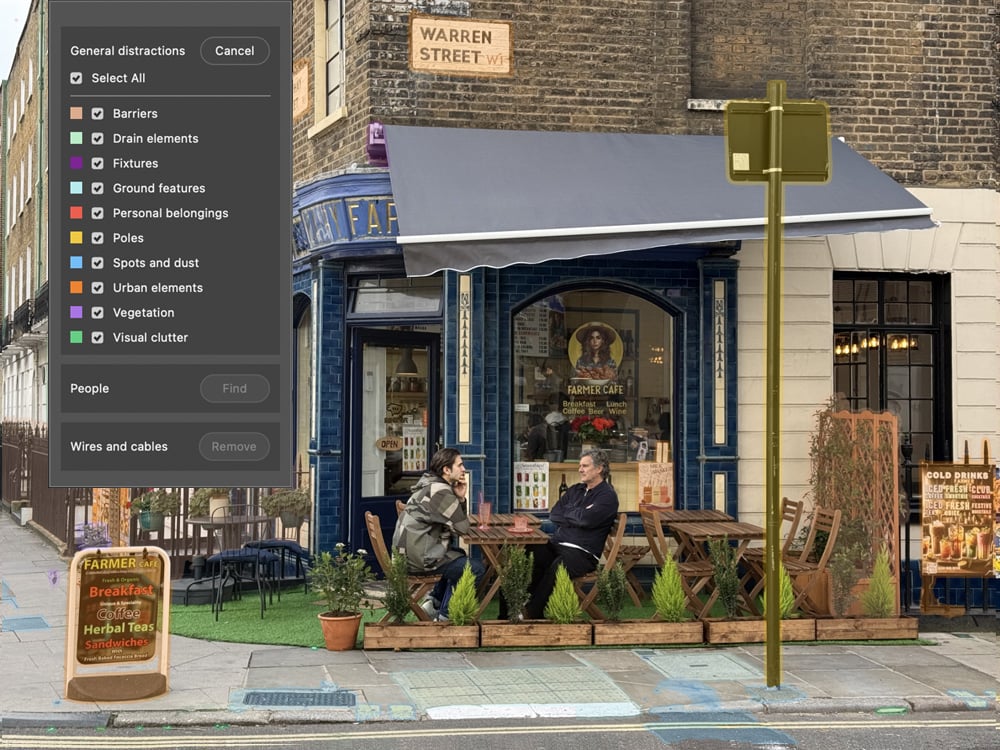
This menu is rather hidden away: to access it you first need to activate the Remove Tool, which is nested beneath the Spot Healing Brush Tool. This adds a Find Distractions button to the Options Bar; clicking it will analyze the image, highlighting and categorizing each element it finds. You can turn the layers you don’t want removed on and off.
Make a New Layer
Check the Create New Layer button before applying the process; that way you can add a Layer Mask to the newly-created layer to reveal the original beneath, if there are some removed elements that you decide you’d rather keep.
Removing People
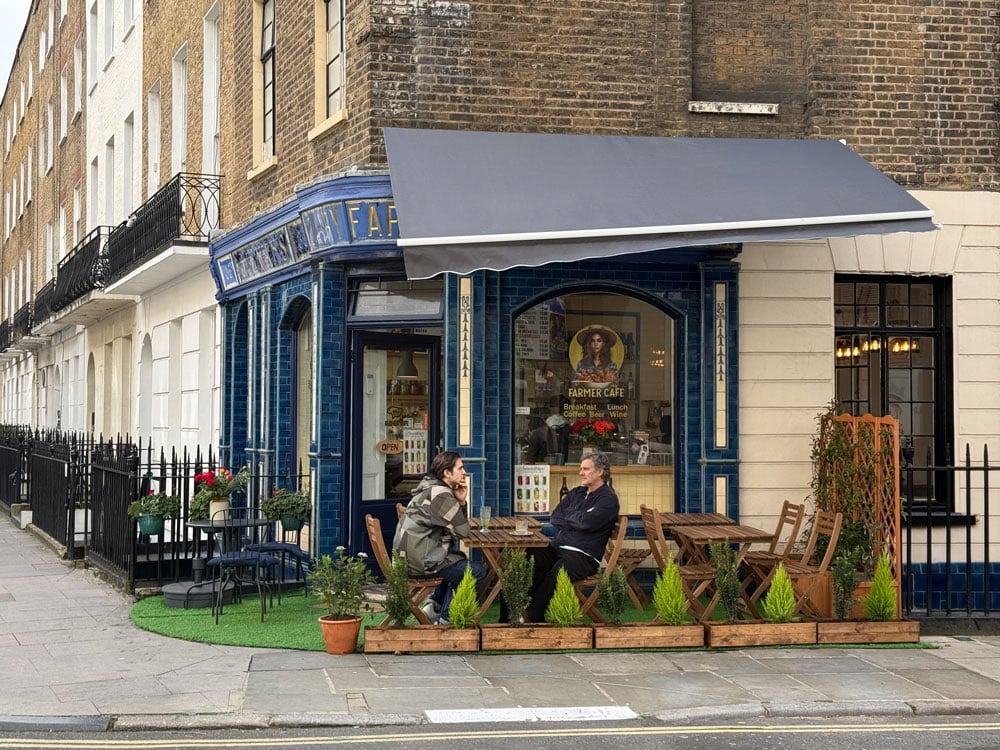
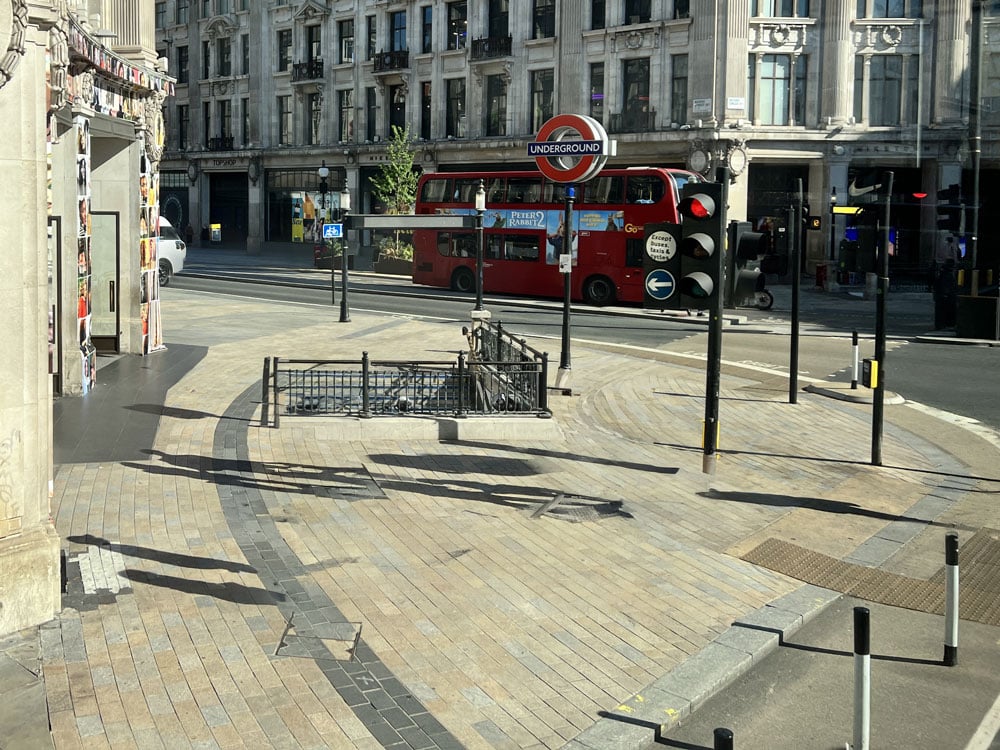
The Find Distractions option works well with removing people as well. Here’s a busy London street, full of people.
Almost There
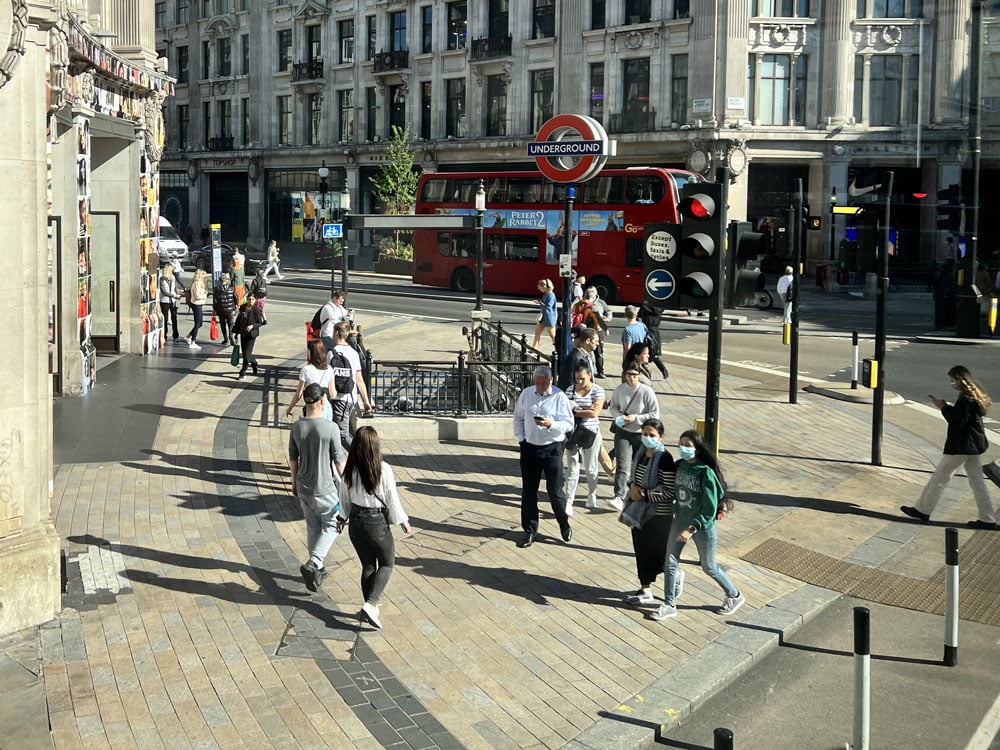
The tool correctly finds and removes people, intelligently patching the background where they have been deleted. But the tool is unable also to remove the people’s shadows.
Taking Out the Shadows
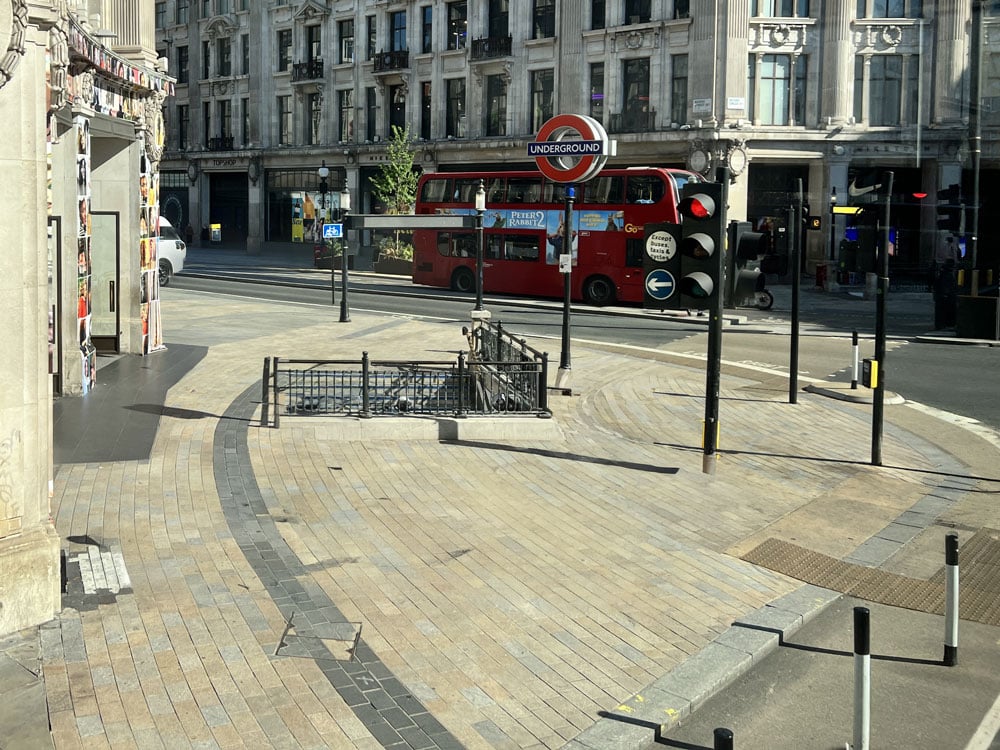
Shadow removal can be done easily, also using the Remove Tool. Make a Merged Layer (Option-Shift-Command-E or Alt-Shift-Ctrl-E), and brush over the shadows with the Remove Tool to get rid of them.
Cleaning Up Layers
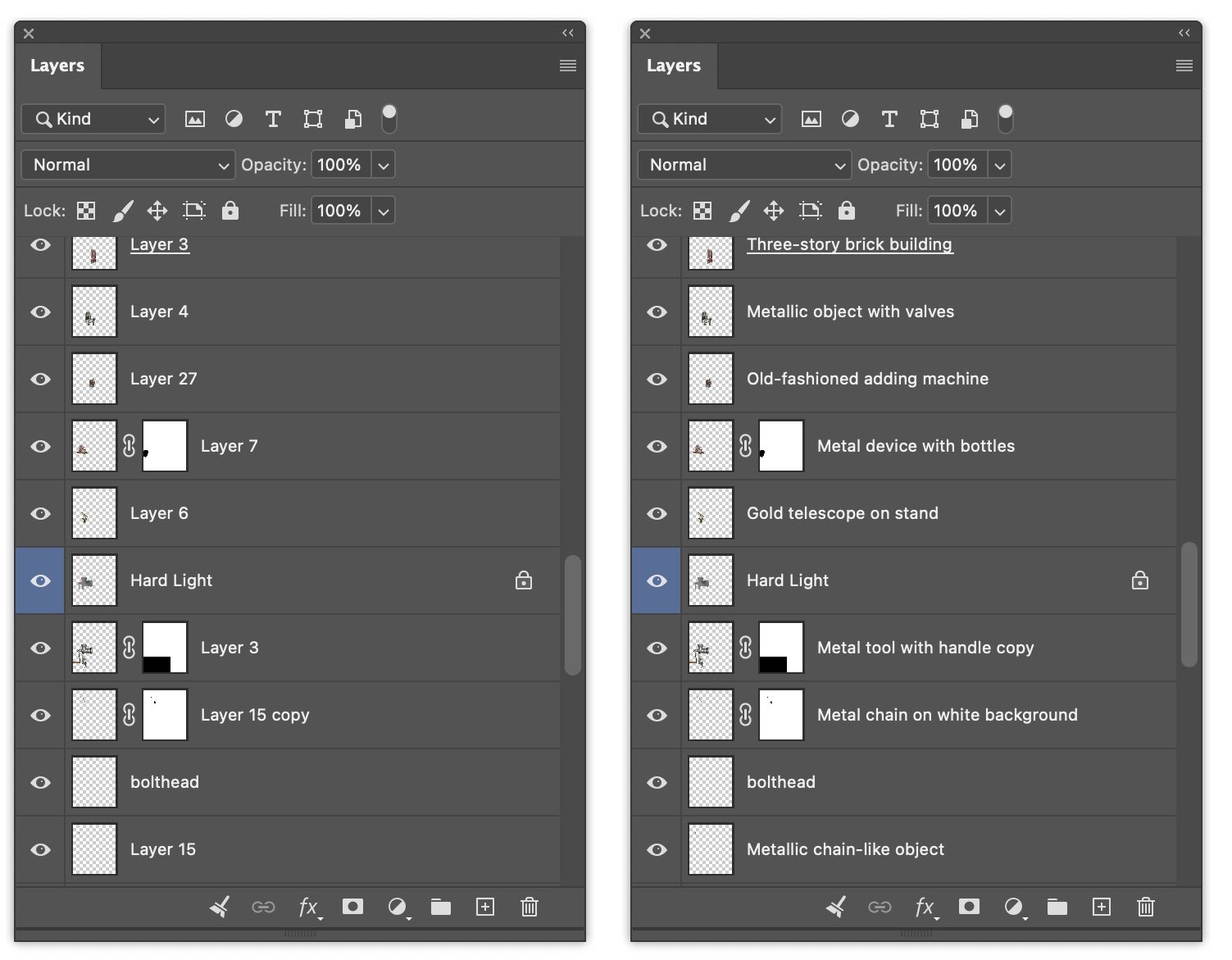
If you’re a diligent Photoshop user, you’ll name all your layers as you create or paste them. Yeah, right. In the real world, we end up with dozens of layers without names, which makes navigation tricky. A new Layer Cleanup button appears at the bottom of the Layers Panel – its icon is a sweeping brush. Click it, and Photoshop will use AI to examine each layer in the image, and will then change the name to an intelligent description.
Rotating Objects
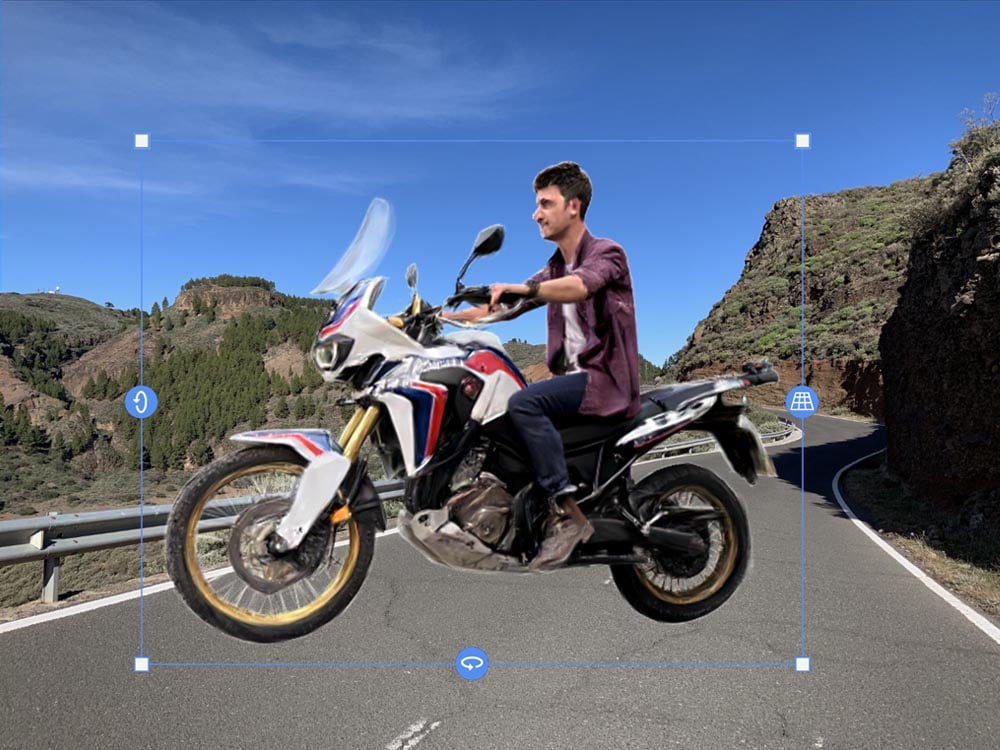
The Object Rotation technology now in the full version of Photoshop is extraordinary. Here’s a photo of my son Joe on his motorbike, pasted onto a road background.

Set Up the Rotation
Enter Free Transform (Command-T, Ctrl-T) and choose Rotate Object from the contextual task bar. You’ll now see a low-res version of the object, which you can rotate around all three axes.
Complete the Rotation
The tool includes a Perspective slider, essential for making your object fit the scene. Once you’ve set the angle you want, Apply the effect and the full high-res image will be generated.

Finishing Off
Use the Harmonize button on the Contextual Task Bar to make the rotated image blend in with the background, matching shadows and tone. Rotate Object is not just a gimmick, it’s a major game-changer.

Curving Text
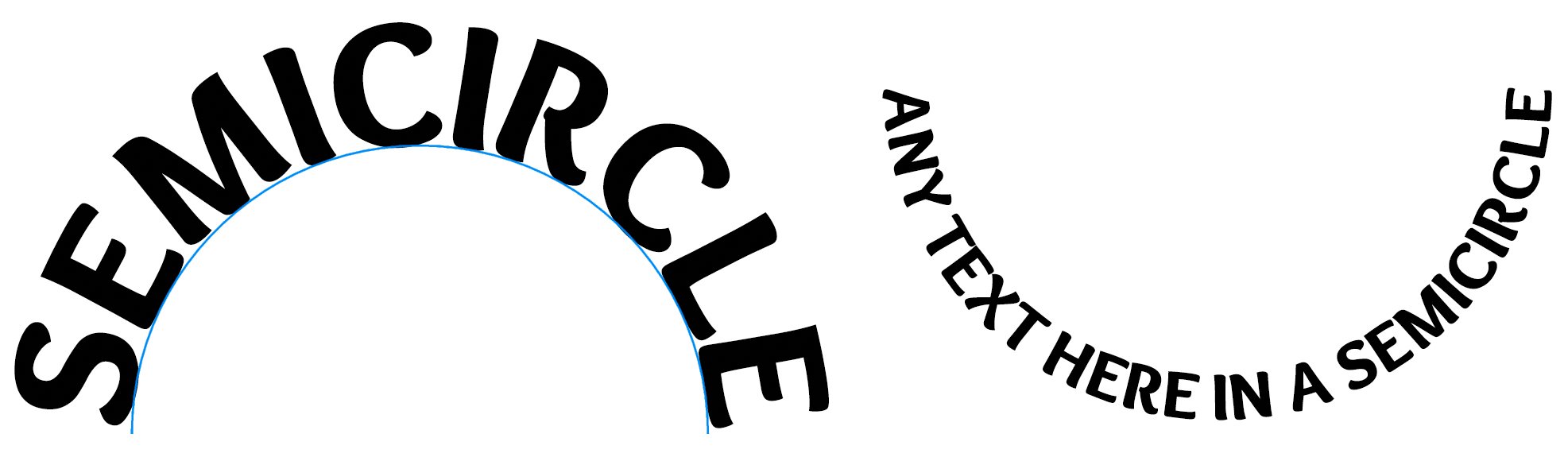
Photoshop has been able to stack text into blocks for a couple of versions. Now it has the ability to automatically bend your text into a full circle, or – as seen here – a semicircle curving either up or down.

Dynamic Text
The text is truly dynamic: if you edit it, either by removing or adding words (or changing the font), Photoshop will reconfigure its size in real time so it exactly fits the circle or semicircle. A real time-saver.
This article was last modified on April 30, 2026
This article was first published on April 30, 2026
Commenting is easier and faster when you're logged in!

Recommended for you

How to Create a Cinemagraph in Photoshop
Learn how easy it is to make a cinemagraph, where a portion of a still image is...

SOS San Francisco: A Case Study for Collective Visual Brainstorming
This article details the creative process used to develop the graphics for SOS S...

Creating the Avengers Disintegration Effect in Photoshop
If you’ve seen Avengers: Infinity War, you’ll know that one of the s...