



If you’re one of the folks who pursued a career in the creative arts because you weren’t great at math, here’s a tip you’ll love. Photoshop can do simple math calculations for you in the fields of dialog boxes and panels.
For example, if you’re saving an image for the web and you want to reduce it to one third its original size you can add “/3” after either the width or height dimensions.

Want to increase the canvas width by a third? Add “*4/3” after the Width value in the Canvas Size dialog box.
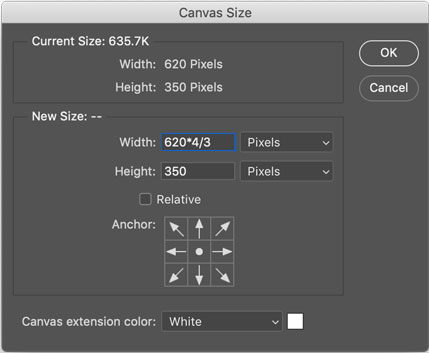
Photoshop will complain unless the result is a whole number but it does the calculation anyway and rounds up or down.

One small limitation is that you can’t always mix units of measure like you can in other Adobe apps. For example, in InDesign you can add a pica to a frame’s height even when your document units are inches (or millimeters, etc) by adding “+1p” to the height value.

InDesign will happily make any unit conversion for you as long as you enter in the proper abbreviation (p, pt, in, i, mm, cm, etc). This trick won’t always work in Photoshop since some fields will only accept numerical input. These are the ones where units are specified in a menu following the field (e.g. Image Size, Canvas Size dialog boxes).
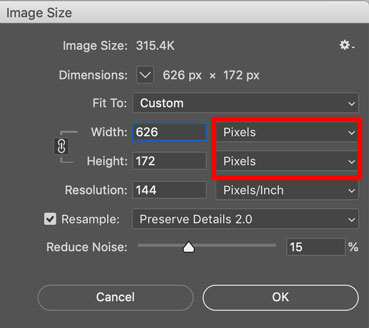
Other places like the Properties panel do allow you to mix units when performing calculations.
This article was last modified on December 29, 2020
This article was first published on December 29, 2020
Commenting is easier and faster when you're logged in!

Recommended for you

How to Create a Template File in Photoshop
Learn how to speed up your Photoshop workflow by creating your own custom templa...

How to Tie Someone Up in Red Tape in Photoshop
Learn how to create realistic looking red tape (or ribbon) wrapped around any su...
Colorizing Black and White Photos in Photoshop
Photographs of figures from the past, shot in black and white, always have a his...