



This InDesign tip on turning off Typekit was sent to Tip of the Week email subscribers on March 8, 2018.

Sign up now and every week you’ll get a new tip, keyboard shortcut, and roundups of new articles, plus exclusive deals sent right to your Inbox!
Just scroll down to the bottom of this page, enter your email address, and click Go! We’ll take care of the rest. Now, on with the tip!
Typekit can be great resource for CC users, giving us access to an expanding set of high-quality fonts for use throughout our workflows. But if you’re not interested or able to use Typekit fonts in your work, you may want to turn it off. That way, Typekit fonts will never show up in your font menus or documents (well, at least the documents you create).
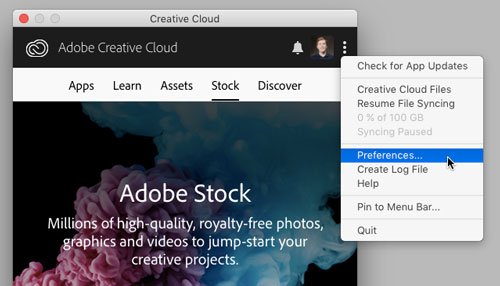
You can turn off Typekit in the Creative Cloud application. Click on the three dots on the right side of the window and choose Preferences from the flyout menu.
Click on the Creative Cloud tab, and then click the checkbox next to Typekit Sync to turn it off.

This article was last modified on July 25, 2019
This article was first published on March 13, 2018
Commenting is easier and faster when you're logged in!

Recommended for you

The Right Font Could Save Your Life
Good design can be important for many reasons. It can be critical to the success...

Rules for Working With Tiny Type
Ilene Strizver offers guidelines for maximizing the readability of small type.

Five Healthy Habits in InDesign
Everyone knows the healthy habits we should practice regularly, like flossing ou...