




This tip was sent to Tip of the Week email subscribers on February 18, 2016.

Sign up now and every week you’ll get a new InDesign Tip of the Week and Keyboard Shortcut of the Week, along with roundups of new articles at InDesignSecrets, plus exclusive deals sent right to your Inbox!
Just scroll all the way down to the bottom of this page, enter your email address, and click Go! We’ll take care of the rest. Now, on with the tip!
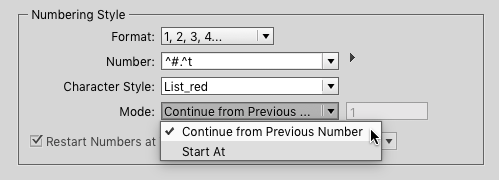
One of my favorite long document features of InDesign is the ability to continue list numbering in non-sequential paragraphs. Just make sure in the paragraph style settings that Mode: Continue from Previous Number is selected.
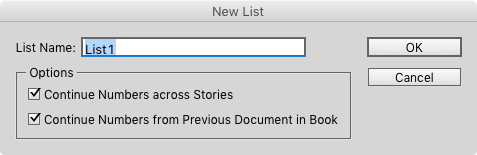
And if you also specify a custom List, you can even continue the numbering across separate stories or even across documents in an InDesign book.
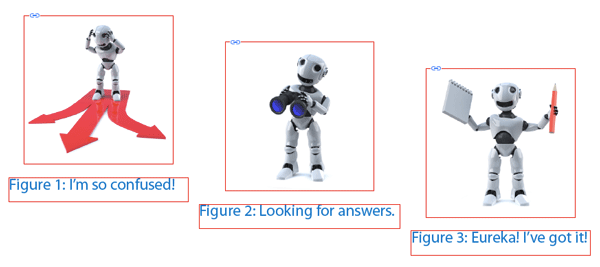
This can be great for things like automatic numbering of figure captions in separate text frames.
But occasionally you might not want list numbering to continue.
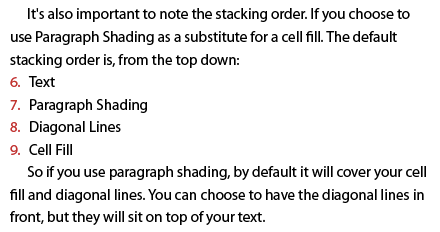
When this happens, put your text cursor where you want the numbering to restart, and choose Type > Bulleted & Numbered Lists > Restart Numbering. Or, even easier, just right-click and choose the same command from the contextual menu.


This article was last modified on July 20, 2021
This article was first published on February 23, 2016
Commenting is easier and faster when you're logged in!

Recommended for you

How to Be a Better Designer: The Rules
Throughout this series, several themes have recurred: study graphic design histo...

The Peter Kahrel Script Repository Gets a CreativePro Makeover
Peter Kahrel is one of the most prolific and influential InDesign scripters of a...
Make Headings Span Across Multiple Columns in InDesign
Master InDesign’s Span Columns feature with Pariah Burke.