




This tip was sent to Tip of the Week email subscribers on September 3, 2015.

Sign up now and every week you’ll get a new InDesign Tip of the Week and Keyboard Shortcut of the Week, along with roundups of new articles at InDesignSecrets and CreativePro, plus exclusive deals sent right to your Inbox!
Just scroll all the way down to the bottom of this page, enter your email address, and click Go! We’ll take care of the rest. Now, on with the tip!
InDesign’s Rotate Spread View feature has been saving users from getting a pain in their necks since CS4. It allows you to rotate the display of a page and the surrounding pasteboard 90 or 180 degrees onscreen—without affecting the output at all.
Normally, you’d rotate a spread by going to the Pages panel menu and choosing Page Attributes > Rotate Spread View, and then choosing the angle you want.

But there’s an even quicker way to rotate a spread view. If you have Enable Multi-Touch Gestures turned on in Interface Preferences (which is the default), and you use an input device like a trackpad where you can use gestures, then you can rotate just by twisting two fingers in either a clockwise or counter-clockwise direction.
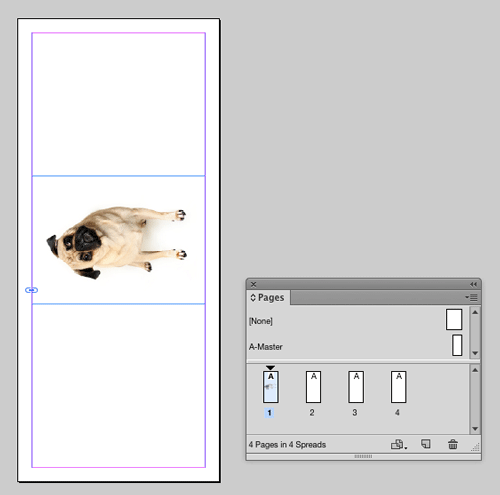
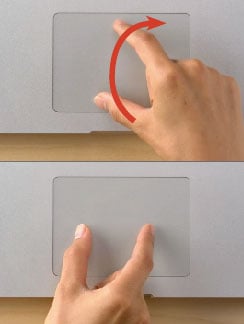
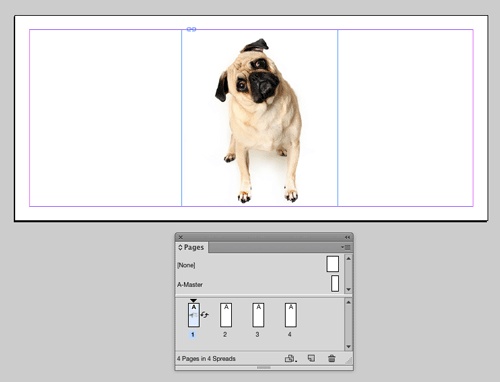
It works with any tool. Just make sure you don’t have anything selected first, otherwise the selection (and not the spread) will be rotated.
This article was last modified on July 8, 2021
This article was first published on September 8, 2015
Commenting is easier and faster when you're logged in!

Recommended for you
Smarter Thumbnails in Photoshop
Make Photoshop layer thumbnails clearer with one quick setting change.
Tips to Control Photoshop Layers
Khara Plicanic shares smart Photoshop Layers panel tips to help you find and man...
Navigating and Customizing the Premiere Interface
Are you a Premiere beginner? Get started and customize your workspace with Myra...