




This tip was sent to Tip of the Week email subscribers on July 9, 2015.

Sign up now and every week you’ll get a new InDesign Tip of the Week and Keyboard Shortcut of the Week, along with roundups of new articles at InDesignSecrets and CreativePro, plus exclusive deals sent right to your Inbox!
Just scroll all the way down to the bottom of this page, enter your email address, and click Go! We’ll take care of the rest. Now, on with the tip!
If you’re using InDesign CC 2014.2 or later, you can select one or more pages from the Pages panel and choose Print Spreads from the panel menu.
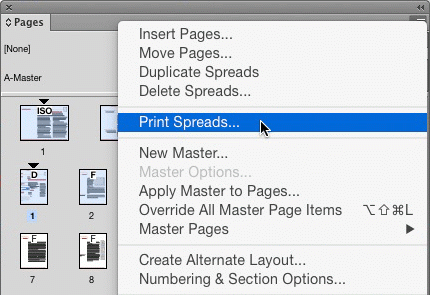
Or with the pages selected, you can also right-click to choose the same command.

If you don’t have a full spread selected, you’ll see Print Pages instead of Print Spread.
When you use either method, the pages you selected are automatically entered in the Range field in the Print dialog box.
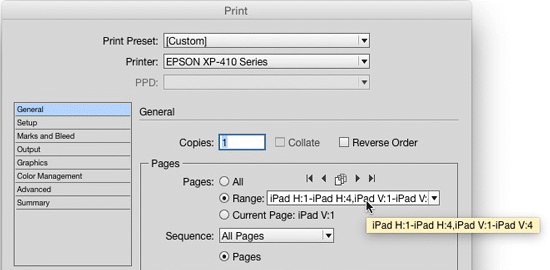
This can be especially useful when you’re working with documents that contain prefixed sections (or alternate layouts) because it saves you from having to type in complicated and cumbersome page ranges like “iPad H:1-iPad H:4,iPad V:1-iPad V:4” in the Print dialog box.
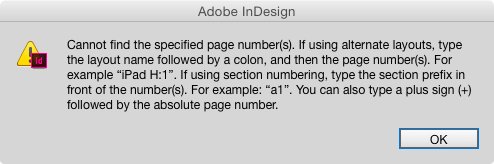
And you’ll never see this error message again.
This article was last modified on August 8, 2019
This article was first published on July 14, 2015
Commenting is easier and faster when you're logged in!

Recommended for you
Stop InDesign from Shuffling Pages
Stop InDesign from shuffling your pages with Laurie Ruhlin.
Navigating and Customizing the Premiere Interface
Are you a Premiere beginner? Get started and customize your workspace with Myra...

Rotate Multiple Spreads
If you have many spreads to rotate, even the more easily accessible menu command...