




This tip was sent to Tip of the Week email subscribers on February 25, 2016.

Sign up now and every week you’ll get a new InDesign Tip of the Week and Keyboard Shortcut of the Week, along with roundups of new articles at InDesignSecrets, plus exclusive deals sent right to your Inbox!
Just scroll all the way down to the bottom of this page, enter your email address, and click Go! We’ll take care of the rest. Now, on with the tip!
Did you ever struggle to arrange objects on a page so text wrap affected some frames but not others? The classic example is that of an image with a caption, where you want the image to push away other text, but leave the caption in place.

One solution is to make the caption text frame ignore Text Wrap. To do that, open the caption frame’s options. Choose Object > Text Frame Options, or Option/Alt-double-click on the frame. In the General options pane, select Ignore Text Wrap.
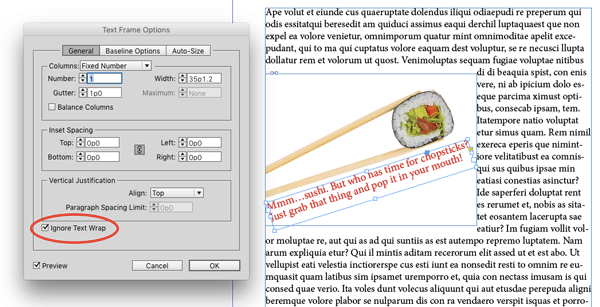
Voila! The caption stays where you want it but the rest of the text makes room for the image.
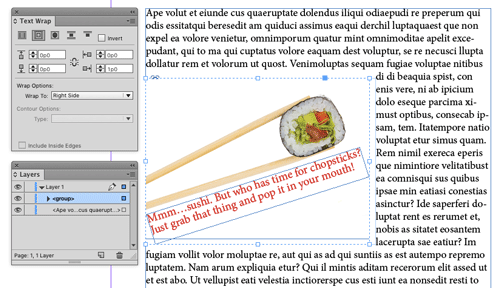
Another alternative is to not apply Text Wrap to the image, but instead to group the image with the caption text frame, and apply the Text Wrap to the group.
This article was last modified on July 20, 2021
This article was first published on March 1, 2016
Commenting is easier and faster when you're logged in!

Recommended for you

Quark Names Raymond Schiavone President and CEO
Quark Inc. today announced that Raymond Schiavone, a veteran software company CE...

Changes in the Undo string
One of the more controversial changes in ID CS3 has to do with how the Undo comm...
Top 20 Command/Control Clicks
Mike's favorite tricks using the Command key on the Mac or the Control key on Wi...