



This InDesign tip on how to organize scripts into folders was sent to Tip of the Week email subscribers on September 22, 2016.

Sign up now and every week you’ll get a new tip, keyboard shortcut, and roundups of new articles, plus exclusive deals sent right to your Inbox!
Just scroll down to the bottom of this page, enter your email address, and click Go! We’ll take care of the rest. Now, on with the tip!
In last week’s tip, we saw how to use Quick Apply to avoid the problem of a cluttered Scripts panel. But if you’re not a fan of Quick Apply (or you’d just prefer to clean up the clutter once and for all), there is an alternative: organize your scripts into folders in the Scripts panel.
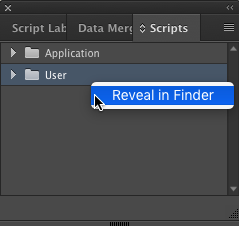
By default, you’ll see just two folders in the Scripts panel, Application and User. To add more, right-click on the User folder and choose Reveal in Finder or Explorer.
On your hard drive, you’ll see a folder called Scripts Panel. Create the folders you want to see in your Scripts panel here, and put the scripts in them.
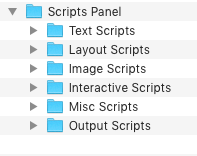
When you switch back to InDesign, you’ll see the change immediately.

Organize your scripts in whatever way makes the most sense to you: by their use, the point in your workflow when you use them, the scripts’ producers, etc.

This article was last modified on July 20, 2021
This article was first published on September 27, 2016
Commenting is easier and faster when you're logged in!

Recommended for you

Accessibility Plug-ins for InDesign
Generate PDFs that are more accessible with more ease by using these two new plu...

InDesign Magazine Issue 127: InDesign at 20
We’re happy to announce that InDesign Magazine Issue #127 (November 2019) is now...

How to install scripts in InDesign
We all love the power of using scripts, but before you can use them, you have to...