This InDesign tip on the easy way to print a page range in InDesign was sent to Tip of the Week email subscribers on January 19, 2017.

Sign up now and every week you’ll get a new tip, keyboard shortcut, and roundups of new articles, plus exclusive deals sent right to your Inbox!
Just scroll down to the bottom of this page, enter your email address, and click Go! We’ll take care of the rest. Now, on with the tip!
You might know that you can print a range of pages from a document by typing in the range in the Print dialog box.
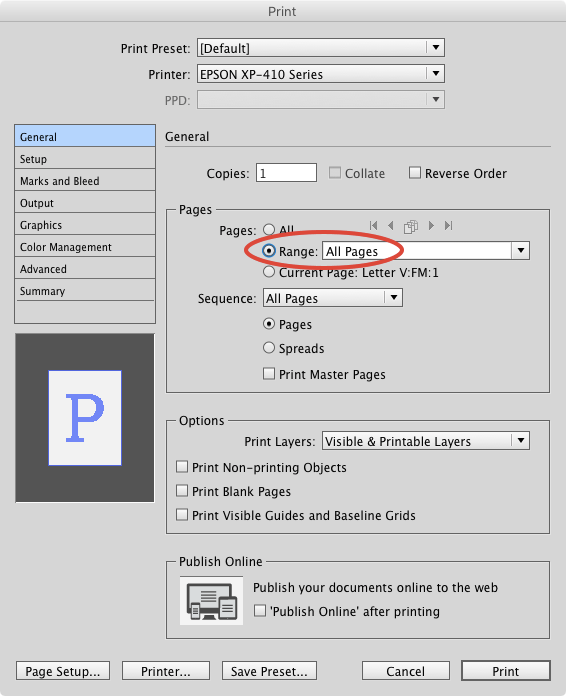
But this can be tedious and lead to errors, especially if you’ve added section prefixes to your pages (which must be typed in the Range field). Happily, there’s a much quicker and easier way to tell InDesign which pages you want to print.
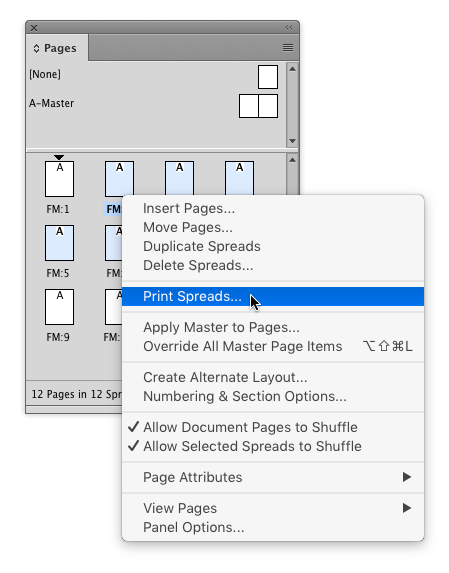
Just select the pages you want to print in the Pages panel. You can Shift-click to select a contiguous range, or Ctrl/Command-click to select (or deselect) individual pages.

Then, from the Pages panel menu, choose Print Pages.

You can also right-click on any page in the panel and choose Print Pages from the menu at your cursor.

The Print dialog box opens up and the range is already inserted for you!

Note: If you’re working with a non-facing pages document, the command will appear as “Print Spreads” instead of “Print Pages”, but it works just the same.
This article was last modified on August 8, 2019
This article was first published on January 24, 2017
Commenting is easier and faster when you're logged in!

Recommended for you

Rotate Multiple Spreads
If you have many spreads to rotate, even the more easily accessible menu command...
Don’t Sweat the Math—Let Photoshop Do It!
Let Photoshop—and other Adobe apps—do the math for you when entering numerical v...