




A long time ago, in a galaxy not so far away, when software developers had the time and inclination to build Easter eggs into their work, a set of hidden stroke styles was added to InDesign. And in fact, these Easter eggs still exist in InDesign. To invoke them you just need to use some very specific names. For example, for a stroke that looks like a set of footprints, create a dashed stroke style named Feet. Or to make a stroke that looks like a string of Christmas lights, create a stroke style named Lights. If you want all the details, check out David Blatner’s post on InDesign’s Easter Egg stroke styles.
You can also make the holiday lights appear to flash on and off in a fixed-layout EPUB or Publish Online document, with the help of a transparency effect and an animation. Here’s how:
Apply the Lights stroke style to an object in your layout.
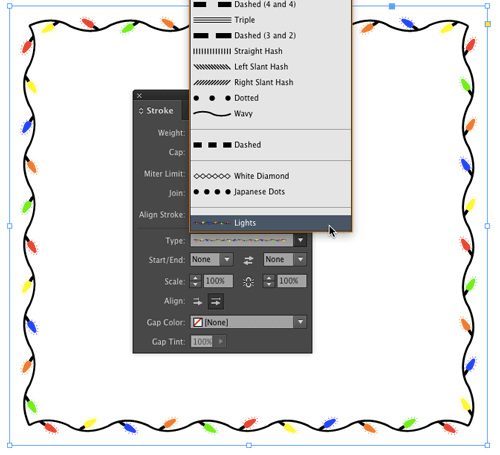
Then add a second copy of the object directly on top of the original, and apply an Inner Glow transparency effect to the stroke of the top copy, with settings like these:


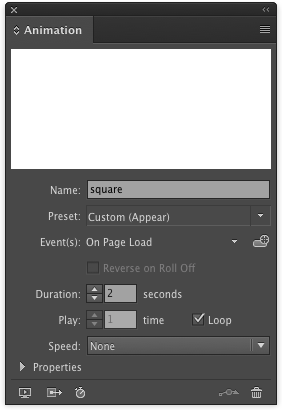
Then, with the top object still selected, apply an animation using the Appear preset. Set it to loop, and experiment with the Duration value to get the desired flashing speed. (You can test the effect using the EPUB Interactivity Preview panel.)
Export to fixed-layout EPUB or Publish Online, and your layout will be merry and bright indeed!
This article was last modified on November 29, 2023
This article was first published on December 27, 2016
Commenting is easier and faster when you're logged in!

Recommended for you
How to Animate Cursive Writing in Premiere
Use Myra Ferguson's Shape Flow transition effect tip to animate text.

Holiday FX: Do You Want to Build An InDesign Snowman?
Do you want to build a snowman? Come on let’s go and play! I know that thi...
Building an Org Chart or Flowchart in InDesign, Part 3
In part 3 of the series, David shows how to draw lines and re-align elements in...