




This InDesign tip on How to control the order of scripts in the Scripts panel was sent to Tip of the Week email subscribers on August 17, 2017.

Sign up now and every week you’ll get a new tip, keyboard shortcut, and roundups of new articles, plus exclusive deals sent right to your Inbox!
Just scroll down to the bottom of this page, enter your email address, and click Go! We’ll take care of the rest. Now, on with the tip!
The more scripts you collect, the more important it becomes to keep them organized so you can find and launch them without any wasted time. One way to organize them is to create subfolders within your Scripts panel folder, and then put the appropriate scripts in each folder.
Whether or not you use subfolders, you can also use a file naming trick that works on both Mac and Windows to control the exact order of scripts in the panel.
Just go to the folder containing the scripts in the Finder or Explorer, and type a number followed by a close parenthesis before each script name.
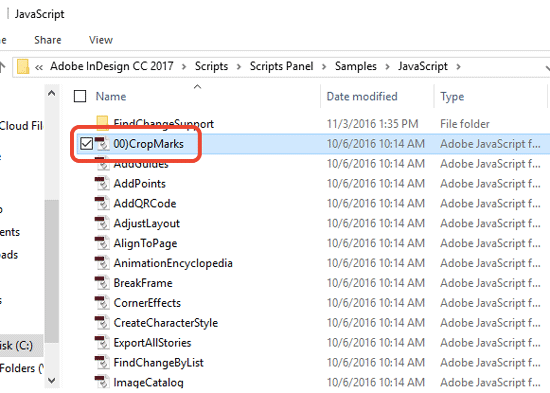
This will set the order of the scripts if you view them by name in the Finder or Explorer, and in the InDesign Scripts panel. But the numbers and parenthesis will not appear in the Scripts panel.
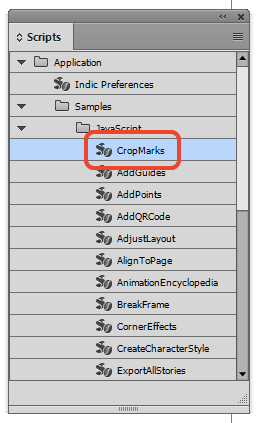
This way you can make a script appear anywhere in the list with its original name.
This article was last modified on July 20, 2021
This article was first published on August 22, 2017
Commenting is easier and faster when you're logged in!

Recommended for you

The 5 Rules of Efficiency for InDesign
You'll rake in the efficiency jackpot every time with these five basic rules.

Navigating and Customizing the Premiere Interface
Are you a Premiere beginner? Get started and customize your workspace with Myra...

Accessibility Plug-ins for InDesign
Generate PDFs that are more accessible with more ease by using these two new plu...