




Tables of contents in InDesign documents aren’t just for books. You can tag anything with paragraph styles and include them in a special kind of a list called a Table of Contents. In addition to a traditional TOC like you might see in a book or magazine, you can create lists of illustrations, advertisers or whatever you want. TOCs can be exported to bookmarks in a PDF file. EPUB files require you create a Navigational TOC which you can create using the same commands you use for print TOCs.
In her book written with Diane Burns, Digital Publishing with Adobe InDesign CS6, Sandee Cohen describes the process of creating a table of contents like this:
Creating a table of contents (TOC) in an InDesign document is like creating a massive set of cross references. The TOC not only keeps track of the location of a specific paragraph in a document (along with the page number on which it appears), but it also automatically creates electronic links from the text in the TOC to the text in the document.
But sometimes when creating TOCs you run into special issues which require tricks or workarounds. David wrote up one on formatting headings for inclusion in a TOC here. Kelly Vaughn wrote about using a TOC to create PDF bookmarks here. Here are three TOC tricks and workarounds I’ve run into recently.
Multiple Styles at a TOC Level
I always assumed that you could only use one paragraph style for each level of a table of contents because that’s the way they’re usually created. But sometimes the heading style you want to include in a TOC may have variations. Perhaps for design reasons, a heading might appear in one color in some instances, and in another color in other cases.
In the Edit Table of Contents Style dialog box, include both paragraph styles (Heading1_Green and Heading1_Red in the illustration below). Then just move both of them to the same level of the TOC. They’ll correctly export in the right order in the final table of contents.
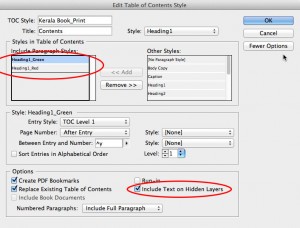
Print TOC Style
Adding Text That’s Not Viewed or Printed to a TOC
You can also apply a paragraph style to text that’s not intended to be viewed or printed and then include it within a table of contents. You might do this for an Advertiser List or a Table of Illustrations. To add these pictures to a Table of Illustrations, labels were added to the two pictures on this page, and formatted with the Illustration List paragraph style. The text frames were placed onto a layer called Hidden Description, and the layer was hidden. These labels will appear as entries in the TOC if you check Include Text on Hidden Layers as shown above in the Edit Table of Contents Styles dialog box.
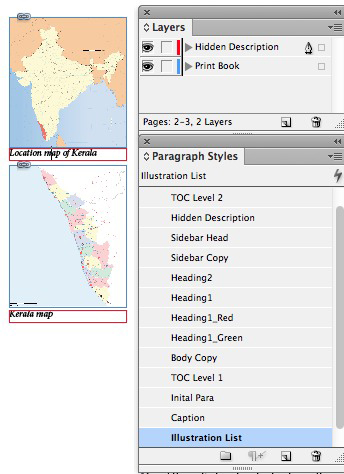
Hidden Description
Here’s the resulting Table of Illustrations:

Table of Illustrations
When Styling Within a TOC Doesn’t Seem to Work
A table of contents isn’t just ordinary text although it looks like it is. It is “live” and can be updated at any time by choosing Layout > Update Table of Contents. Although you can select and edit the text, this is not a good idea because if you subsequently update the TOC, the changes you made will disappear.
For the same reason, I learned, the styles that are referenced within a TOC cannot be called out for other purposes. Let me give you two examples: The first one is a table of contents for the EPUB version of the same book. You can use the Table of Contents Style to generate the navigational TOC required in an EPUB. You can also place the TOC into the document to create an inline or HTML TOC. Below is this book’s navigational TOC as previewed in Adobe Digital Editions (left) and an inline TOC placed on a page at the beginning of the eBook (right). Both are hyperlinked to the destination text. I had designated the word “Contents” to be the “Title” of the TOC in the Edit Table of Contents Style dialog box, and I had formatted it with the same Heading1 paragraph style I used for the top level heads in the rest of the EPUB. Everything appeared to be OK.

EPUB Navigational TOC
However, I wanted to force a page break whenever Heading1 appeared in the EPUB. I did this by specifying Heading1 to Split the Document (force a page break) in the Edit All Export Tags dialog box, chosen from the Paragraph Styles panel menu. Then I specified Split Document: Based on Paragraph Export Tags when exporting the EPUB file. All the pages broke correctly, except the Contents head in the table of contents which did not work.
The problem is that text within the special live text of the TOC cannot be referenced by another feature or another table of contents. The solution is to set the Title field to be blank (circled below), and to create a separate frame in the layout containing the word “Contents” to which the Heading1 style is applied. (Notice also that an inline TOC should have No Page Number selected because EPUB files are reflowable and don’t have real page numbers. Nevertheless, the hyperlinks work correctly.) In the lower illustration, the word “Contents” is in a separate frame from the TOC, and now the eBook broke before the TOC the way I wanted.

EPUB TOC Style
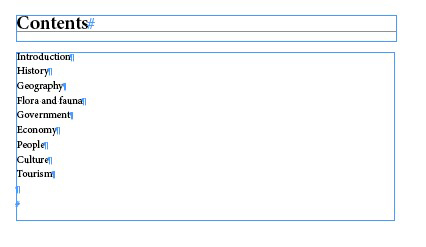
EPUB Contents – Style Break Workaround
The same problem would occur if you wanted to include a reference to the Table of Illustrations within the main Table of Contents. Again, you should make a separate text frame, formatted with the style used to call out the entry in the main TOC. You couldn’t expect that a paragraph style in the Table of Illustrations would appear in the main TOC without the workaround.
This article was last modified on December 30, 2021
This article was first published on May 5, 2013
Commenting is easier and faster when you're logged in!

Recommended for you
Creating an Animated Bar Chart in InDesign
Editor’s Note: this post was excerpted from Diane’s handout from Cre...

InDesign Tip: Making Custom Motion Paths for Animation
One of the coolest ways to customize animations in InDesign is to use any path i...
Combining Animated GIFs with InDesign Animations
One of the best things about fixed-layout EPUB as a digital publishing format is...