


The Drama of Drop Caps
Initial caps add excitement to a design. Here’s how to make, format, and fine-tune them.


This article appears in Issue 39 of InDesign Magazine.
First impressions matter, and using a drop cap for an article or chapter opening can help set the tone of the piece as well as give you, the designer, an opportunity to add decorative flair, be it extravagant or understated.
The design element of decorative first letters has evolved from a long tradition of illustrated first letters that predates the invention of the printing press. Before printing, books were dictated to scribes, and each book was a unique treasure. The scribes incorporated individual flourishes to distinguish their work. It was with the decorative first letter that a scribe could really cut loose and show his stuff. Each major section usually began with an illuminated letter made with metallic, mineral, or vegetable pigments, which were bound by glue or gum to the paper or parchment.
Just like today, the purpose of the initial letter, or versal, was to call attention to the beginning of the book. By the 14th century, versals had evolved from enlarged heavy letters into elaborate illustrated works of art, most often used to decorate religious texts. An illuminated versal might flow down the whole side of a page, or extend up and around the top of the page (Figure 1).
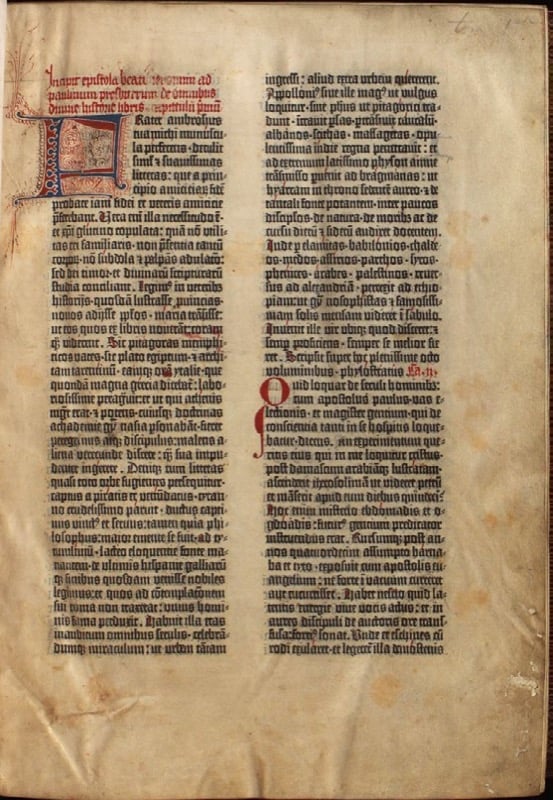
Sometimes a versal included illustrations and took over the entire page. In 1455, when Gutenberg printed his 42-line-per-page Bible—the first book to be printed in the Western world with moveable type—he acknowledged the importance of this tradition by leaving space in the printed text for the a scribe to add a decorative first letter.
As printing evolved, the initial cap evolved into various forms, such as hung, dropped, and raised or “stick-up” caps. However, because InDesign uses the term drop cap for all forms of initial cap styling, that’s the term I’ll use.
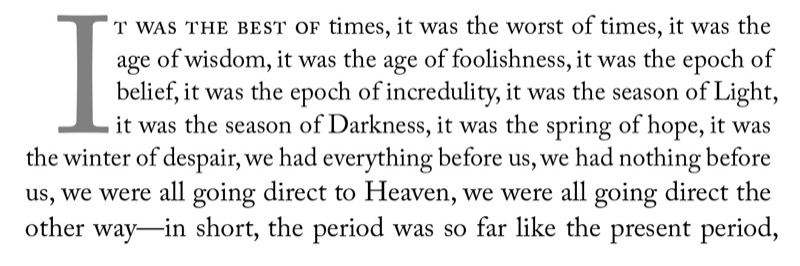
A. A three-line drop cap, followed by small caps applied to the first four words.
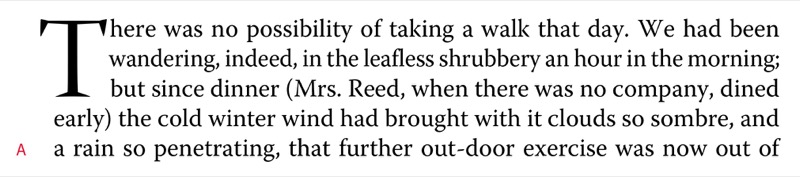
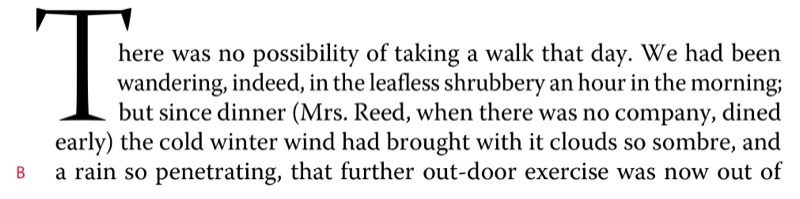
B. I increased the size of the drop cap to create a drop cap/stick-up cap hybrid.
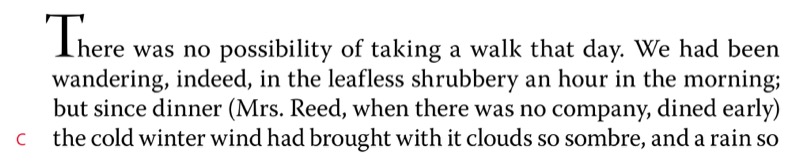
C. A simple stick-up cap.
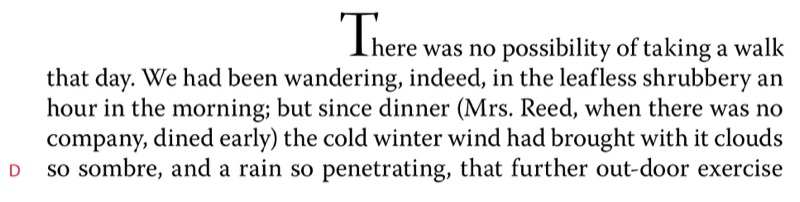
D. A stick-up cap combined with a large first-line indent.
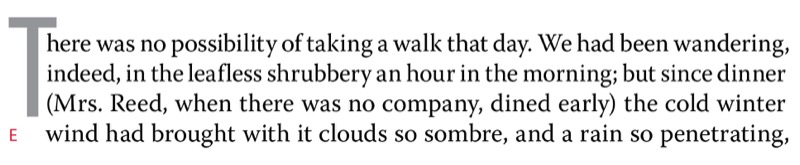
E. I cut and pasted the drop cap into a sepa- rate text frame that’s anchored to the main text frame, floating in the outside margin and moulded around the shape of the text frame.
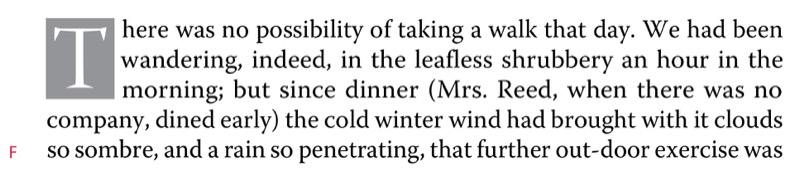
F. I cut and pasted the drop cap to its own text frame, which is anchored in the main text frame. I applied a text wrap to the drop cap text frame.
Creating a Basic Drop Cap
Contemporary magazine and book publishing continues the centuries-old tradition of initial letters by beginning some chapters and articles with large initial letters. With your text cursor in a paragraph, you can do this locally in InDesign: Type the number of lines for the drop cap in the Control panel, then specify the number of drop cap characters you want—usually one (Figure 2).
To refine the look of the drop cap, choose Drop Caps and Nested Styles from the Control panel menu (or Option/Alt-click on either of the drop cap icons in the Control panel). Here you can fine-tune the look of the drop cap. For example, if the drop cap has a descender, you can tell InDesign to scale it to avoid collisions between the descending part of the drop letter and the line that follows it.
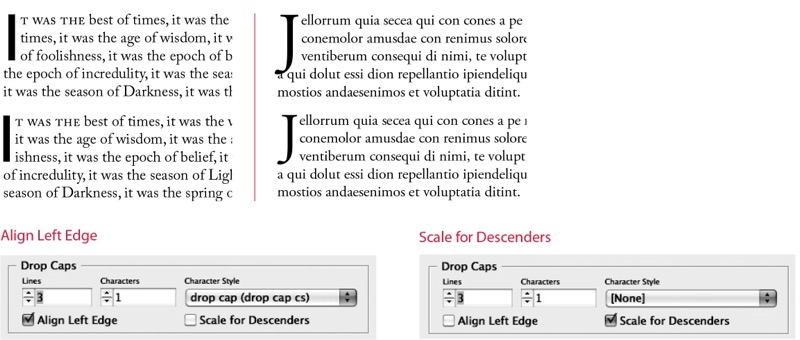
Similarly, certain letters will be optically misaligned because the left side bearing (the space incorporated into the letter’s design) causes the letter to appear slightly indented. You can address this by checking the Align Left Edge checkbox in the Drop Caps and Nested Styles dialog box (Figure 3). If you want the drop cap to be a different font or color from the rest of the paragraph, you can create a character style and choose it here.
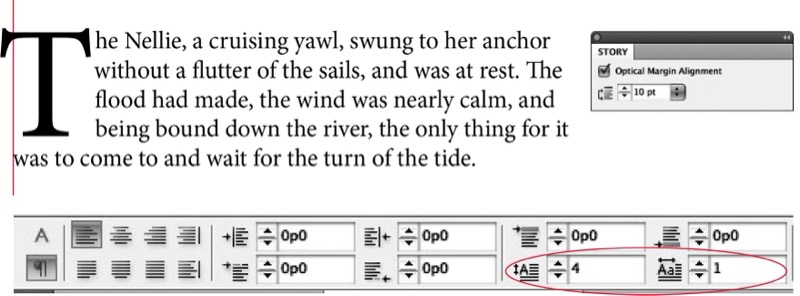
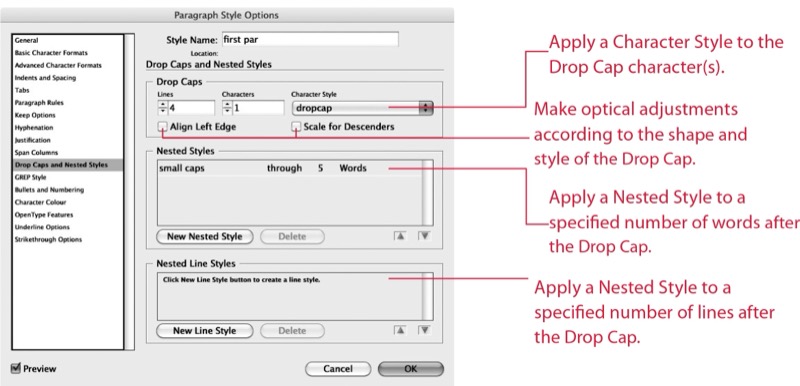
Of course, if you plan to apply the same formatting to more than one paragraph in your document, it saves time (and ensures consistency) to incorporate the drop cap attributes into a Paragraph Style definition. The drop cap paragraph style is commonly based on your body text style with any first-line indent removed (Figure 4).
Drop Cap Aesthetics
While there are no hard-and-fast rules concerning how big a drop cap should be, common sense should prevail. Size matters, although in this context bigger isn’t always better. The purpose of the drop cap is to signal your audience where to begin reading. To do so, it doesn’t need to scream at the reader, and it shouldn’t overwhelm any headline that precedes it. The drop cap comes below the headline in terms of page hierarchy, so usually (though not always) it will be smaller than the headline.
Your drop cap typeface can match your body text, or contrast it—it’s hard to go wrong with the popular combination of a heavy sans serif face for the drop cap paired with a serif face for the text. The drop cap is also an opportunity to help define a signature color for the piece; sometimes setting the drop cap in a reduced tint percentage can help counterbalance the confrontational appearance of such a large letter.
In addition to the initial drop cap for the first paragraph of a chapter or article, it’s common to use smaller drop caps as section markers (probably set up as a paragraph style based on the parent drop cap style).
This breaks up the monotony of long columns of type, especially if the text has few illustrations, subheads, or other graphic elements. That said, if you sprinkle drop caps too liberally throughout a document, they start to become repetitive and annoying.
A general rule of thumb is to use no more than two drop caps per page. These should not be close to each other and preferably should be different letters.
Kerning Drop Caps
A problem with automatically generated drop caps is that the big first character often collides with the body text that follows. Watch out for this—and where necessary, kern to fix such problems (Figure 5). Thankfully, when you kern between the drop cap and the first character of the text, kerning is applied to all the lines adjacent to the drop cap.

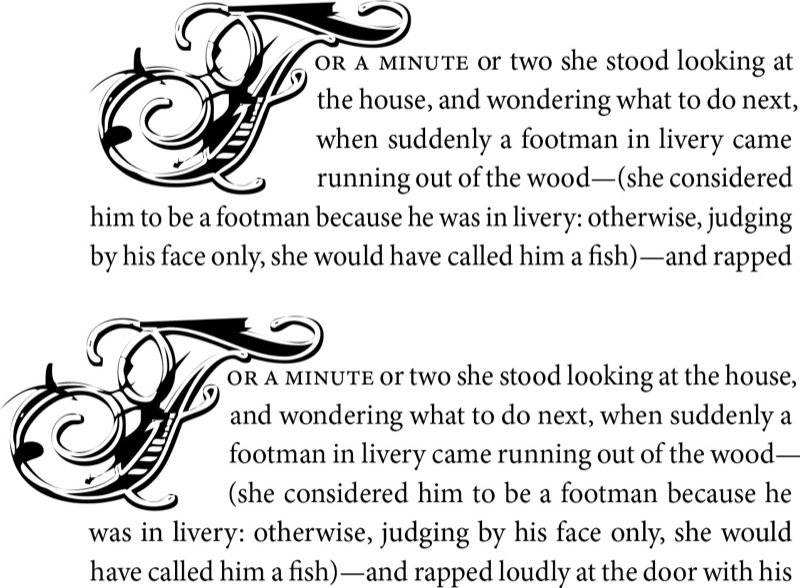
With a decorative letter, selecting Align Left may not be sufficient to optically align the drop cap. In addition, you’ll want to kern the drop cap to (or beyond) the left margin. To do this you’ll first need to add a space before the drop cap. Note that adding a space means you now have to drop two characters instead of one—if you see yourself likely to do this more than once, make a paragraph style with this specification. You can then insert your cursor between the space and drop cap and kern using Option/Alt-Left Arrow until the character looks like it’s properly aligned with the left margin edge (Figure 6). Instead of using a regular space, however, if you add a thin space (Cmd-Shift-Option-M or Ctrl-Shift-Alt-M) you won’t have to kern as much.
Contouring Drop Caps
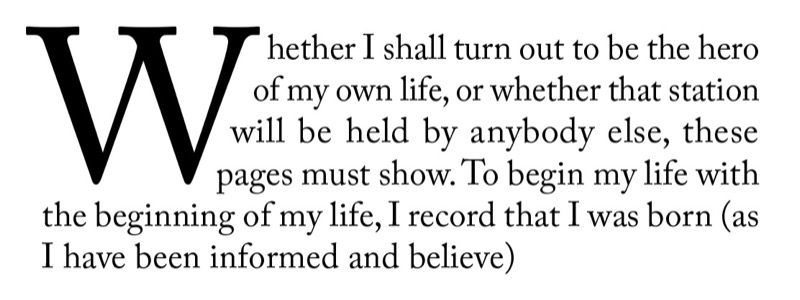
Placing your drop cap character in its own text frame allows you to contour the text to the shape of the drop cap. Apply a text wrap to the drop cap text frame, then use the Direct Selection tool to sculpt the text wrap outline to conform to the shape of the letter (Figure 7). For best results make sure that the space around the drop cap is optically the same on the right side as it is beneath the drop cap.
If you want the drop cap to flow with the text, you’ll have to anchor it. Unfortunately, text wrap on an anchored object doesn’t affect the line it’s anchored in (or previous lines). One workaround is to anchor the drop cap in the previous paragraph. For more information, see David Blatner’s CreativePro.com post, “Non-Rectangular Text Wrap Around Drop Caps.”
Adding Small Caps
To create a visual bridge between drop cap and body text, you may put the words following the drop cap in small caps. This creates a transition from the large decorative character into the upper- and lowercase text so that the drop cap doesn’t look like an isolated graphic (Figure 8). How many characters are in small caps is up to you—it could be just the first word, the first phrase, a specified number of words, or the first line. Whatever you choose, be consistent throughout the publication.
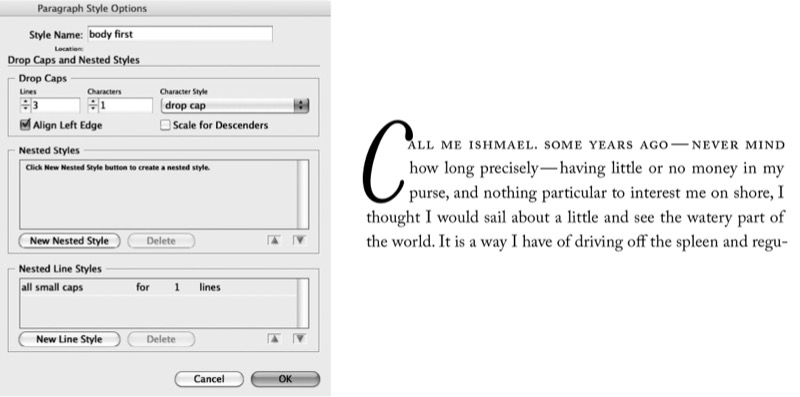
It’s possible to use a nested style to specify character-level formatting for one or more ranges of text within a paragraph. For a drop cap character with a different color and/or font than the rest of the paragraph, define a character style with similar attributes, then nest that character style within the paragraph style (Figure 9). Thereafter you can apply all the formatting with one click. To automatically apply small caps to one or more entire lines, create a new line style.
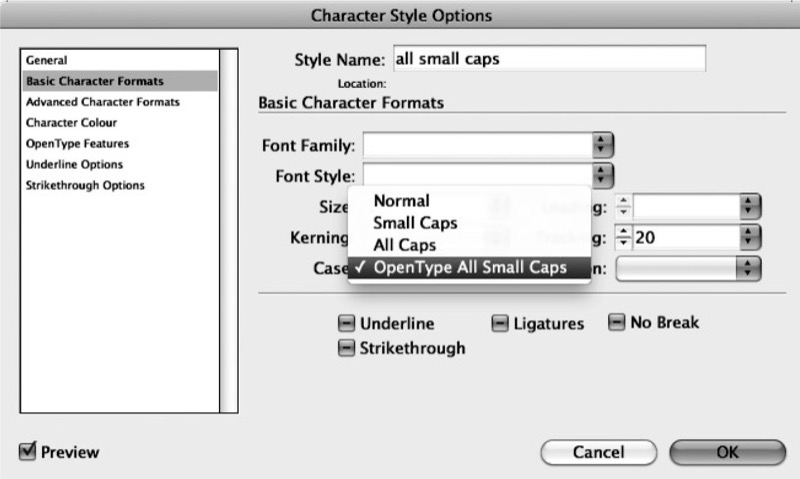
If you’re using an OpenType font with true small caps, I suggest defining your character style using the OpenType All Small Caps feature (Figure 10).
Difficult Drop Caps
Drop caps are just one way of kicking off a paragraph; they’re not always the best solution. Here are some instances when drop and/or initial caps are problematic:
- The first character of the paragraph is a number. If all chapter or section openers begin with a numeral this might not be a problem, but if you need to make an exception for an individual paragraph, consider rewriting to avoid the number.
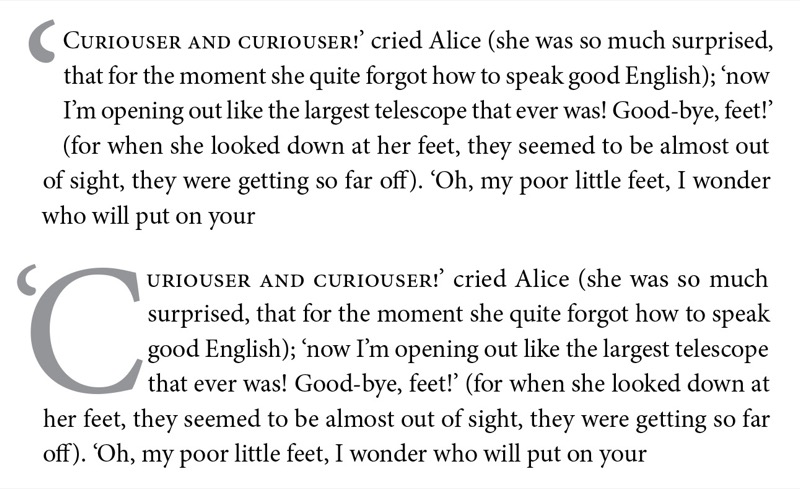
- An opening paragraph begins with a quotation mark. You’ll need to drop both the opening quotation mark and the initial cap. If the opening quote mark looks disproportionately large, reduce its size, adjust its vertical position by applying a Baseline Shift, and kern the space between it and the drop cap that follows it (Figure 11). Exact amounts will vary according to the characteristics of the font. You should also hang the opening quote mark outside the left margin using the kerning trick I mentioned earlier.
- Opening paragraphs can’t accommodate the drop cap’s depth. Trying to sink a cap three lines into a one-line paragraph can create some visual confusion, although InDesign does an excellent job of coping by allowing the next paragraph to move up (Figure 12). However, if you’re repeatedly using a three-line drop cap on paragraphs that are only one or two lines deep, consider using a raised cap instead.
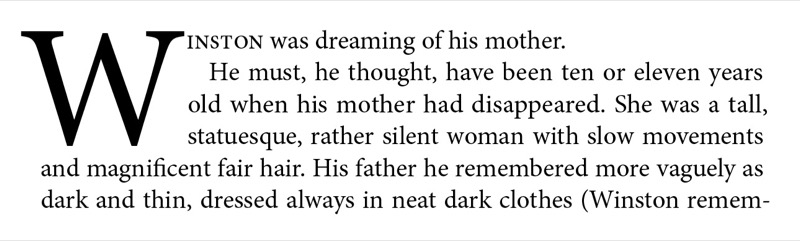
Drop caps are a time-honored way of introducing your reader to an article or chapter, but they’re not the only way. Alternative opening devices include a larger font, spanning columns, increasing the leading, and contrasting typeface, color, and weight, to name but a few. It’s up to you to decide which devices best serve your text and exactly how to use them. As with most design elements, a light touch is usually best, but when it comes to decorative caps for major feature articles, it may be worth checking your subtlety at the door and experimenting with some bombast. Pick up some well-designed magazines to see how contemporary designers are using drop caps, then go for it!
Commenting is easier and faster when you're logged in!

Recommended for you

Inside the Adobe Admin Console
Knowing how your IT department controls Creative Cloud apps and services can hel...
Essential Illustrator Shortcuts
Save time with Kat Kremser's cheat sheet of Illustrator shortcuts!

Interview with Karen Larson, Brand Strategist and Artist
Discover how Canva can fit into impactful, professional workflows.