




Preserving Editable Text
Even though Photoshop 6 introduced vector-based type layers among other vector-centric features, it’s helpful to point out that Illustrator text can be converted into fully editable type layers in Photoshop. You’ve probably overlooked this feature when it debuted in Illustrator 9, although, I wouldn’t blame you if you did. With its slight mention in the user’s manual and easily overlooked checkbox option in the Export dialog box, it’s amazing anyone knows about this powerful feature other than Adobe.
To successfully get your Illustrator type to come over as fully editable type layers within Photoshop, you must create your type as point type in Illustrator. Not to be confused with points, the unit of measure favored by typographers, “point type” is Adobe’s term for type you don’t set within a box, which is known as “area type” (see figure 5). Point type is created by simply clicking anywhere on the artboard with the Type tool (horizontal or vertical) and then typing. Be sure not to click and drag. Doing this creates area type that is contained within your dragged box. Illustrator cannot export area type or type on a path as editable text. Lastly, your point type most live on a top-level layer not within a nested layer.
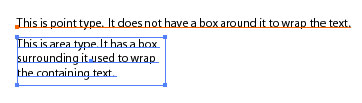 Figure 5: This image shows the difference between point type and area type in Illustrator.
If you’ve successfully followed the instructions above, the Photoshop export dialog should reward you with an enabled Editable Text option located below the Write Layers option. After exporting the file, open it up in Photoshop and check out the magic in action. You’ll be prompted whether to update the vector layers. Click Update and then marvel at your layered Photoshop file with editable type layers. (see figures 6 and 7)
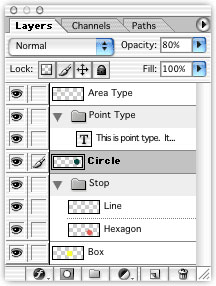 Figure 6: This palette shows how my layers ended up in Photoshop. Notice the Point Type layer is a type layer.
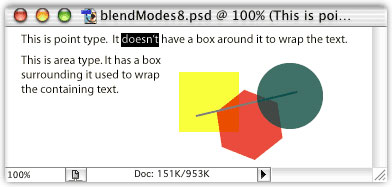 Figure 7: And now a look at the file how it opened up in Photoshop — blend modes, transparency, and point type intact.
Coming Up Next
Sharing your Illustrator artwork over to a Photoshop file has come a long way from its humble beginnings of copying clipping paths. I hope this article has informed you of the new capabilities available to you in the latest versions of these two applications. Maybe even one day this knowledge will save you some time when that particular project demands such cross-application work.
In this article, I’ve demonstrated the basic features of exporting to Photoshop. In part two, I’ll delve deeper into the remaining options, such as writing compound shapes and slices as well as moving Photoshop files into Illustrator. Until then, experiment with the features detailed here and see what’s possible when sharing between these two powerful applications.
This article was last modified on March 13, 2022
This article was first published on July 30, 2002
Commenting is easier and faster when you're logged in!

Recommended for you

The Digital Art Studio: Patching Text without the Fonts
How do you fix a typo when you don’t have the correct font? After my beloved stu...

CreativePro Tip of the Week: Making Dotted Lines in Illustrator
This CreativePro Tip of the Week on Making Dotted Lines in Illustrator was sent...
CreativePro Tip of the Week: Using the Oil Paint Filter in Photoshop
This CreativePro Tip of the Week on using the Oil Paint filter in Photoshop was...