



Q. There’s something wrong with one of my text frames. The first line is slightly indented when it should align with the rest of the paragraph.
I’ve checked and double-checked, but the first-line indent is set to 0. And I’ve looked all over and there is no text wrap object or anchored object or anything that might cause the indent. I’ve taken a screenshot of the frame to show the problem.
A. I got stung by this one a few weeks ago, so I feel your pain. It’s not the settings for the text, it’s the ones for the frame.
You’ve applied a rounded corner and an inset to the frame (Figure 1). That’s good. But you haven’t made the text frame inset large enough to avoid a problem.
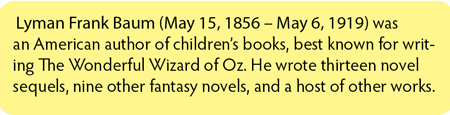
Figure 1: It’s very slight, but the first line of text is indented from the rest of the paragraph.
Select the problem frame, and zoom in on the indented first line. You’ll see that the first line is ever so slightly pushed over to the right. But then look even closer. Notice that the frame has a rounded-corner effect applied. It’s that corner effect that is the culprit.
There is a text inset applied to the frame that also has a rounded-corner applied to it. In fact, you can actually see a rounded corner applied to the text inset (Figure 2). No wonder the first line has an indent! The tiny rounded corner is forcing the first line of text to indent.
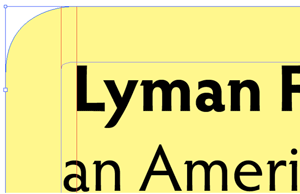
Figure 2: An extreme closeup on the first line of text shows the problem indent.
The reason this happened
is that the size of the rounded corner is larger than the size of the text inset. Even a difference of a single point can cause the text to be pushed in.
The best way to avoid the indent is to make the size of the text inset at least the same size as the rounded corner.
With the object selected, go to Object > Corner Options. Note the size of the corner effect (Figure 3). Click OK. Go to Object > Text Frame Options and click the General tab. Set the Inset Spacing to the same amount as the Corner option (Figure 4). As long as the size of the text inset is at least the same as the size of the rounded corner, your text will align correctly.
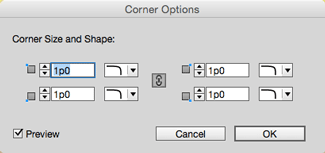
Figure 3: In order to fix the indent, check the size of the corner effect applied to the frame.
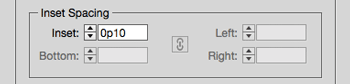
Figure 4: When the Inset Spacing is smaller than the corner effect, there is only one inset field available. Increase it to fix the text indent.
Commenting is easier and faster when you're logged in!

Recommended for you

Spinning the Color Wheel: How to Pick the Right Color for Your Logo
Logo designs are one of those little things that can have a big impact. Do it ri...

InDesigner: Andrews McMeel
Addison Lalier finds out what it takes for one company to produce hundreds of di...

GREP of the Month: Case Sensitivity
Sometimes case matters, and sometimes it does not—even in a single Find/Change o...