




Let’s take a moment to cover an important technique that every InDesign user needs to know: How to select more than one object at the same time on your page or spread.
In general, when you want to select more than one object, you need to use the Selection tool (the black arrow tool). That lets you select the object and its contents — that is, a frame and the picture inside the frame; or a frame and the text inside the frame. (If you use the white-arrow Direct Selection tool instead, you get something different; I’ll discuss that later.)
Here’s one important rule before I start talking about the techniques: InDesign only lets you select objects one spread at a a time. That is, all the objects in a selection must be on the current page, or current spread, or pasteboard around the current spread of pages. But you cannot select an object on page 2 and another on page 9 at the same time.
- Shift: You can click on one object, then hold down the Shift key on your keyboard and click another object. Now both objects are selected. Keep Shift-clicking to select more objects.
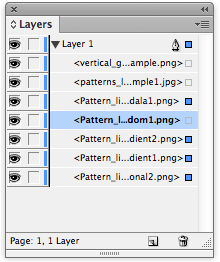
- Shift in Layers: If it’s difficult to click on the objects on the page for some reason, you can select them in the Layers panel. Click the open-triangle to the left of the layer name, then click-and-shift-click on the little square to the right of each object you’re trying to select (assuming you can figure out which object is which!). Alternatively, if you want to select a lot of them in a row, you can click on the first object’s name (this time it’s the name inside the Layers panel, not the selection square), then Shift-click on the last one, and then choose Select Items from the Layers panel menu.
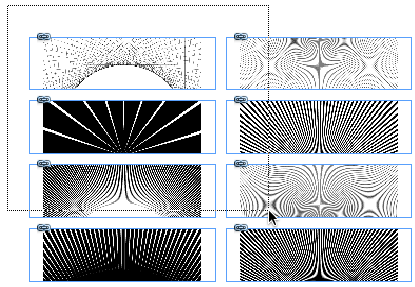
- Drag: You can drag the Selection tool over more than one object to select them all. Actually, to be clear, you need to start dragging (where you press down on the mouse button) off to the side of the first object, where there are no objects. If you start on top of an object, you’ll just click (and probably move) that one object. So you start off on the side (perhaps even on the pasteboard, off the page itself!), then drag over the objects. Any object that is inside the area you drag out (called “the selection marquee”) will become selected — even if just a little part of the object is inside or touches the marquee. In the image below, I started dragging above and to the left, and then dragged downward; if I let go here, the top six frames will be selected.
- Layers: Another way to select objects with the Layers panel is to hold down the Option/Alt key and click on the name of a layer in the Layers panel. That selects all the objects on that layer.
- Select All: If you want to select all the objects on a spread, you can choose Edit > Select All. (Or use the keyboard shortcut Command/Ctrl-A, while the Selection tool is active. And, as an aside, Shift-Command/Ctrl-A will deselect everything on the spread.)
The white-arrow Direct Selection tool lets you select stuff, too, but it’s subtly different. When you use the Direct Selection tool, you’re selecting just the frame, or just the image inside the frame, or just a point on a path, which can be helpful in some circumstances, but is more rare.
Bonus trick: You can select all the points on a path or frame by holding down the Option/Alt key when clicking with the Direct Selection tool. Or, this is even easier: Click on the object with the Selection tool, and then switch to the Direct Selection tool. When you switch to the Direct Selection tool, InDesign knows you want to do something to the frame but not its contents! For example, this lets you move the frame independently of the image inside the frame.
Here are some more important articles about selecting stuff on your pages:
- *Click* *Click*… for Victory!
- Taking Another Look at the Content Grabber
- Select (or delete) All Guides
- Reverse the Effects of Paste Into with Select Content
This article was last modified on December 30, 2021
This article was first published on August 13, 2013
Commenting is easier and faster when you're logged in!

Recommended for you

Book Excerpt: How Do I Do That In InDesign?
Highlights from Dave Clayton's book of more than 250 fundamental tips and tricks...

Vectorizing Logos in Illustrator
Explore the image preparation tips, advanced settings, and bonus clean-up tips t...

Coming Soon: CreativePro Magazine Issue 1
Read all about the exciting launch of our new magazine!