


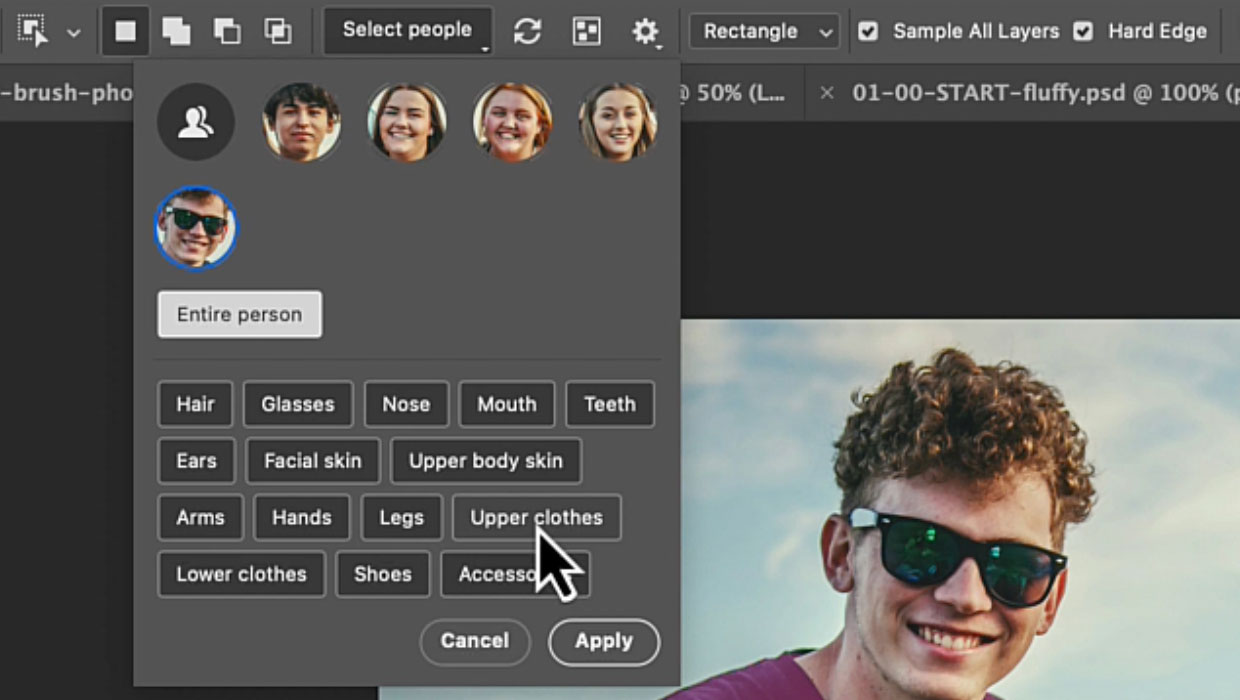
The Object Selection tool now includes a powerful Select People feature that is perfect for selecting people and all their details, such as clothing and body parts. Give it a try:
- Use the Object Selection tool on a photo with people.
- Click Select People in the Options bar.
- Choose Details to edit specific body parts or clothing items (Figure 1).

You can now do everything you would normally do with a selection. For instance, you can change the clothing with Generative Fill:
- Click a person in the Select People list, then select Upper Clothes.
- Click Apply, then extend the selection a bit in the Expand Selection dialog box (Select > Modify > Expand). You can start with 20px, but use a higher number when your image is larger.
- Use Generative Fill with a prompt like Green T-shirt to change colors instantly (Figure 2).

This workflow opens up endless possibilities for targeted adjustments without complex masking.
This article was last modified on November 3, 2025
This article was first published on October 1, 2025
Commenting is easier and faster when you're logged in!

Recommended for you
How to Add Texture to Illustrator Artwork
Add character, style and a unique look to your illustrator creations

CreativePro Video: Recolor Artwork with Pantone Swatches
In this week’s CreativePro video, Theresa Jackson shows you how to easily find a...
Photoshop Downloadable: Generative Fill Action Set
What’s cooler than creating Photoshop effects with AI? Creating them with one cl...