



I often need to format material that someone has sent in a text file, or from text copied from a web page. One of the most annoying things is dealing with a long list of numbered paragraphs, because I need to strip off the manual numbers and replace them with automatic paragraph numbers.
For example, I just grabbed this text from Thad McIlroy’s wonderful Future of Publishing site, pasted it into an InDesign text frame and applied automatic numbering to it. The result (with Type > Show Hidden Characters turned on) is this:
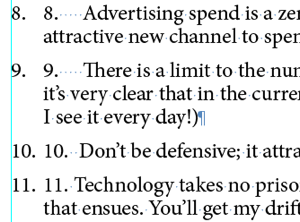
To clean it up, I need to remove that second set of numbers — the “hard coded” ones that are actually typed in the text — and the extra spaces that follow. Fortunately, it’s very easy with a quick GREP find/change:
You can open Find/Change, select the GREP tab, and type this into the Find what field: ^\d+?\.+
Then, leave the Change to field blank (so that it actually deletes whatever it finds).
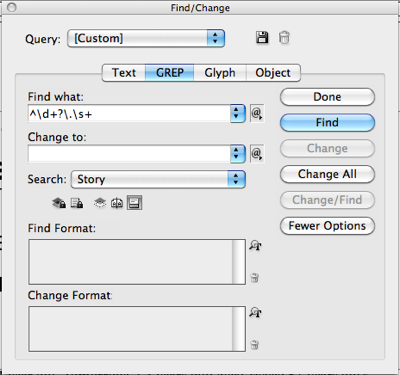
If you want to assign a paragraph style to each paragraph it finds, then use the Change Format field at the bottom of the dialog box. (You may need to click More Options to see that.) However, if you assign formatting here, then InDesign will not delete the text it finds! It’s kind of tricky… if there is formatting specified and the Change To field is blank, then it applies that styling and leaves the text. If both Change To and Change Format are blank then it deletes the text. So to assign a paragraph style: first run the find/change to apply the style, and then run it again with the Change Format blank, so that it removes the hard-coded numbers and spaces.
This article was last modified on December 21, 2021
This article was first published on May 10, 2012
Commenting is easier and faster when you're logged in!

Recommended for you

Tip of the Week: Finding Without the Find/Change Dialog Box
Sign up for the InDesign tip of the week to get a new tip, roundups of new artic...

Auto Numbers and Bullets Pick up Local Formatting
Be careful when you apply local text formatting to the first word or two of a pa...
An Unexpected Use for the Hyperlinks Panel
The other day I was working on some chapters for a book I was typesetting, when...