



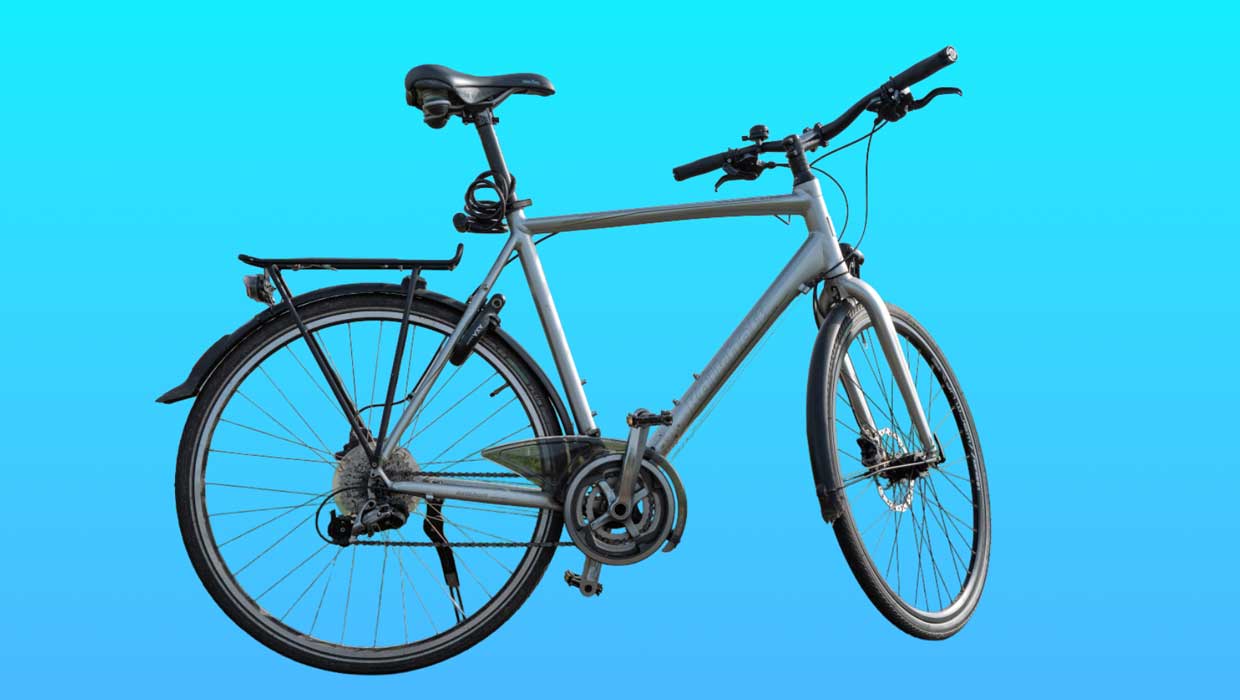
The foundation of great image editing is accurate selections, and the AI selection tools in Photoshop have become really good.
To get started, unlock the full power of AI selections by enabling the new cloud processing:
- Choose Photoshop > Settings > Image Processing (macOS) or Edit > Preferences > Image Processing (Windows).
- Choose Select Subject and Remove Background > Cloud (Detailed Results) (Figure 1).
- Click OK.
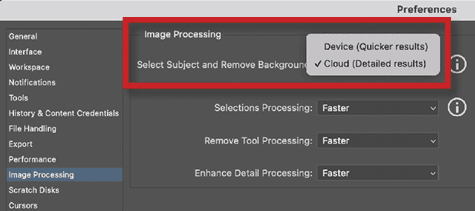
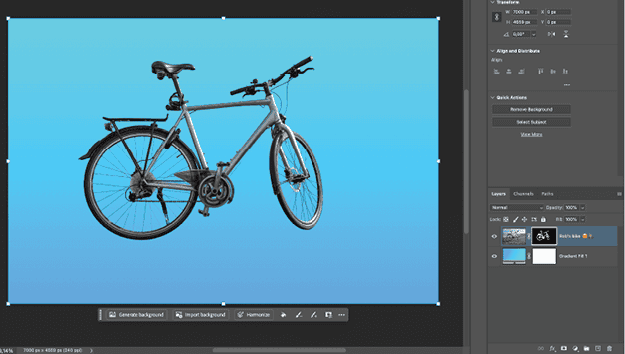
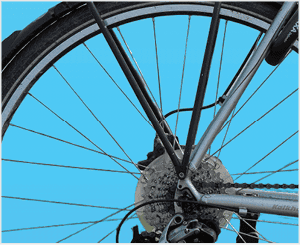
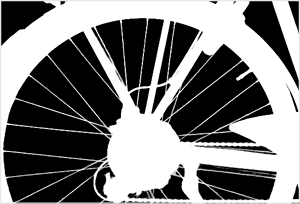
Now when you use Select Subject or Remove Background in the Contextual Task Bar, you’ll get dramatically better results, especially for complex details like bike spokes and hair.
Remove Background: One-click magic
With cloud processing enabled, Remove Background becomes a one-click solution for most isolation needs. Simply select your layer, and click Remove Background in the Contextual Task Bar. The results are often so good that you won’t need any manual cleanup.
I recently tested Remove Background with a complex photo of my bicycle. Photoshop selected the spokes perfectly (Figures 2–4). Zoom in to check the details around tricky areas—you’ll be impressed.
This article was last modified on September 30, 2025
This article was first published on October 1, 2025
Commenting is easier and faster when you're logged in!

Recommended for you
Customizing Keynote’s Toolbar
Spending a few minutes to customize the Keynote interface to your liking can sav...

Quark Announces Availability of Free QuarkXPress 7.3 Updater
Quark Inc. today announced availability of the QuarkXPress 7.3 updater, a mainte...

ITIP Releases Readabilities 1.5 Plug-in for InDesign
Many companies and governments now standardize on specific readability levels...