



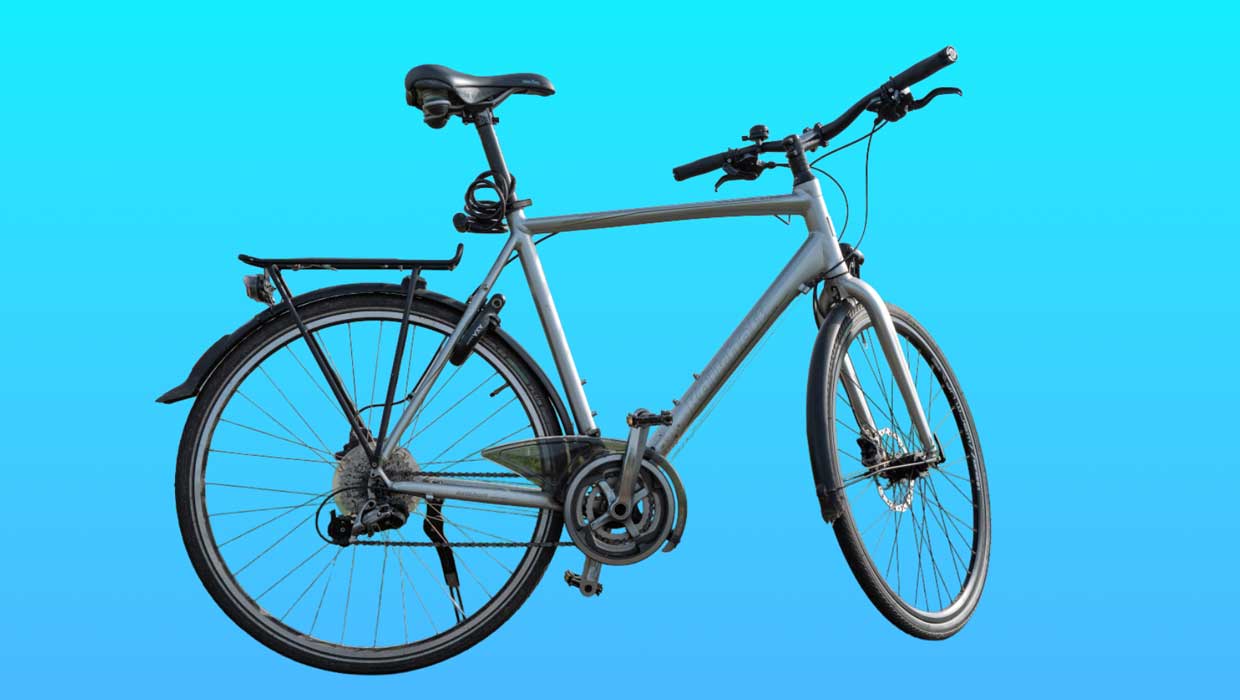
The foundation of great image editing is accurate selections, and the AI selection tools in Photoshop have become really good.
To get started, unlock the full power of AI selections by enabling the new cloud processing:
- Choose Photoshop > Settings > Image Processing (macOS) or Edit > Preferences > Image Processing (Windows).
- Choose Select Subject and Remove Background > Cloud (Detailed Results) (Figure 1).
- Click OK.
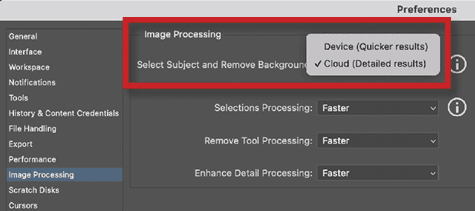
Now when you use Select Subject or Remove Background in the Contextual Task Bar, you’ll get dramatically better results, especially for complex details like bike spokes and hair.
Remove Background: One-click magic
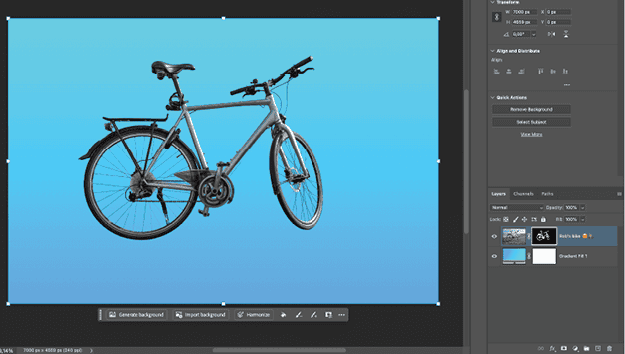
With cloud processing enabled, Remove Background becomes a one-click solution for most isolation needs. Simply select your layer, and click Remove Background in the Contextual Task Bar. The results are often so good that you won’t need any manual cleanup.
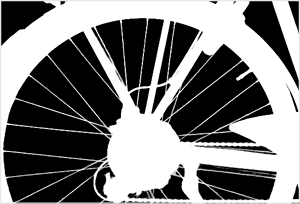
I recently tested Remove Background with a complex photo of my bicycle. Photoshop selected the spokes perfectly (Figures 2–4). Zoom in to check the details around tricky areas—you’ll be impressed.

This article was last modified on September 30, 2025
This article was first published on October 1, 2025
Commenting is easier and faster when you're logged in!

Recommended for you

New Contest! The Mystery of the Missing Menu Items
Solve this InDesign mystery for a chance at winning a great prize.
InDesign Magazine Turns 15
Addison Lalier takes a look back at 15 years of InDesign Magazine, with the peop...

Book Excerpt: JavaScript for InDesign
Don’t wait for Adobe to create the features you want in InDesign—make them yours...