



Do you often have to relink images in your InDesign documents, only to have InDesign point you to a folder from an entirely different project or client? Then you have to go navigating through your hard drive, looking for the correct links folder? Well, be frustrated no more!
Fix it this by going to: Preferences > File Handling > Links. There you can choose from either the Most Recent Relink Folder, or the Original Link Location. I like to change this setting depending upon which project I am working on and what would be the most efficient for that project.
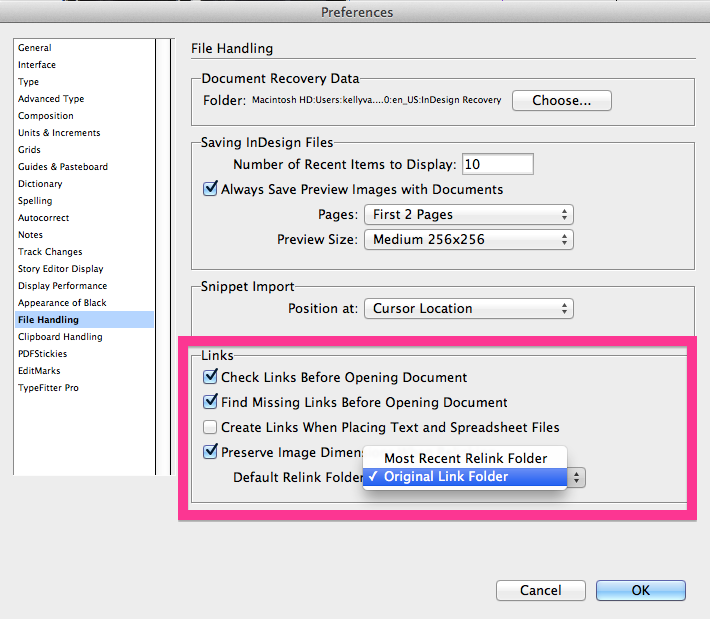
Unlike many Preferences, this setting is an application preference, as opposed to a document preference. For more information about Application- vs. Document Preferences, A Visual Guide to InDesign Preferences.
This article was last modified on December 30, 2021
This article was first published on April 25, 2014
Commenting is easier and faster when you're logged in!

Recommended for you

A Visual Guide to InDesign Preferences
Use this guide to understand which InDesign preferences only affect the current...
Review: Astute Manager Pro
This new service makes it easy to back up, restore, and sync your Illustrator se...

Choosing a Different Transparency Alpha Channel for an Image
InDesign can use any extra channel of an image as a transparency mask, if you kn...