




In InDesign, you can unify a design composed of separate placed images by recoloring them with colors extracted from a central image. Here’s how.
Right-click your main graphic with the colors you want to apply and choose Extract from Image > Color Themes. This pulls dominant colors from placed images and saves them as swatches.

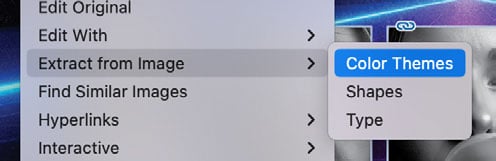
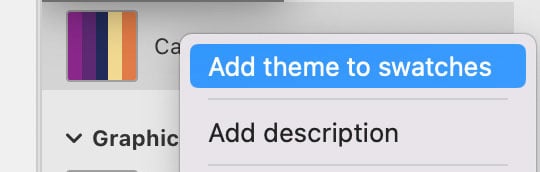
Click Save to CC Libraries, then right-click the saved theme from the CC Libraries panel and choose Add to Swatches to add the to the document and use the colors in your design.
Note: In order to recolor them in InDesign, the images must first be saved in Photoshop in grayscale mode as either JPEGs (flattened), PSDs, or (potentially layered) TIFFs.

To apply the new swatches to the images simply drag and drop the swatches from the Swatches panel directly onto the individual images.

Optionally, add a consistent stroke to all the images to unify the visual style.

This article was last modified on October 23, 2025
This article was first published on October 14, 2025
Commenting is easier and faster when you're logged in!

Recommended for you
How to Create Swatch Groups from Color Blends in Illustrator
Learn how to create swatch groups from color blends in Illustrator and save them...

Q&A with Steve Laskevitch: Rocket Scientist, InDesign Guru, Pizza Snob
Q&A with Steve Laskevitch, who is presenting at The InDesign Conference 2025

Illustrator Downloadable: Art Deco Borders and Brushes
Custom patterns and brushes to add a sleek and swanky style to your designs