





Peachpit Press is offering this book at a discount to creativepro.com readers. Follow this link.
Tip: Opaque Versus Transparent Backgrounds
In the good old days, QuarkXPress always made text and picture boxes opaque when you selected them with the Content tool. For some, this was always annoying because you couldn’t change the content in a box and see what was behind the box at the same time. Other people thought this was a great system because it let you edit the contents of a box free of any distractions caused by other page elements.
In version 4 the first group won, and when you selected the Content tool, boxes that have a background of None (that is, they’re transparent) remained transparent. Fortunately, now you have the option of either behavior: The default works like XPress 4, but if you turn on the Opaque Text Box Editing checkbox in the Display tab of the Preferences dialog box (Command-Y), XPress behaves like it did in earlier versions.
Contentless Boxes
It took 10 years for the engineers at Quark to figure out that we sometimes put boxes on our pages not to contain text or a graphic, but just for the sake of a background color (sometimes known as a tint build). In the past, you had to use a picture box or a text box to do this, with annoying side effects. Empty picture boxes display a big “X” in them; and text boxes, when covered by other boxes, display an overset mark, even if there’s no text in them to overset.
Fortunately, QuarkXPress offers contentless boxes, which you can use just for this purpose. To get a contentless box, select a picture or a text box and choose None from the Content submenu (under the Item menu — see figure 1).
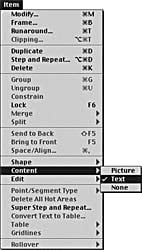
Figure 1: Changing box type.
Two other things to note about contentless boxes, too. First, they take up slightly less space on disk (though this only really makes a difference if you have hundreds of them in your document). Second, contentless boxes draw on-screen faster because XPress doesn’t have to think about each one, whether it has content or not, and so on.
Read more Real World Tips for QuarkXPress 5 here.
Peachpit Press is offering this book at a discount to creativepro.com readers. Follow this link.
This article was last modified on February 22, 2022
This article was first published on June 5, 2002
Commenting is easier and faster when you're logged in!

Recommended for you

How to Be a Better Designer: Step Away from the Computer!
Look away from the screen to find yourself as a designer

How to Make a Banksy Shredding Artwork in InDesign
Learn how to recreate Banksy's infamous shredding art prank using any image with...

This Week in InDesign Articles, Number 128
Hey, did you see our new 3-minute PePcon video yet? If you’ve ever wondered what...