




Use the Actions Panel
You can use the Actions panel to skew type (and shapes) to fit an isometric illustration.

Select an object to perform the action on, click New Action. Click the record button and perform the steps to the action, then click the stop button. To apply, select a type object, select an Action, and click Play.
Left Facing Iso Action: Transform panel, -30º shear, 330º rotation
Right Facing Iso Action: Transform panel, 30º shear, 30º rotation
Here are a few other quick tips I used in creating this illustration:
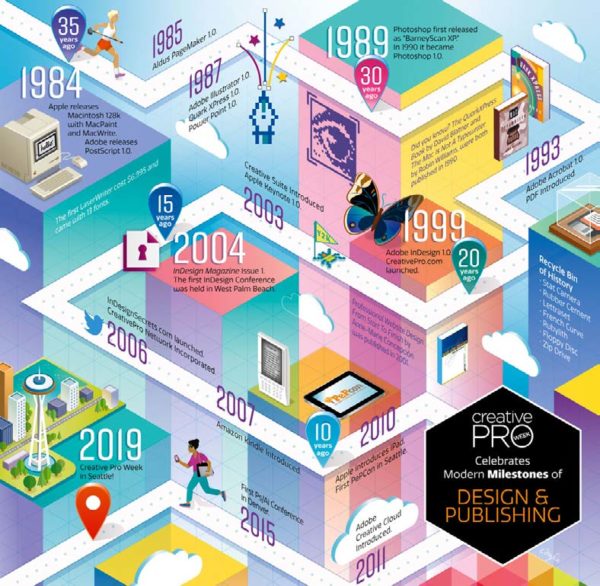
Use the Line Segment tool
Use the Line Segment tool to create gridlines or other precise lines you need. This makes the lines “live” so their length and angle can be adjusted in the Transform Panel after you’ve drawn them.
Expand 3D Effects
Use expanded 3D Effects objects to create custom Isometric shapes.
I love that you can draw a shape, apply an Effect > 3D > Extrude & Bevel…, then choose an Isometric face for Position, adjust the extrusion depth and make a perfect Isometric cloud in no time flat.

To customize the shape, with gradients and more, it’s best to expand it and work with the resulting paths.
This article was last modified on May 30, 2026
This article was first published on June 22, 2019
Commenting is easier and faster when you're logged in!

Recommended for you

How to Create a Bleed in Illustrator
Printing your Illustrator document? You need a bleed! Khara Plicinic shows how t...
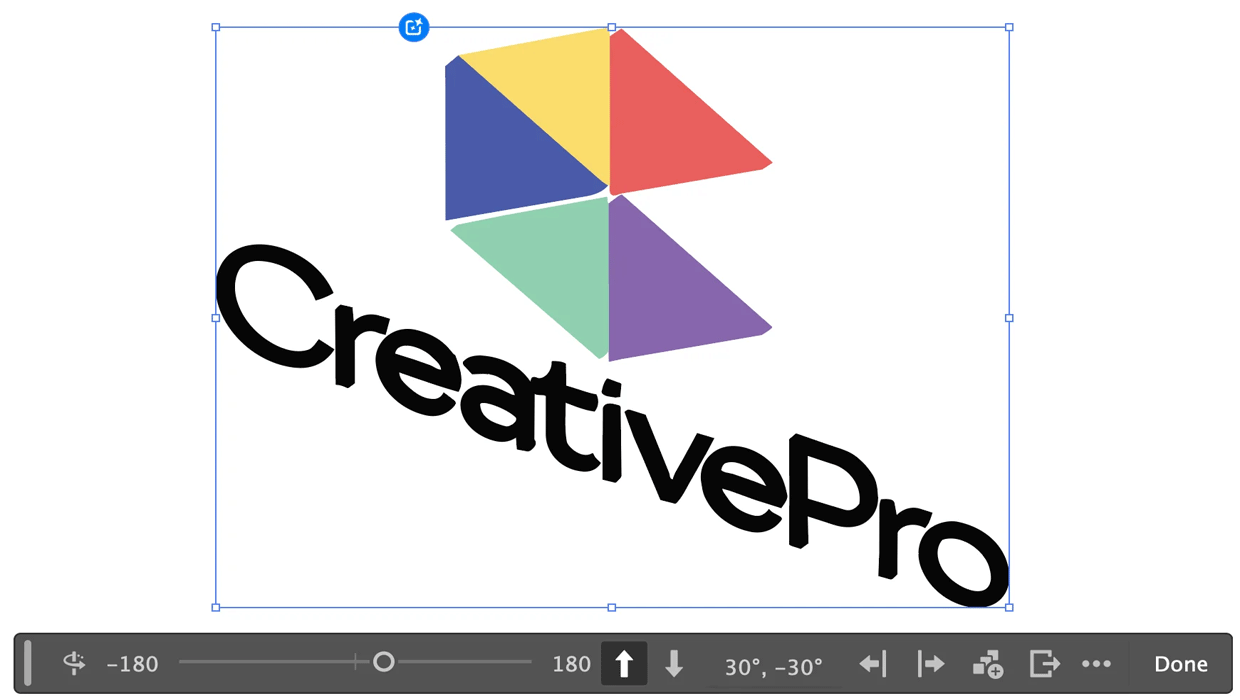
Rotating Objects in Illustrator Using Turntable
Generate vector objects from a variety of angles with the help of AI
Masking Artwork in Illustrator
Create clipping and opacity masks to fill your artwork with anything