




Most design projects consist of more than one piece of material — letterhead, envelope, business card — or hav e the same information in more than one place — on the cover, in an ad, in a headline. But when text is modified, it’s a nuisance to hunt down all the individual instances to make sure changes are reflected. And one slip-up not only confuses the consumer but also signals your lack of professionalism.
Quark’s solution is the Synchronize Text feature in QuarkXPress 6. This handy palette lets you link instances of text so that when one changes, all change.

Synchronize Text works in conjunction with the Layout Spaces feature of QuarkXPress 6. That means text will update in multiple layouts of any size and orientation as long as they re part of the same Layout Space.
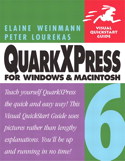
See how you can put Synchronize text to use in this excerpt from the ever-popular “QuarkXPress 6 for Macintosh and Windows: Visual QuickStart Guide.”
We’ve posted this excerpt as a PDF file. All you do is click this link “Synchronizing Text” to open the PDF file in your Web browser. You can also download the PDF to your machine for later viewing.
To learn how to configure your browser for viewing PDF files, see the Adobe Reader tech support page.
Excerpted from “QuarkXPress 6 for Macintosh and Windows: Visual QuickStart Guide” © 2004 Elaine Weinmann and Peter Lourekas. Reproduced by permission of Pearson Education, Inc. Publishing as Peachpit Press. ALL RIGHTS RESERVED.
This article was last modified on December 17, 2025
This article was first published on February 25, 2004
Commenting is easier and faster when you're logged in!

Recommended for you

The Merits of Uneven Leading
I’ve railed against the use of automatic leading before, but in this article I w...

New NAPL Web Press Blue Book Offers Latest Rate Data in Print, PDF, and Interactive Software Editions
In today’s hyper-competitive business environment, graphic communications...

Stylish New Fonts and Goodies from House Industries
Every design discipline resides at the crossroads of art, influence, relevance,...