



PDF Export
Quark fought this one for too long, but has finally given in and accepted that PDF is an essential output choice, though the near absence of PDF references in 6.0 documentation is certainly curious. The PDF export capabilities of XPress are rather basic (no PDF/X support, no security features, only 1.3 support), and are based on Global Graphics’ Jaws engine (see Figure 9). Jaws, which Quark is licensing, is a respected technology, and unless something happened in the baking process, XPress should generate good clean PDF files. I exported several PDF files and ran them through Enfocus PitStop Professional to check for errors and nothing alarming came up.
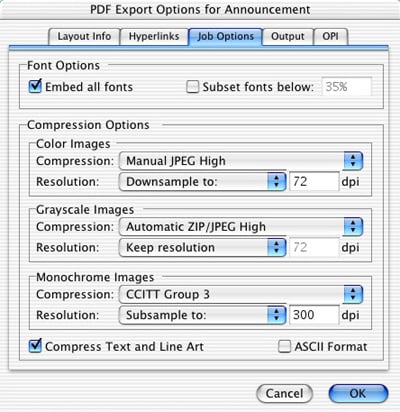
Figure 9: PDF exporting is through a simple dialog box that gives basic choices. But no pre-selected standard settings, security features, advanced options like PDF/X, or any way to save re-occurring settings.
You can choose to down sample your PDF files to various resolutions, just as in InDesign or Acrobat Distiller, but there are no pre-selected configurations and you can’t save PDF styles — this is a real drag for multiple-use projects. And unlike InDesign, for XPress to make PDFs, you have to have a PostScript print driver installed. If you don’t have an appropriate printer connected to your network, you’ll have to create a virtual printer and select it (a bit of a hassle). For this reason XPress PDFs take longer to make than in InDesign — XPress writes PostScript to the disk and then distills it. With InDesign PDF files are written directly to disk.
Whether from XPress or InDesign, I recommend that you or your service provider use a third-party application or service (like Markzware FlightCheck or Enfocus PitsStop) to assure that your PDF files are ready for print. But checking and modifying an XPress PDF file will be much, much easier than distilling it from the application format as we had to do before. And certainly creating PDF files for intermediate proofing, printing on non-PostScript printers, and markup and approval is now considerably easier. Remember, though, that you’ll have to change the settings manually every time you want a different flavor PDF file. And you cannot write PDF to disk for an entire book (in the book palette) or all of the layouts in a project.
Printing Options
XPress 6.0 adds an “As Is” and a “DeviceN” option to the color output menu. When you choose As Is, each object’s source color space is maintained and will be converted or managed by the RIP being used for output. These new features may seem a bit late, but they finally address the workarounds being used by those who manage color at the output device and those who need to produce both composite and separated color files.
By checking DeviceN, XPress lets you output blends, multi-inks, colorized TIFFs and other items as composite color, but also retains their color separation definitions (see Figure 10). InDesign gives more print bells and whistles overall (like the ink manager), and provides a print summary with many more parameters than XPress. And XPress won’t print or create transparencies, fast becoming a hallmark of InDesign.
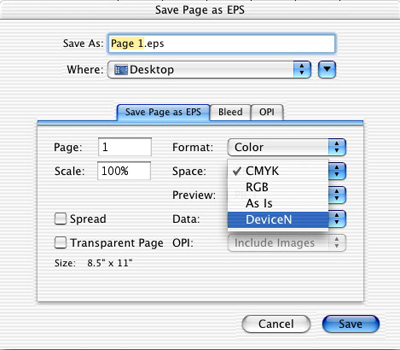
Figure 10: Quark has added color options when printing, saving PDFs, or writing to EPS. The As Is and DeviceN options improve the ability to work in both separated and composite colors. However, you can still not embed fonts in EPS files.
Pages are still limited to as small as one inch by one inch or as large as 4 feet by 4 feet. (InDesign allows pages up to 18 feet by 18 feet.) And XPress still limits zooming to 800%, while InDesign tops out at 4,000%. Somewhere in between is probably the sensible place — I’ve run into the 800% limit numerous times.
Web Layout
Almost everyone has panned the idea that XPress will be used as a true multi-media publishing tool. The Web capabilities of XPress are not as full-featured as those in Adobe GoLive or Macromedia Dreamweaver. But I’ve been a supporter of Quark’s efforts in this area, even though admittedly they may be too late, and they haven’t done a complete job. Had Quark put its resources into the Web earlier (instead of into Quark Immedia or its ill-fated image editing tool, XPosure), I believe XPress could have easily been a favorite Web authoring tool. By now, though, most Web designers and producers have already chosen and learned an alternate, more capable program.
But XPress is now a basic Web publishing tool, and for those who are having trouble getting into the more complex Web-authoring programs, you may be surprised what you can do with XPress. Publishing to the Web in XPress is like doing page layouts in Illustrator, or setting type in Photoshop — sometimes it’s just easier to work in one application, even if you do give up some advanced (and you could argue basic) features.
The core Web tools in XPress came first in version 5.0. In 6.0 quite a few enhancements have been added, including the ability to create cascading menus, make two-position rollovers, preview and export HTML, and create better forms (see Figure 11). But you can’t import the HTML you create in XPress back into XPress. The interface is unfamiliar enough that you’ll need to consult the manual, but once you figure out what each tool does, it feels pretty XPress-like.
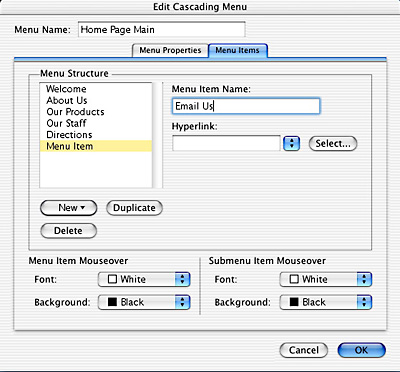
Figure 11: The Web layout tools have improved in 6.0, but are still behind those in more popular Web authoring programs. Here, the new Edit Cascading Menu dialog box. Xpress 6.0 also has rollovers now, but you can’t print HTML layouts from within XPress.
Though it may not be adequate for most Web designers, I look at it this way: you buy XPress to create print documents and now you get a rudimentary Web design tool thrown in. By linking text and keeping Web and print documents together in Projects, it could be XPress is a reasonable alternative for Websites that are primarily “brochure ware.” You can change a print document layout into a Web document layout and vice versa, though that’s just a dump of content — not an automatic conversion process of any sort.
Missing from XPress 6.0 is the ability to preview many Web actions directly in XPress — you have to export to HTML to see things like rollovers and cascading menus. And you cannot preview pages in multiple browser versions to see how they will perform. There is no anti-aliasing, and you can’t globally set the import resolution for graphics. And as mentioned earlier, you can’t print Web layouts from XPress — you have to export them to HTML and print from the browser.
This article was last modified on January 18, 2023
This article was first published on July 8, 2003
Commenting is easier and faster when you're logged in!

Recommended for you

Using GREP to Make a Character Lowercase
On another post, Eugene wrote: “All the section numbers within text had to...

InDesign Magazine Issue 71: Fine Art
We’re happy to announce that InDesign Magazine Issue 71 (March, 2015) is now ava...
Create Vector Graphics for Presentations with Vectorizer.ai
Turn raster graphics into vector files that scale beautifully in your presentati...