




Are you working in an InDesign document that contains multiple page sizes? Perhaps you are creating letterhead and business card design samples and your client just wants to see print outs or PDFs of the business cards. What if you have created numerous design options and the business cards aren’t all on even or odd pages? This could make selecting those pages to print rather cumbersome.

The good news is that there is an option in the Print dialog box that is only activated if your document has multiple page sizes. This print option will select all the pages of the same size in the document and automatically generate a range of pages to print.
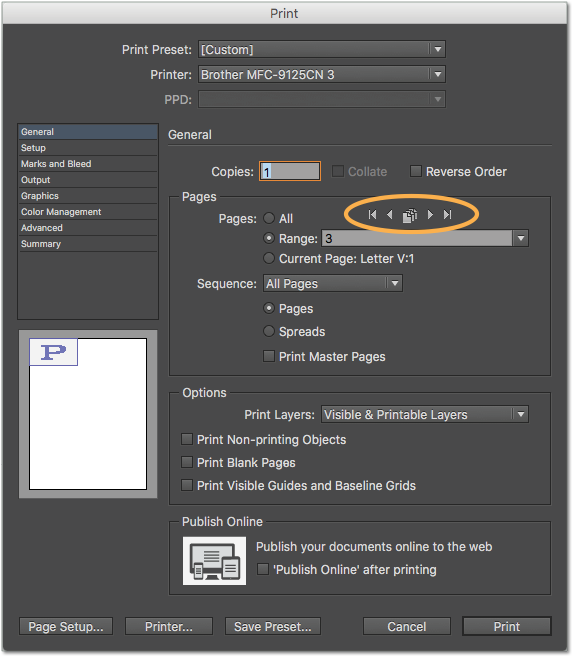
To Print all the Pages of the Same Size
- Choose File > Print.
- Choose to print Spreads or Pages in the General Options section.
Note: This will get a little tricky if the spread contains different size pages, as the larger of the two will be selected. - Use the arrows above the Range field to navigate to one of the pages or spreads that is the size of the pages you need to print or type a page number in the range field.
- Click the pages icon.

- The Range field will display all the pages or spreads of the same size. Note: This list of pages can then be edited.

- Click Print.
This article was last modified on July 20, 2021
This article was first published on May 12, 2016
Commenting is easier and faster when you're logged in!

Recommended for you

Index Fixes: Multiple Indexes in an InDesign Document
InDesign documents can contain only one index. But when you need more than one i...
Create Parallax Transitions in PowerPoint
Create dramatic 3D scenes with Stephy Hogan using Morph.