



Nancy wrote:
My student has an InDesign file in which bleeds seem to be set properly, however when he views in Preview, the bleed does not clip away visually as usual. I set up a sample doc on the same work station and the problem persists.
Yes, this can really be confusing (“why is InDesign acting like this?!”) but fortunately it’s quite easy to fix. When you press “W” to jump into Preview mode, InDesign uses the Screen Mode you selected from the View menu or the bottom of the Tools panel. In this case, the student probably chose Bleed from the Tools panel, like this:
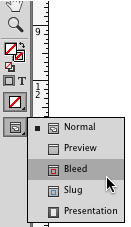
This will show the page out to the Bleed guides (if there are any bleed guides in the document). But now, every time you press W, it will show you the Bleed Preview instead of the normal Preview (which cuts off at the edge of the page).
Just choose Preview from that pop-up menu, or View > Screen Mode > Preview, and the feature will “reset” back to the way you’re used to.
(If for some reason that doesn’t work, then it might be a deeper problem and you may have to rebuild the InDesign preferences.)
This article was last modified on December 30, 2021
This article was first published on April 22, 2014
Commenting is easier and faster when you're logged in!

Recommended for you

Create a Keyboard Shortcut for Preview Mode
It's not hard to define your own keyboard shortcut that works even when your'e e...

InDesign Basics: Working With Bleeds in InDesign
Bleed is printing that extends beyond the edge of where the paper will be trimme...
How to Extend a Background Image in InDesign
Learn how to quickly extend a background image in InDesign to fill a page or mak...